
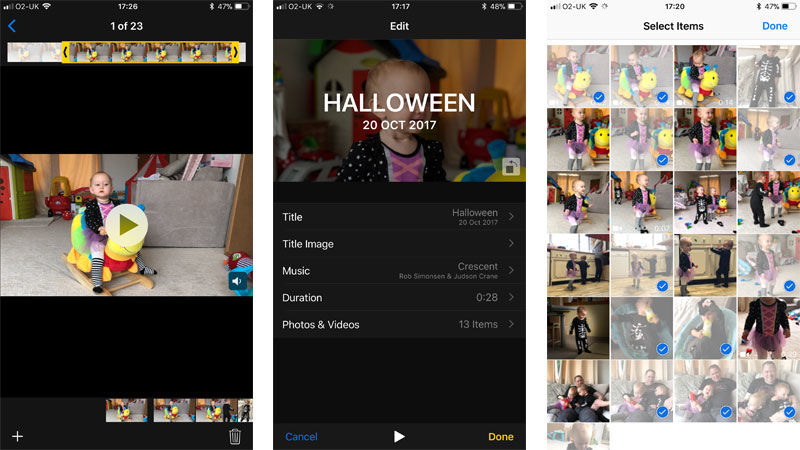
How to Create a Beautiful Video With Photos on Iphone: A Step-by-step Guide
Are you looking for ways to create stunning videos with photos on your iPhone? Look no further! In this article, we will guide you through the process of creating a beautiful video with photos on your iPhone, using various apps and features.
The Ideal Solution
While there are several apps available that can help you create videos with photos on your iPhone, not all of them are easy to use or provide the best results. The ideal solution is to find an app that is free, user-friendly, and provides high-quality output.
Photo App – A Great Starting Point
One of the most obvious places to start is with the Photo app that comes pre-installed on your iPhone. This app allows you to edit and enhance your photos, as well as create stunning montages using your favorite images.
To get started, open the Photo app and select the images you want to use for your video. You can do this by tapping on the “Select” button in the top-right corner of the screen, or by long-pressing on an image to select it. Once you have selected all the images you want to use, tap on the “Create” button at the bottom of the screen.
Imovie – A Powerful Video Editing App
If you want more control over your video and are willing to invest some time in learning a new app, iMovie is an excellent choice. This powerful video editing app allows you to create professional-looking videos with ease.
To get started with iMovie, open the app and select the “Create” button at the top of the screen. From there, you can choose the type of project you want to work on (in this case, a movie or a trailer). Next, tap on the “Import Media” button to add your photos and videos to the project.
Clips – A Simple And Intuitive App
If you’re looking for an app that’s easy to use and provides great results, Clips is a great choice. This app allows you to create short videos using your favorite images and videos, and even adds some fun effects and filters along the way.
To get started with Clips, open the app and tap on the “Create” button at the top of the screen. From there, select the images and videos you want to use for your video, and add them to the project by tapping on the “Add” button. You can then customize your video by adding text, music, and effects.
Magisto – A Powerful Video Editing App
If you’re looking for an app that provides advanced features and high-quality output, Magisto is a great choice. This powerful video editing app allows you to create stunning videos using your favorite images and videos, and even adds some fun effects and filters along the way.
To get started with Magisto, open the app and tap on the “Start” button at the top of the screen. From there, select the images and videos you want to use for your video, and add them to the project by tapping on the “Add” button. You can then customize your video by adding text, music, and effects.
Other Apps to Consider
There are several other apps available that can help you create videos with photos on your iPhone, including InShot, WeVideo, and PicPlayPost. These apps provide a range of features and options, and may be worth exploring if the above-mentioned apps don’t meet your needs.
Conclusion
Creating a beautiful video with photos on your iPhone is easier than ever, thanks to the many apps and features available. Whether you’re looking for a simple and intuitive app or a powerful video editing tool, there’s something out there for everyone.
So why not give it a try? Experiment with different apps and features until you find one that works best for you. And don’t forget to have fun along the way!
Frequently Asked Questions
- What is The Best App For Creating Videos With Photos on Iphone?
The best app for creating videos with photos on iPhone depends on your needs and preferences. Some popular options include iMovie, Clips, Magisto, InShot, WeVideo, and PicPlayPost.
- How do I Create a Video With Photos Using Photo App on Iphone?
To create a video with photos using the Photo app on iPhone, select the images you want to use for your video, tap on the “Create” button at the bottom of the screen, and follow the prompts to customize your video.
- What is The Difference Between Imovie And Clips?
IMovie is a more advanced video editing app that provides a range of features and options, while Clips is a simpler app that’s easy to use and provides great results.
- How do I Add Music to my Video Using Magisto?
To add music to your video using Magisto, tap on the “Music” button at the top of the screen, select a song from the library, and adjust the volume and tempo as needed.
- Can I Use Other Apps to Create Videos With Photos on Iphone?
Yes, there are several other apps available that can help you create videos with photos on your iPhone, including InShot, WeVideo, and PicPlayPost.
- How do I Export my Video From Imovie or Clips?
To export your video from iMovie or Clips, tap on the “Share” button at the top of the screen, select a sharing option (such as saving to camera roll or sharing on social media), and follow the prompts to complete the process.
- Can I Edit my Video Using Magisto After It’s Been Exported?
Yes, you can edit your video using Magisto even after it’s been exported. Simply open the app, select the video from the library, and make any necessary changes before exporting again.
- Are There Any Limitations to Creating Videos With Photos on Iphone?
While there are many apps available that can help you create videos with photos on your iPhone, there may be some limitations depending on the app and features used. For example, some apps may not allow for advanced editing or may have watermarks in free versions.


