
How to Create Amazing Videos on Your Iphone
Are you an aspiring filmmaker or simply someone who wants to capture life’s precious moments? Look no further! With the power of your iPhone, you can create stunning videos that will make your friends and family green with envy. In this comprehensive guide, we’ll show you how to unlock the full potential of your smartphone and become a video creation master.
Getting Started
Before we dive into the nitty-gritty, let’s talk about why creating videos on your iPhone is so exciting. With the latest models, you can capture stunning footage in 4K resolution, edit like a pro with advanced features, and even add cinematic effects to make your videos stand out. So, what are you waiting for? Let’s get started!
The Best Apps For Video Creation
While the iPhone has an impressive camera, using the right apps can elevate your video creation game. Here are some top picks:
- Imovie: The built-in app that comes pre-installed on iPhones is perfect for beginners and pros alike.
- Adobe Premiere Rush: A user-friendly app that allows you to edit videos with precision and speed.
- Inshot: A powerful editing tool that offers advanced features like color correction and audio ducking.
Creating Videos With The Iphone App
Let’s dive into the world of video creation using the iPhone app!
Filming a Video
To start, open the Camera app on your iPhone and switch to “Video” mode. You can now record stunning footage in 4K resolution.
- Use the flash feature to add a burst of light to your video.
- Adjust the resolution to HD or 4K for crisp, high-quality footage.
- Set the frame rate (FPS) to 30 or 60 for smooth motion.
- Experiment with different zoom levels to get that perfect shot.
Slow-motion Videos
Want to create a cinematic effect? Try filming in slow-motion mode!
- Choose between 120 and 240 FPS for mesmerizing slow-motion footage.
- Record your video, then edit it using the iMovie or Adobe Premiere Rush apps.
Time-lapse Videos
Capture life’s precious moments with time-lapse videos!
- Film a long action or event that spans hours or days.
- Compress the footage into a short, condensed video.
- Edit your video to add music, transitions, and other effects.
Cinema Mode Videos
Unlock the full potential of your iPhone camera by filming in Cinema mode!
- Capture stunning footage with reduced depth of field and cinematic transitions.
- Adjust the settings to create a professional-grade video.
Creating Memories With Photos And Imovie
Want to create stunning videos from your favorite photos? Look no further than the Photos app!
Creating Memories
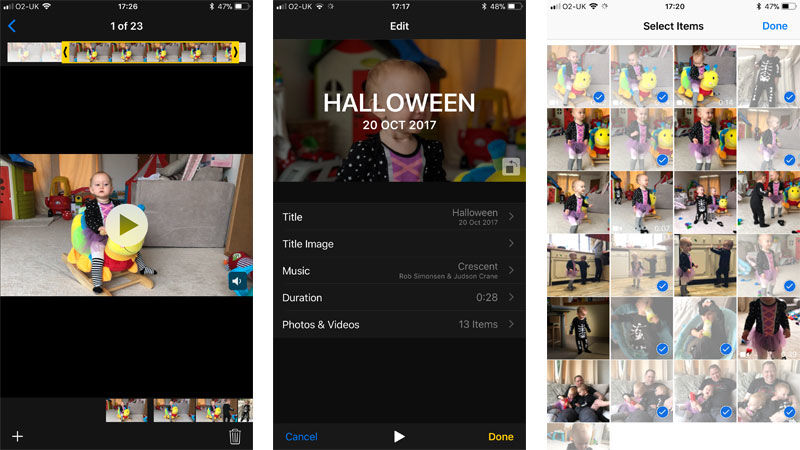
Open the Photos app, select the “Memories” tab, and let the algorithm create beautiful presentations for you.
- Choose between different themes and effects.
- Edit your video to add music, transitions, and other effects.
- Save your memory as a video or share it directly with friends and family.
Creating Videos With Imovie
Want to edit your videos like a pro? Try using the iMovie app!
- Import your footage from the Camera Roll or Photos app.
- Trim, split, and merge clips to create the perfect video.
- Add music, transitions, and effects to make it truly unique.
Unlocking More Features With Third-party Apps
Want to take your video creation skills to the next level? Explore third-party apps like InShot, Adobe Premiere Rush, or Gif Maker!
Inshot
Use this powerful editing app to add advanced features like color correction and audio ducking.
- Trim, split, and merge clips with precision.
- Experiment with different filters and effects.
- Share your edited video directly on social media platforms.
Adobe Premiere Rush
Create stunning videos with ease using the user-friendly interface of Adobe Premiere Rush!
- Import footage from the Camera Roll or Photos app.
- Trim, split, and merge clips to create the perfect video.
- Add music, transitions, and effects to make it truly unique.
Gif Maker
Want to create mesmerizing GIFs? Try using Gif Maker!
- Import your favorite photos or videos.
- Experiment with different filters and effects.
- Share your edited GIF directly on social media platforms.
Making Your Videos Loop Like a Boomerang
Want to make your videos loop like a Boomerang on Instagram? Here’s how!
Using Live Photo Feature
Open the Photos app, select the “Live” feature, and take a photo with this incredible camera mode!
- Capture stunning footage in slow-motion mode.
- Choose between different FPS settings for mesmerizing slow-motion footage.
Creating Looping Videos
Want to make your videos loop like a Boomerang? Try using the iMovie or Adobe Premiere Rush apps!
- Import your favorite video from the Camera Roll or Photos app.
- Trim, split, and merge clips to create the perfect looping video.
- Share your edited video directly on social media platforms.
Looping Your Videos With Third-party Apps
Want to take your video creation skills to the next level? Explore third-party apps like Gif Maker!
Gif Maker
Use this powerful editing app to create mesmerizing GIFs that loop like a Boomerang!
- Import your favorite photos or videos.
- Experiment with different filters and effects.
- Share your edited GIF directly on social media platforms.
Conclusion
Creating amazing videos on your iPhone is easier than ever! With the right apps, knowledge, and practice, you can unlock the full potential of your smartphone and become a video creation master. Whether you’re an aspiring filmmaker or simply someone who wants to capture life’s precious moments, this guide has shown you how to create stunning videos that will make your friends and family green with envy.
Frequently Asked Questions
Here are some frequently asked questions about creating amazing videos on your iPhone:
Q: What is the best app for video creation?
A: The iMovie app comes pre-installed on iPhones, but Adobe Premiere Rush and InShot are excellent alternatives.
Q: How do I create a looping video?
A: You can use the Live Photo feature, iMovie or Adobe Premiere Rush apps to create a stunning looping video!
Q: Can I make my videos loop like a Boomerang on Instagram?
A: Yes! Try using Gif Maker to create mesmerizing GIFs that loop like a Boomerang!
Q: How do I add music and transitions to my videos?
A: Use the iMovie or Adobe Premiere Rush apps to add music, transitions, and effects to make your video truly unique.
Q: Can I edit my videos on the go?
A: Yes! With mobile apps like InShot or Adobe Premiere Rush, you can edit your videos anywhere!
Q: How do I save and share my edited videos?
A: Use the Share feature in iMovie or Adobe Premiere Rush to save and share your edited video directly on social media platforms.
Q: Can I use third-party apps to create amazing videos?
A: Yes! Explore apps like Gif Maker, InShot, or Adobe Premiere Rush to unlock more features and take your video creation skills to the next level!
Conclusion
Creating amazing videos on your iPhone is easier than ever! With the right apps, knowledge, and practice, you can unlock the full potential of your smartphone and become a video creation master. Whether you’re an aspiring filmmaker or simply someone who wants to capture life’s precious moments, this guide has shown you how to create stunning videos that will make your friends and family green with envy.
References
- Apple Support: IMovie
- Adobe Premiere Rush User Guide
- InShot Editing App Tutorial


