
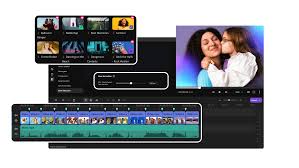
How to Create a Stunning Video With Photos And Music Online
Are you tired of sharing dull vacation photos on social media? Do you want to impress your friends and family with a fantastic video that showcases your memories? Look no further! In this article, we’ll guide you through the process of creating a stunning video with photos and music online. We’ve got three amazing tools to share with you: Canva, Magisto, and Adobe Creative Cloud Express.
Why Create a Video With Photos And Music Online?
Creating a video with photos and music online is an excellent way to showcase your memories in a fun and engaging way. With the rise of social media, it’s easier than ever to share your videos with friends and family worldwide. Plus, it’s a great way to relive your vacation memories and cherish the moments you shared.
Let’s Get Started!
Here are the three tools we’ll be using:
- Canva: A popular graphic design platform that offers a video editor tool.
- Magisto: A user-friendly video editing app that lets you create professional-looking videos in minutes.
- Adobe Creative Cloud Express: A free, web-based version of Adobe Creative Cloud’s video editing software.
Tool 1: Canva
Canva is an excellent starting point for creating a video with photos and music online. Here’s how to use it:
Step-by-step Guide to Using Canva
- Sign up For a Free Account: Head over to Canva.Com and sign up for a free account.
- Access The Video Editor: Click on the “Video” tab on the top navigation bar, then click on “Create a video”.
- Select Your Photos: Choose the photos you want to include in your video from your computer or Google Drive.
- Add Music: Select a song from Canva’s vast music library or upload your own.
- Edit And Customize: Use Canva’s intuitive editor to trim, split, and arrange your photos and music.
- Export Your Video: Once you’re happy with your edit, click on the “Share” button to download or share your video.
Tool 2: Magisto
Magisto is another excellent tool for creating a video with photos and music online. Here’s how to use it:
Step-by-step Guide to Using Magisto
- Sign up For a Free Account: Go to Magisto.Com and sign up for a free account.
- Choose Your Style: Select from Magisto’s pre-designed templates or create your own video theme.
- Upload Your Photos: Add the photos you want to include in your video from your computer or Google Drive.
- Add Music: Choose a song from Magisto’s vast music library or upload your own.
- Edit And Customize: Use Magisto’s editor to trim, split, and arrange your photos and music.
- Export Your Video: Once you’re happy with your edit, click on the “Save” button to download or share your video.
Tool 3: Adobe Creative Cloud Express
Adobe Creative Cloud Express is a free, web-based version of Adobe’s video editing software. Here’s how to use it:
Step-by-step Guide to Using Adobe Creative Cloud Express
- Sign up For a Free Account: Go to Adobe.Com and sign up for a free account.
- Access The Video Editor: Click on the “Video” tab on the top navigation bar, then click on “Create a video”.
- Select Your Photos: Choose the photos you want to include in your video from your computer or Google Drive.
- Add Music: Select a song from Adobe’s vast music library or upload your own.
- Edit And Customize: Use Adobe Creative Cloud Express’s intuitive editor to trim, split, and arrange your photos and music.
- Export Your Video: Once you’re happy with your edit, click on the “Share” button to download or share your video.
Conclusion
Creating a stunning video with photos and music online is easier than ever! With Canva, Magisto, and Adobe Creative Cloud Express at your disposal, you can create professional-looking videos in minutes. Follow these step-by-step guides, and you’ll be sharing your fantastic video on social media in no time!
Frequently Asked Questions (FAQs)
- What is The Best Tool For Creating a Video With Photos And Music Online?
Canva, Magisto, or Adobe Creative Cloud Express all offer excellent features for creating videos. - How Much Does it Cost to Use These Tools?
Some of these tools are free, while others require a subscription or payment plan. - What Kind of Music Can I Add to my Video?
You can choose from a vast music library provided by each tool or upload your own music. - Can I Customize The Video Template?
Yes, you can select from various templates and customize them to suit your taste. - How do I Share my Video Online?
Once you’re happy with your edit, click on the “Share” button to download or share your video on social media. - What is The Best Resolution For Sharing Videos Online?
The best resolution is 1080p (HD) for most social media platforms. - Can I Use my Own Music in These Tools?
Yes, you can upload your own music to each tool and add it to your video. - How Long Does it Take to Create a Video With Photos And Music Online?
With these tools, creating a video takes anywhere from 5-30 minutes, depending on the complexity of your edit.
Bonus Tip
To make your video stand out, consider adding captions or subtitles to provide context for your viewers!
Hope this helps you create an amazing video with photos and music online!


