
Creating Virtual Desktops on Windows And Mac: A Comprehensive Guide
Are you tired of cluttered desktops and too many windows open at the same time? Do you wish there was a way to organize your workspace without having to acquire a new monitor or spend a fortune? Look no further! Creating virtual desktops is a simple and effective solution that can help you stay productive and focused.
What Are Virtual Desktops?
Virtual desktops, also known as virtual workspaces, allow you to create multiple virtual desktops within your existing desktop environment. Each virtual desktop can have its own set of open windows, applications, and files, allowing you to keep your physical workspace clutter-free.
Benefits of Virtual Desktops
Using virtual desktops offers numerous benefits, including:
- Improved Productivity: By separating different tasks and projects into separate virtual desktops, you can focus on a single task without distractions.
- Increased Organization: Virtual desktops help keep your physical workspace organized and clutter-free, reducing stress and improving overall well-being.
- Enhanced Multitasking Capabilities: With multiple virtual desktops, you can work on multiple tasks simultaneously, increasing productivity and efficiency.
How to Create Virtual Desktops on Windows
If you’re using a Windows operating system, creating virtual desktops is a breeze. Here’s how:
- Enable The Feature: Go to Settings > System > Display and toggle on the “Virtual desktops” switch.
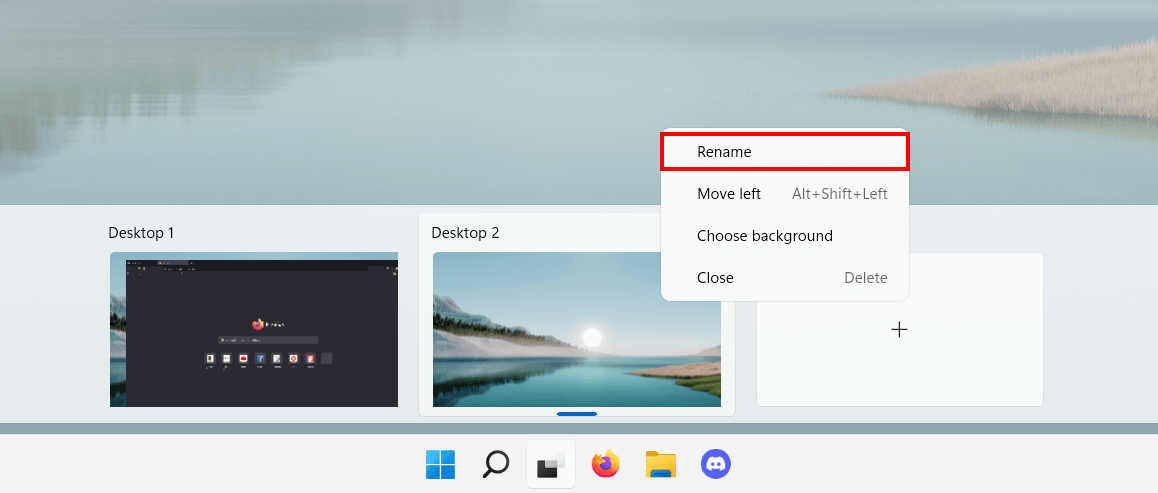
- Create a New Virtual Desktop: Click on the Task View button (usually located at the bottom right corner of your screen) and click on the “+” icon to create a new virtual desktop.
- Switch Between Virtual Desktops: Use the Task View button or use the keyboard shortcuts Windows key + Ctrl + left/right arrow to switch between virtual desktops.
Free Software For Creating Virtual Desktops on Windows
If you’re not satisfied with the built-in feature, there are several free software options available:
- Virtuawin: A lightweight and user-friendly application that allows you to create up to 10 virtual desktops.
- Sysinternals Desktops: A free tool from Microsoft that enables you to create up to four virtual desktops.
How to Create Virtual Desktops on Mac
If you’re using a Mac, creating virtual desktops is equally easy. Here’s how:
- Enable The Feature: Go to System Preferences > Mission Control and toggle on the “Use spaces” switch.
- Create a New Virtual Desktop: Use the keyboard shortcut Command + Shift + ‘ or use the trackpad gesture of swiping left/right with three fingers to create a new virtual desktop.
- Switch Between Virtual Desktops: Use the keyboard shortcuts Command + Shift + left/right arrow or use the trackpad gestures of swiping left/right with three fingers.
Tips And Tricks
- Customize Your Virtual Desktops: Tailor your virtual desktops to suit your needs by adding custom backgrounds, layouts, and even different browser profiles.
- Use Keyboard Shortcuts: Familiarize yourself with the keyboard shortcuts for switching between virtual desktops and using other features like Task View or Mission Control.
Conclusion
Creating virtual desktops is a simple yet powerful way to enhance productivity, organization, and multitasking capabilities. With this guide, you’ve learned how to create virtual desktops on Windows and Mac, as well as some free software options for further customization. Experiment with these tools and techniques to find the perfect setup for your needs!
Frequently Asked Questions (FAQs)
Here are 8 unique FAQs:
- Q: What is a Virtual Desktop?
A: A virtual desktop is a separate, virtual workspace that allows you to run multiple applications and windows without cluttering your physical desktop. - Q: How Many Virtual Desktops Can I Create on Windows?
A: You can create up to 4 virtual desktops using the built-in feature or up to 10 virtual desktops using software like VirtuaWin. - Q: Can I Customize my Virtual Desktops?
A: Yes, you can customize your virtual desktops by adding custom backgrounds, layouts, and even different browser profiles. - Q: How do I Switch Between Virtual Desktops on Windows?
A: You can use the Task View button or keyboard shortcuts like Windows key + Ctrl + left/right arrow to switch between virtual desktops. - Q: Can I Create Virtual Desktops on Mac?
A: Yes, you can enable virtual desktops on your Mac by going to System Preferences > Mission Control and toggling on the “Use spaces” switch. - Q: How Many Virtual Desktops Can I Create on Mac?
A: You can create up to 4 virtual desktops using the built-in feature or up to 16 virtual desktops using software like Spaces. - Q: Can I Use Keyboard Shortcuts to Switch Between Virtual Desktops on Mac?
A: Yes, you can use keyboard shortcuts like Command + Shift + left/right arrow to switch between virtual desktops or trackpad gestures of swiping left/right with three fingers. - Q: Are There Any Free Software Options For Creating Virtual Desktops?
A: Yes, there are several free software options available, including VirtuaWin and Sysinternals Desktops on Windows and Spaces on Mac.
Feel free to ask further questions if you need clarification!


