
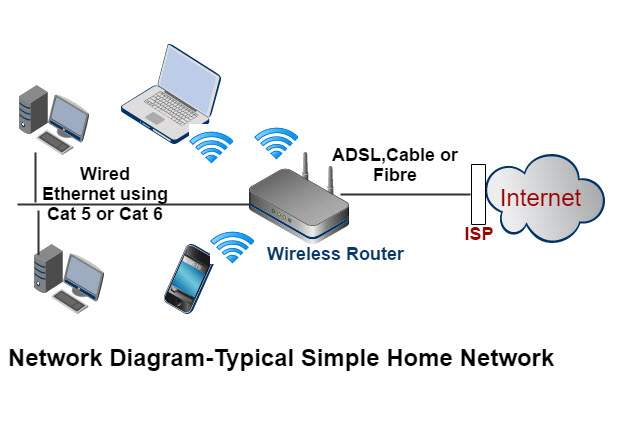
Creating a Home Wi-fi Network: A Step-by-step Guide
Are you tired of dealing with slow internet speeds or complex router configurations? Look no further! In this comprehensive guide, we’ll walk you through the process of setting up a home Wi-Fi network that’s fast, reliable, and easy to manage.
What You Need to Get Started
Before we dive into the nitty-gritty, let’s make sure you have the necessary equipment:
- A router (which comes with your internet service provider or can be purchased separately)
- A modem (if you don’t have a built-in one in your router)
- A computer or mobile device to connect to the Wi-Fi network
- A stable power source for your router and modem
Step 1: Unboxing And Physically Setting Up Your Router
- Carefully remove your router from its packaging.
- Locate the Ethernet ports on your router (usually labeled as “WAN” or “LAN”).
- Connect one end of an Ethernet cable to your modem, and the other end to the WAN port on your router.
- Ensure your router is powered on by plugging it into a nearby outlet.
Step 2: Setting Up Your Wi-fi Network
- Open a web browser on your computer or mobile device and navigate to your router’s default IP address (usually printed on the underside of the router).
- Log in to your router using the admin credentials provided with your router or found online.
- Change your network name (SSID) and password to something secure and memorable.
- Set up your Wi-Fi channel and adjust other settings as needed.
Understanding Your Router’s Wireless Settings
Your router comes with a built-in wireless network, which can be configured using the web interface. Here are some key settings to consider:
- Channel: Choose a frequency band (2.4GHz or 5GHz) and select an available channel.
- Bandwidth: Set your preferred bandwidth (e.G., 802.11N, AC, or AX).
- Encryption: Select WPA2-PSK as the encryption method.
Accessing Your Router’s Web Interface
To access your router’s web interface, follow these steps:
- Open a web browser and navigate to your router’s default IP address (usually 192.168.0.1 Or 192.168.1.1).
- Log in using the admin credentials provided with your router.
- Navigate through the menus to configure your wireless settings.
Creating a Guest Network
Want to provide internet access to guests without compromising your main network? Here’s how:
- Access your router’s web interface.
- Navigate to the “Guest Network” or “Visitor Network” section.
- Set up your guest network with its own name, password, and restrictions.
Tips For Improving Your Wi-fi Performance
To get the most out of your home Wi-Fi network, consider these tips:
- Update your router’s firmware regularly.
- Use a Quality of Service (QoS) feature to prioritize traffic.
- Place your router in a central location to ensure optimal coverage.
- Avoid overloading your network with too many devices.
Common Router Configuration Issues And Solutions
Troubleshooting common issues is essential when working with routers. Here are some potential problems and their solutions:
- Slow Internet Speeds: Check for firmware updates, restart your router, or try a different wireless channel.
- Connection Drops: Update your router’s firmware, check for interference from other devices, or reset your network settings.
Conclusion
Setting up a home Wi-Fi network may seem daunting at first, but with this guide, you’re now equipped to tackle the process with confidence. Remember to keep your network secure by using strong passwords and regularly updating your router’s firmware. If you encounter any issues, refer back to this guide or consult the manufacturer’s support resources.
Frequently Asked Questions
- Q: What is the difference between a Wi-Fi network and an Ethernet connection?
A: A Wi-Fi network uses wireless signals to connect devices, while an Ethernet connection uses physical cables. - Q: How do I change my router’s default IP address?
A: Consult your router’s manual or manufacturer’s website for instructions on changing the default IP address. - Q: Can I use a third-party app to manage my Wi-Fi network?
A: Yes, many routers offer mobile apps that allow you to configure and monitor your network remotely. - Q: What is Quality of Service (QoS) in networking?
A: QoS refers to the prioritization of traffic on a network based on specific criteria, such as packet type or source address. -
Q: How do I secure my Wi-Fi network from unauthorized access?
A: Use strong passwords, enable WPA2 encryption, and regularly update your router’s firmware to stay protected. -
Q: Can I use a wireless extender to boost my network signal?
A: Yes, wireless extenders can be used to increase the range of your Wi-Fi network, but they may affect performance. -
Q: How do I reset my router to its default settings?
A: Consult your router’s manual or manufacturer’s website for instructions on resetting the device. -
Q: Can I use a guest network with multiple devices connected at once?
A: Yes, many routers allow you to configure a guest network with multiple devices connected simultaneously.


