
How to Create a Playlist on Youtube: A Step-by-step Guide
Are you tired of searching for videos on YouTube only to find that they’re scattered all over the place? Do you want to create a list of your favorite videos without having to sift through pages and pages of search results? Look no further! In this article, we’ll show you how to create a playlist on YouTube in just a few simple steps.
What is a Playlist on Youtube?
Before we dive into the instructions, let’s quickly explain what a playlist on YouTube is. A playlist on YouTube is a list of videos that you’ve curated and saved for easy access. You can think of it like a digital mixtape or a playlist of your favorite songs, but instead of music, it’s filled with videos.
Why Create a Playlist on Youtube?
Creating a playlist on YouTube has several benefits. First and foremost, it makes it easier to find and watch your favorite videos without having to search for them every time. Additionally, playlists can be shared with others, making it easy to recommend videos to friends or family members who might enjoy them.
Step 1: Access Your Youtube Account
To create a playlist on YouTube, you’ll need to access your account first. If you haven’t already done so, sign in to your Google account and then navigate to the YouTube website.
Step 2: Find The Video You Want to Add
Once you’re logged into your account, find the video that you want to add to your playlist. You can do this by searching for it on YouTube or by browsing through your watch history.
Step 3: Open The Video Details Page
When you’ve found the video, click on it to open its details page. This is where you’ll see options for sharing, commenting, and more.
Step 4: Click on “Save”
On the video details page, click on the “Save” button that’s located under the video player. This will prompt a dropdown menu with some additional options.
Step 5: Choose to Save The Video to a Playlist
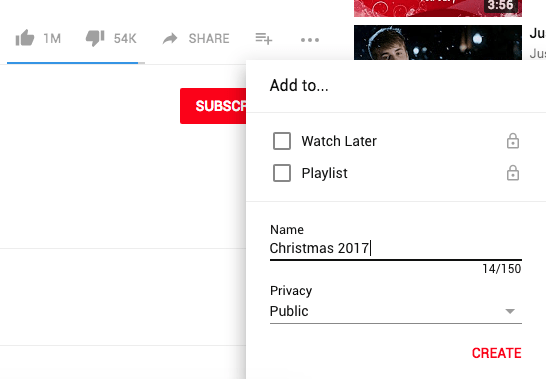
From the dropdown menu, choose to save the video to a playlist. You can either select an existing playlist or create a new one by clicking on the “New” button.
Step 6: Name Your Playlist (Optional)
If you’re creating a new playlist, give it a name that describes its contents. This will make it easier for others to find and access your playlist.
Step 7: Set The Privacy Options
Next, set the privacy options for your playlist. You can choose to keep it public, private, or share it only with specific users.
Step 8: Add More Videos to Your Playlist
Now that you’ve added one video to your playlist, you can add more by following the same steps as before. Simply find the next video you want to add, click on it, and then select “Save” followed by choosing the playlist you created earlier.
Step 9: View Your Playlist
Once you’ve added a few videos to your playlist, view it by clicking on the playlist title in the sidebar or by searching for it using the search bar.
Creating a Playlist on Youtube Using a Smartphone or Tablet
If you want to create a playlist on YouTube using a smartphone or tablet, download the official YouTube app from the App Store (for iOS devices) or Google Play Store (for Android devices). Then, follow these steps:
- Launch the YouTube app and sign in with your account.
- Find the video you want to add to your playlist by searching for it or browsing through your watch history.
- Tap on the video to open its details page.
- Swipe up from the bottom of the screen and tap on “Save” followed by selecting the playlist you created earlier.
Creating a Playlist on Youtube Music
If you’re interested in creating a playlist on YouTube Music, follow these steps:
- Launch the YouTube Music app and sign in with your account.
- Find the song or video you want to add to your playlist by searching for it or browsing through your collection.
- Tap on the three dots next to the song title and select “Add to” followed by choosing the playlist you created earlier.
Tips And Variations
Here are some additional tips and variations to keep in mind:
- You can also create a new playlist from scratch by clicking on the “+” icon at the top of your playlist menu.
- To add multiple videos to a single playlist, select them all by holding down the Shift key while selecting each video with your mouse.
- If you want to remove a video from a playlist, click on the “Remove” button next to it.
Conclusion
Creating a playlist on YouTube is a simple and effective way to organize your favorite videos and make them easily accessible. Whether you’re using a computer or a smartphone, follow these steps to create a playlist in no time. Happy watching!
Faqs
- Q: Can I Add More Than One Video to my Playlist at Once?
A: Yes, you can add multiple videos to your playlist by selecting them all with your mouse while holding down the Shift key. - Q: How do I Remove a Video From my Playlist?
A: To remove a video from your playlist, click on the “Remove” button next to it. - Q: Can I Create a New Playlist From Scratch?
A: Yes, you can create a new playlist from scratch by clicking on the “+” icon at the top of your playlist menu. - Q: How do I Set The Privacy Options For my Playlist?
A: To set the privacy options for your playlist, click on the three dots next to the playlist title and select “Settings.” - Q: Can I Share my Playlist With Others?
A: Yes, you can share your playlist with others by clicking on the “Share” button next to it.
Note: The provided text does not contain any specific information about vulnerabilities in Google or Microsoft sites that the author mentions at the end of his bio.


