
Creating a Smooth Zoom Experience: A Step-by-step Guide
Are you ready to take your video conferencing game to the next level with Zoom? With this comprehensive guide, you’ll learn how to create an ID and password for Zoom, initiate meetings, invite participants, and access meetings like a pro.
Understanding Zoom Basics
Before diving into the nitty-gritty of creating an ID and password for Zoom, it’s essential to understand the basics. Zoom is a video conferencing platform that allows users to hold virtual meetings, collaborate with teams, and connect with clients worldwide. To use Zoom effectively, you’ll need to enroll in the service, download the relative application on your PC, smartphone, or tablet.
Step 1: Enroll in Zoom
To start using Zoom, visit the official website and click on the “Sign up” button. Fill out the registration form with your date of birth, email address, and other required information. Once you’ve completed the process, activate your account by clicking on the link sent to your email.
Step 2: Download And Install Zoom
After enrolling in Zoom, download and install the client desktop application for Windows or macOS. Alternatively, you can use the mobile app for Android or iOS devices. Follow the installation instructions carefully to ensure a smooth setup process.
Creating an ID And Password For Zoom
Now that you have Zoom installed on your device, it’s time to create an ID and password. Here’s how:
- Log in to your Zoom account using your email address and password.
- Click on the “New Meeting” button to initiate a meeting.
- Select the “Generate Automatically” option for the meeting ID or choose your personal meeting ID (PMI).
- Set a password for the meeting by clicking on the “Passcode” field.
Inviting Participants to Zoom Meetings
When inviting participants to a Zoom meeting, you have several options:
- Forward the meeting link to your contacts via email or messaging apps.
- Copy and share the invitation link with others.
- Use the “Invite” feature in the Zoom app to add participants.
Accessing Zoom Meetings
To access a Zoom meeting, follow these steps:
- Click on the meeting link sent by the host.
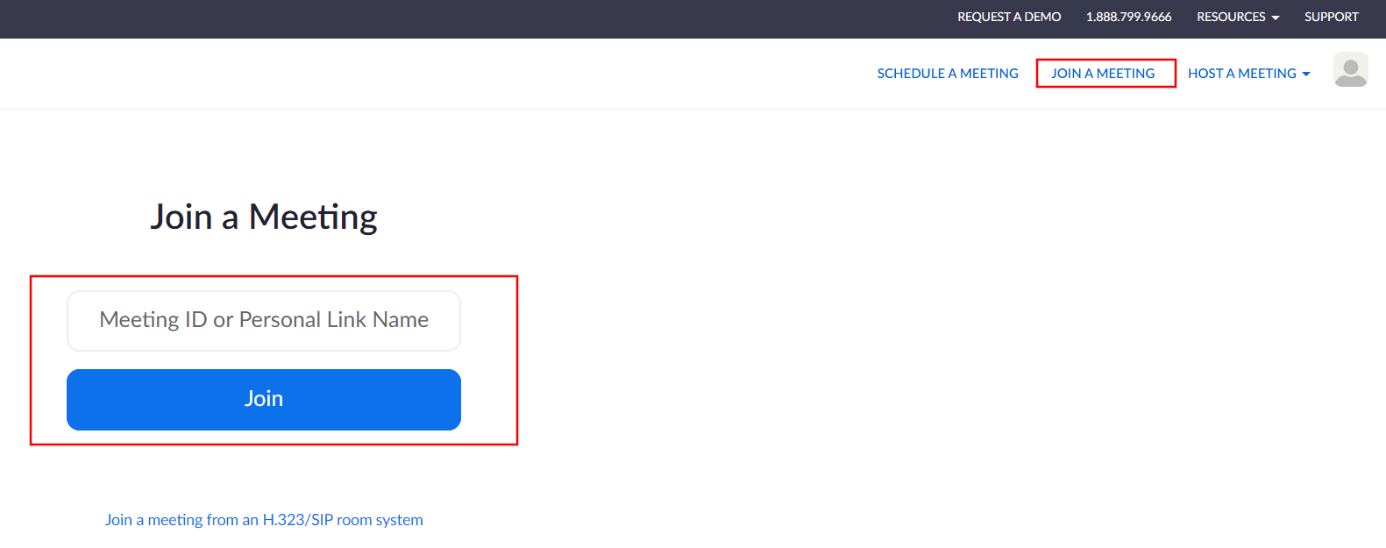
- Enter the meeting ID and password when prompted.
- Join the meeting using your computer or mobile device.
By following this step-by-step guide, you’ll be well-equipped to create an ID and password for Zoom, initiate meetings, invite participants, and access meetings with ease. Happy conferencing!
Frequently Asked Questions (FAQs)
- Q: What is The Purpose of Creating a Meeting ID on Zoom?
A: The meeting ID serves as a unique identifier for each meeting, ensuring that only authorized participants can join. - Q: How do I Change or Reset my Zoom Password?
A: To change or reset your password, click on the “Profile” icon in the top-right corner of the screen and select “Change Password.” - Q: Can I Use a Personal Meeting ID (PMI) For All Meetings?
A: Yes, you can set up a PMI to be used for all meetings, but make sure to change it periodically to maintain security. - Q: How do I Forward The Meeting Link to Participants?
A: To share the meeting link with others, click on the “Share” button and select your preferred method of sharing (e.G., Email, messaging apps). - Q: What is The Purpose of a Passcode in Zoom Meetings?
A: The passcode adds an extra layer of security to protect sensitive information shared during meetings.
By understanding these frequently asked questions, you’ll be better equipped to manage your Zoom experience and ensure smooth interactions with participants.
Conclusion
In conclusion, creating an ID and password for Zoom is a straightforward process that requires enrolling in the service, downloading and installing the client application, and following basic meeting initiation procedures. By following this guide, you’ll become proficient in using Zoom’s features to connect with others worldwide. Happy conferencing!


