
How to Cut a Photo For Facebook: A Step-by-step Guide
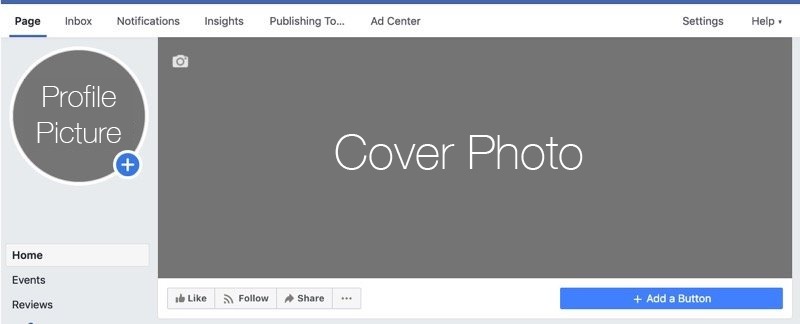
Are you tired of using the same old profile picture on Facebook? Do you want to create a new cover photo that showcases your personality or brand? Cutting a photo for Facebook is easier than you think! In this article, we will guide you through the process of cutting a photo for your Facebook profile and cover.
Understanding The Minimum Dimensions
Before we dive into the step-by-step guide, it’s essential to understand the minimum dimensions required by Facebook. Here are some key points:
- Profile picture: 176 X 176 pixels (circular shape)
- Cover photo: Minimum width of 400 pixels and a height of at least 150 pixels
- Standard photo: 720, 960, Or 2048 pixels in width
- Minimum requirements for Facebook stories: 1080 X 1920 pixels
These dimensions are subject to change, so it’s always best to check the official Facebook guidelines.
Cutting a Photo on Facebook
If you want to cut a photo directly from your Facebook profile, follow these steps:
- Log in to your Facebook account and go to your profile page.
- Click on the “Update Profile Picture” button.
- Select the “Choose Image” option.
- Choose the image you want to cut from your device or upload one from Facebook’s image library.
- Use the crop tool to select the area of the image you want to keep.
Using an App to Cut a Photo
If you’re on a mobile device, there are several apps available that can help you cut a photo for Facebook. Here are some popular options:
- Gallery (Android)
- Photo (iOS/iPadOS)
- Google Photos
- Photo & Picture Resizer (Android)
These apps offer various features, such as cropping, resizing, and editing tools.
Cutting a Photo on PC
If you’re using a PC, here’s how to cut a photo for Facebook:
- Open the image in the default photo viewer.
- Right-click on the image and select “Edit” or “Open with…”
- Choose the “Crop” tool from the menu bar.
- Select the area of the image you want to keep.
Using Online Services
There are several online services that can help you cut a photo for Facebook, such as:
- ILoveIMG
- Canva
- Photopea
- Pixlr Editor
These services offer various features, such as cropping, resizing, and editing tools.
Conclusion
Cutting a photo for Facebook is a straightforward process. Whether you’re using the app, an online service, or a PC program, we hope this guide has helped you understand how to cut a photo for your social media profile.
Frequently Asked Questions (FAQs)
- What Are The Minimum Dimensions Required by Facebook?
The minimum dimensions are 176 x 176 pixels for profile pictures and 400 x 150 pixels for cover photos. - Can I Use Any Image For my Facebook Profile?
No, Facebook requires you to use a circular-shaped image with a dimension of 176 x 176 pixels. - How do I Crop an Image on Facebook?
You can crop an image directly from your Facebook profile by selecting the “Update Profile Picture” button and using the crop tool. - Can I Use an App to Cut a Photo For Facebook?
Yes, there are several apps available that can help you cut a photo for Facebook. - What Are Some Online Services That Can Help me Cut a Photo For Facebook?
Some popular online services include iLoveIMG, Canva, Photopea, and Pixlr Editor. - Can I Use Any Image For my Facebook Cover Photo?
No, Facebook requires you to use an image with a minimum width of 400 pixels and a height of at least 150 pixels. - How do I Ensure That my Image is Uploaded Correctly on Facebook?
Make sure the image is in the correct format (JPG or PNG) and follows the minimum dimensions required by Facebook. - Can I Use an Image From Another Source For my Facebook Profile?
Yes, you can use an image from another source as long as it meets the minimum dimensions and requirements set by Facebook.
I hope this article has been helpful in understanding how to cut a photo for Facebook. If you have any further questions or need more assistance, feel free to ask!


