
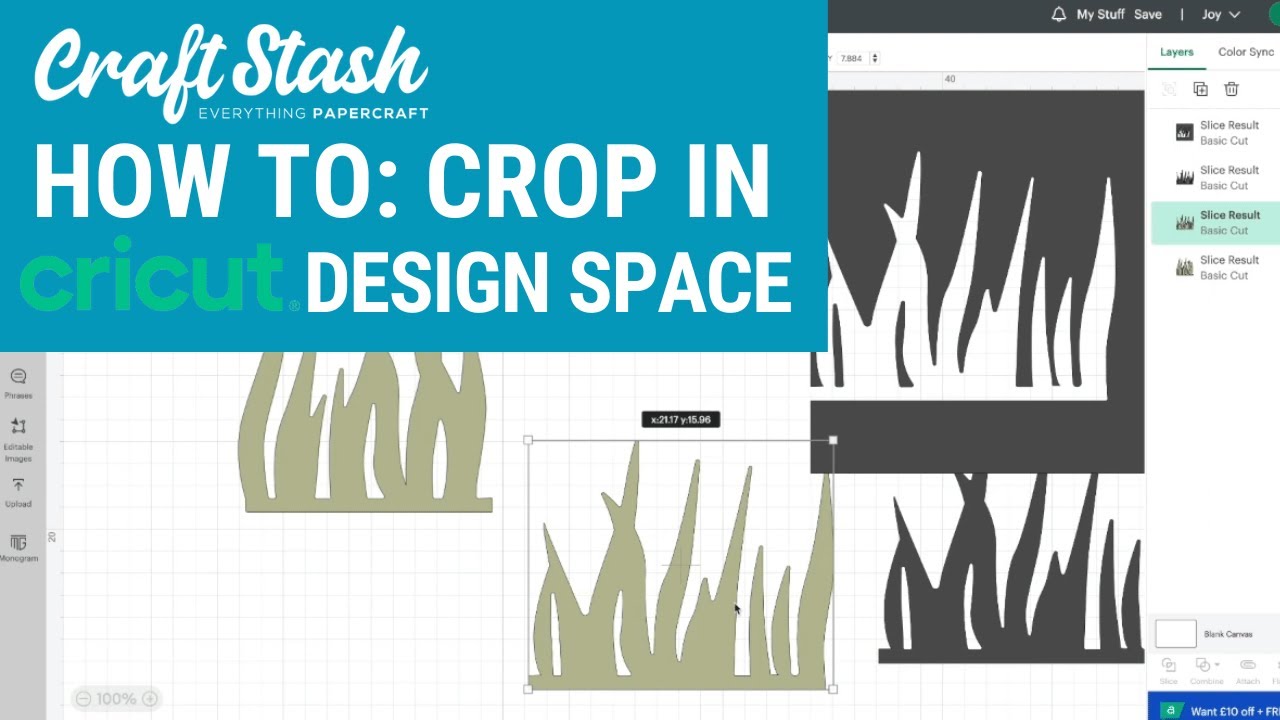
How to Crop a Photo Like a Pro: A Step-by-step Guide
Are you tired of having photos that are too big or contain unwanted parts? Do you want to learn how to crop them like a pro? Look no further! In this article, we will guide you through the process of cropping a photo using various software and apps.
Why Crop a Photo?
Before we dive into the tutorial, let’s talk about why cropping a photo is important. Cropping allows you to focus on the most interesting or relevant part of the image, making it more visually appealing and easier to share. It also helps to remove distractions and improve the overall composition of the photo.
Software Options For Cropping a Photo
There are several software options available that allow you to crop a photo with ease. Here are some of the most popular ones:
- Photoshop: The industry-standard software for image editing, Photoshop offers advanced cropping tools and features.
- Gimp: A free and open-source alternative to Photoshop, GIMP is a great option for those on a budget.
- Illustrator: Another Adobe software, Illustrator allows you to crop images with precision and accuracy.
- Canva: A user-friendly online platform that offers a range of design tools, including cropping features.
Step-by-step Guide to Cropping a Photo
Now that we’ve covered the software options, let’s move on to the step-by-step guide:
Cropping a Photo on Photoshop
- Open Photoshop: Launch the software and open the photo you want to crop.
- Select The Crop Tool: Go to the toolbar and select the crop tool.
- Drag The Handles: Drag the handles around the image to define the cropping area.
- Adjust The Size: Adjust the size of the cropping area by dragging the corners or sides.
- Apply The Crop: Once you’re happy with the crop, click “Apply” to save the changes.
Cropping a Photo on Gimp
- Open Gimp: Launch the software and open the photo you want to crop.
- Select The Rectangle Select Tool: Go to the toolbar and select the rectangle select tool.
- Drag The Handles: Drag the handles around the image to define the cropping area.
- Adjust The Size: Adjust the size of the cropping area by dragging the corners or sides.
- Apply The Crop: Once you’re happy with the crop, click “Apply” to save the changes.
Cropping a Photo on Illustrator
- Open Illustrator: Launch the software and open the photo you want to crop.
- Select The Rectangle Tool: Go to the toolbar and select the rectangle tool.
- Drag The Handles: Drag the handles around the image to define the cropping area.
- Adjust The Size: Adjust the size of the cropping area by dragging the corners or sides.
- Apply The Crop: Once you’re happy with the crop, click “Apply” to save the changes.
Cropping a Photo on Canva
- Open Canva: Launch the software and open the photo you want to crop.
- Select The Resize Tool: Go to the toolbar and select the resize tool.
- Drag The Handles: Drag the handles around the image to define the cropping area.
- Adjust The Size: Adjust the size of the cropping area by dragging the corners or sides.
- Apply The Crop: Once you’re happy with the crop, click “Save” to save the changes.
Tips And Variations
- Using a Ruler: Use a ruler to ensure that your crop is symmetrical and accurate.
- Resizing an Image: If you want to resize the image along with cropping it, use the “Resize” feature in the software.
- Saving For Web: When saving the cropped image, make sure to save it in a format suitable for web use.
Conclusion
Cropping a photo is an essential skill that every photographer and designer should possess. With the right software and tools, you can crop images with precision and accuracy. Remember to experiment with different software options and techniques to find what works best for you.
Frequently Asked Questions (FAQs)
- What is The Best Software For Cropping a Photo?
- The answer depends on your personal preference and budget. Adobe Photoshop, GIMP, Illustrator, and Canva are all popular options.
- Can I Crop a Photo on my Smartphone or Tablet?
- Yes, there are several apps available that allow you to crop images on-the-go.
- How do I Save The Cropped Image For Web Use?
- Save the image in a format suitable for web use, such as JPEG or PNG.
- Can I Resize an Image Along With Cropping It?
- Yes, most software options allow you to resize an image along with cropping it.
- What is The Difference Between Cropping And Resizing?
- Cropping refers to removing parts of an image, while resizing refers to changing the size of the image itself.
Additional Resources
- How to Crop a Photo on Photoshop: A detailed tutorial on using Photoshop to crop images.
- Gimp Tutorials: A collection of tutorials on using GIMP for image editing and cropping.
- Canva Guides: A series of guides on using Canva for design and cropping.


