
How to Cut a Video on Iphone: A Step-by-step Guide
Are you tired of having to resize your videos to fit the Instagram feed or other social media platforms? Do you want to cut out unwanted parts of your video without compromising its quality? Look no further! In this article, we’ll show you how to cut a video on iPhone using various apps and features.
Why Cut a Video on Iphone?
Cutting a video on iPhone can be beneficial in several ways. It allows you to:
- Remove unnecessary parts of the video
- Make your videos more engaging by focusing on specific scenes or moments
- Optimize your videos for different social media platforms, such as Instagram or TikTok
Method 1: Using The Photo App
The first method involves using the built-in Photo app on your iPhone. This app is not only great for editing photos but also comes with some basic video editing features.
- Open the Photos app and select the video you want to cut.
- Tap on the “Edit” button in the top-right corner of the screen.
- Select the “Trim” option from the bottom toolbar.
- Use your fingers to drag the blue lines and trim the unwanted parts of the video.
- Tap on the “Done” button when you’re finished.
Method 2: Using Video Crop App
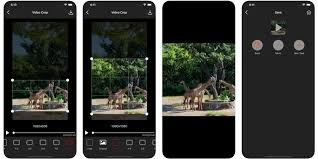
The Video Crop app is another popular choice for cutting videos on iPhone. This app offers more advanced features than the built-in Photo app, including the ability to crop, rotate, and add filters to your video.
- Download and install the Video Crop app from the App Store.
- Open the app and select the video you want to cut.
- Tap on the “Crop” button in the bottom toolbar.
- Use the video preview window to select the area of the video you want to keep.
- Adjust the crop frame as needed, and then tap on the “Save” button.
Method 3: Using Imovie App
The iMovie app is a free video editing app developed by Apple. It’s perfect for beginners who want to create professional-looking videos without breaking the bank.
- Open the iMovie app on your iPhone.
- Select the video you want to cut and tap on the “Create Movie” button.
- Use the timeline editor to select the unwanted parts of the video and delete them.
- Add transitions, effects, and music as needed, and then export your edited video.
Tips For Cutting a Video on Iphone
Here are some additional tips to keep in mind when cutting a video on iPhone:
- Use the correct aspect ratio for each social media platform. For example, Instagram uses a 4:5 Aspect ratio, while YouTube uses a 16:9 Aspect ratio.
- Keep your videos concise and engaging by focusing on the most interesting parts of the footage.
- Experiment with different editing styles and techniques to find what works best for you.
Conclusion
Cutting a video on iPhone is easier than ever thanks to various apps and features available. Whether you’re using the built-in Photo app, Video Crop app, or iMovie app, you can create professional-looking videos that engage your audience. Remember to use the correct aspect ratio, keep your videos concise, and experiment with different editing styles to find what works best for you.
Faqs
- What is The Best App For Cutting a Video on Iphone?
The best app for cutting a video on iPhone depends on your personal preferences and needs. The Photo app offers basic video editing features, while the Video Crop app provides more advanced options. IMovie app is perfect for beginners who want to create professional-looking videos. - How do I Cut a Video on Iphone Without Losing Quality?
To cut a video on iPhone without losing quality, use the correct aspect ratio for each social media platform and keep your videos concise by focusing on the most interesting parts of the footage. - Can I Cut a Video on Iphone if It’s Already Uploaded to a Social Media Platform?
Yes, you can cut a video on iPhone even if it’s already uploaded to a social media platform. However, make sure to check the social media platform’s policies and guidelines before editing or reuploading your video. - How do I Add Music to my Edited Video on Iphone?
To add music to your edited video on iPhone, use the iMovie app, which allows you to import music from your device or choose from a library of royalty-free tracks. - Can I Share my Edited Video Directly From The Iphone’s Photos App?
Yes, you can share your edited video directly from the iPhone’s Photos app by tapping on the “Share” button and selecting the desired platform.
Additional Tips
- Experiment with different editing styles and techniques to find what works best for you.
- Keep your videos concise and engaging by focusing on the most interesting parts of the footage.
- Use the correct aspect ratio for each social media platform to ensure optimal playback.


