
How to Personalize Facebook: A Step-by-step Guide
Are you tired of having a plain and uninviting Facebook profile? Do you want to make your page more attractive to potential followers or clients? Look no further! In this article, we will guide you through the process of personalizing your Facebook profile, page, privacy settings, and more.
Why Personalize Your Facebook Profile?
Before we dive into the nitty-gritty, let’s talk about why personalizing your Facebook profile is essential. Having a personalized profile can:
- Make it easier for friends to find you
- Help you connect with like-minded individuals
- Showcase your personality and interests
- Enhance your online presence
How to Personalize Your Profile Picture
Your profile picture is the first thing people see when they visit your Facebook page. To personalize it, follow these steps:
- Click on The Edit Icon: Located next to your profile picture, click on the pencil icon to start editing.
- Add a Reason: Choose from various reasons, such as “Work,” “Hobby,” or “Family.”
- Upload a New Photo: Select a new photo from your device or use a pre-existing one.
- Save Changes: Click on the “Save” button to apply the changes.
How to Personalize Your Cover
Your cover is a great way to showcase your personality, interests, or accomplishments. To personalize it:
- Click on The Edit Icon: Located next to your profile picture, click on the pencil icon.
- Choose a New Image: Select a new image from your device or use a pre-existing one.
- Save Changes: Click on the “Save” button to apply the changes.
How to Personalize Your Posts
Facebook recently introduced new features that allow you to personalize your posts with colors, lists, and more! To do so:
- Click on The + Icon: Located next to the text box, click on the plus sign.
- Choose a Color or List: Select a color or create a list to add some personality to your post.
- Save Changes: Click on the “Save” button to apply the changes.
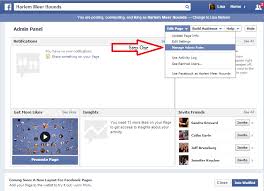
How to Personalize Your Page
Want to make your Facebook page more attractive to potential followers or clients? Here are some ideas:
- Add a Video Cover: Use a video as your cover to showcase your brand’s personality.
- Customize Your Name: Change your page name to something that reflects your brand.
- Add a Description: Write a compelling description of your page and its content.
How to Personalize Your Privacy Settings
Want to make sure only the right people see your posts? Here’s how:
- Click on The Settings Icon: Located next to your profile picture, click on the gear icon.
- Choose Who Can See Your Posts: Select from various options, such as “Friends,” “Only Me,” or “Public.”
- Save Changes: Click on the “Save” button to apply the changes.
How to Personalize Your Link
Want to share a link on Facebook but make it more engaging? Here’s how:
- Shorten Your Url: Use a URL shortener like Goo.Gl to shorten your link.
- Add an Image: Choose an eye-catching image to accompany your link.
- Save Changes: Click on the “Save” button to apply the changes.
How to Personalize Your Name User
Want to change your Facebook username? Here’s how:
- Click on The Settings Icon: Located next to your profile picture, click on the gear icon.
- Choose a New Name: Select a new username that reflects your brand or personality.
- Save Changes: Click on the “Save” button to apply the changes.
Conclusion
Personalizing your Facebook profile, page, and settings can make all the difference in terms of engagement and online presence. By following these simple steps, you can:
- Make your profile more attractive
- Showcase your personality and interests
- Connect with like-minded individuals
- Enhance your online presence
Frequently Asked Questions (FAQs)
- Q: How do I Personalize my Facebook Profile?
A: To personalize your Facebook profile, follow the steps outlined in this article. - Q: Can I Change my Facebook Username?
A: Yes, you can change your Facebook username by following the steps outlined in this article. - Q: How do I Personalize my Page on Facebook?
A: To personalize your page on Facebook, follow the steps outlined in this article. - Q: Can I Add a Video Cover to my Facebook Page?
A: Yes, you can add a video cover to your Facebook page by following the steps outlined in this article. - Q: How do I Personalize my Link on Facebook?
A: To personalize your link on Facebook, follow the steps outlined in this article. - Q: Can I Change my Facebook Privacy Settings?
A: Yes, you can change your Facebook privacy settings by following the steps outlined in this article. - Q: How do I Add a Description to my Facebook Page?
A: To add a description to your Facebook page, follow the steps outlined in this article. - Q: Can I Personalize my Posts on Facebook?
A: Yes, you can personalize your posts on Facebook by following the steps outlined in this article.
Bonus Tip
Remember, personalizing your Facebook profile and settings is all about showcasing your personality and interests! Don’t be afraid to get creative and have fun with it!


