
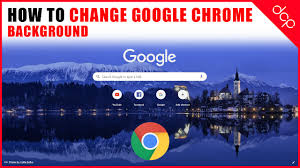
How to Personalize Google Chrome: A Comprehensive Guide
Are you tired of using the default settings on Google Chrome? Do you want to enhance your browsing experience with customizations that fit your style? Look no further! In this article, we will guide you through the process of personalizing Google Chrome, from installing extensions to modifying general settings.
Table 1: Top Extensions For Personalizing Google Chrome
| Extension | Description |
|---|---|
| WOT (Web of Trust) | A useful extension that points out the reliability of websites |
| NordPass | A password manager that integrates flawlessly with Google Chrome |
| Buffer | An official extension from Buffer, a popular free service for organizing and scheduling social media posts |
How to Install Extensions on Google Chrome
Installing extensions is one of the easiest ways to personalize Google Chrome. Here’s how to do it:
- Open the Google Chrome Web Store by clicking on the three dots in the top right corner of the browser.
- Click on “Extensions” in the left sidebar.
- Search for the extension you want to install and click on it.
- Click on the “Add to Chrome” button.
Table 2: How to Personalize Google Chrome With Extensions
| Extension | Description |
|---|---|
| Video DownloadHelper | A helpful extension that allows you to download videos from websites |
| Microsoft 365 | An official extension from Microsoft that integrates perfectly with Google Chrome |
How to Uninstall Extensions on Google Chrome
Uninstalling extensions is a straightforward process. Here’s how to do it:
- Click on the three dots in the top right corner of the browser.
- Click on “More tools” and then click on “Extensions”.
- Find the extension you want to uninstall and click on the three dots next to it.
- Click on “Remove”.
How to Personalize Google Chrome With Applications
Personalizing Google Chrome with applications is another way to customize your browsing experience. Here’s how to do it:
- Open the Google Chrome Web Store by clicking on the three dots in the top right corner of the browser.
- Click on “Apps” in the left sidebar.
- Search for the application you want to install and click on it.
- Click on the “Add to Chrome” button.
Table 3: How to Personalize Google Chrome With Applications
| Application | Description |
|---|---|
| YouTube | An official application from YouTube that integrates perfectly with Google Chrome |
How to Personalize Google Chrome With Themes
Personalizing Google Chrome with themes is a great way to enhance the appearance of your browser. Here’s how to do it:
- Open the Google Chrome Web Store by clicking on the three dots in the top right corner of the browser.
- Click on “Themes” in the left sidebar.
- Search for the theme you want to install and click on it.
- Click on the “Add to Chrome” button.
Table 4: How to Personalize Google Chrome With Themes
| Theme | Description |
|---|---|
| Minimalist | A simple and clean theme that enhances the appearance of your browser |
How to Personalize General Settings on Google Chrome
Personalizing general settings on Google Chrome is a great way to enhance your browsing experience. Here’s how to do it:
- Click on the three dots in the top right corner of the browser.
- Click on “Settings”.
- Scroll down and click on the “Appearance” tab.
- Customize your settings as desired.
Table 5: How to Personalize General Settings on Google Chrome
| Setting | Description |
|---|---|
| Home page | Choose what page you want to open when you start Google Chrome |
How to Personalize The Background on Google Chrome
Personalizing the background on Google Chrome is a great way to enhance the appearance of your browser. Here’s how to do it:
- Click on the three dots in the top right corner of the browser.
- Click on “Settings”.
- Scroll down and click on the “Appearance” tab.
- Click on the “Background” tab.
- Choose an image or color for your background.
Table 6: How to Personalize The Background on Google Chrome
| Setting | Description |
|---|---|
| Image | Choose an image for your background |
How to Personalize The Initial Page on Google Chrome
Personalizing the initial page on Google Chrome is a great way to enhance your browsing experience. Here’s how to do it:
- Click on the three dots in the top right corner of the browser.
- Click on “Settings”.
- Scroll down and click on the “Appearance” tab.
- Choose what page you want to open when you start Google Chrome.
Table 7: How to Personalize The Initial Page on Google Chrome
| Setting | Description |
|---|---|
| Home page | Choose what page you want to open when you start Google Chrome |
How to Personalize The Bar on Google Chrome
Personalizing the bar on Google Chrome is a great way to enhance your browsing experience. Here’s how to do it:
- Click on the three dots in the top right corner of the browser.
- Click on “Settings”.
- Scroll down and click on the “Appearance” tab.
- Choose what elements you want to display or hide from the bar.
Table 8: How to Personalize The Bar on Google Chrome
| Setting | Description |
|---|---|
| Home button | Choose whether to display or hide the home button |
How to Personalize Google Chrome on Smartphone And Tablet
Personalizing Google Chrome on smartphone and tablet is a great way to enhance your browsing experience. Here’s how to do it:
- Open the Google Chrome app on your device.
- Tap on the three dots in the top right corner of the browser.
- Tap on “Settings”.
- Choose what settings you want to customize.
Conclusion
Personalizing Google Chrome is a great way to enhance your browsing experience. From installing extensions to modifying general settings, there are many ways to customize your browser to fit your style. We hope this article has been helpful in guiding you through the process of personalizing Google Chrome.
Faqs
- Q: How do I Install Extensions on Google Chrome?
A: To install extensions on Google Chrome, click on the three dots in the top right corner of the browser, then click on “Extensions” and search for the extension you want to install. - Q: How do I Uninstall Extensions on Google Chrome?
A: To uninstall extensions on Google Chrome, click on the three dots in the top right corner of the browser, then click on “More tools” and select “Extensions”, find the extension you want to uninstall and click on the three dots next to it. - Q: How do I Personalize The Background on Google Chrome?
A: To personalize the background on Google Chrome, click on the three dots in the top right corner of the browser, then click on “Settings” and scroll down to the “Appearance” tab. - Q: How do I Personalize The Initial Page on Google Chrome?
A: To personalize the initial page on Google Chrome, click on the three dots in the top right corner of the browser, then click on “Settings” and scroll down to the “Appearance” tab. - Q: How do I Personalize The Bar on Google Chrome?
A: To personalize the bar on Google Chrome, click on the three dots in the top right corner of the browser, then click on “Settings” and scroll down to the “Appearance” tab. - Q: Can I Personalize Google Chrome on Smartphone And Tablet?
A: Yes, you can personalize Google Chrome on smartphone and tablet by tapping on the three dots in the top right corner of the browser and selecting “Settings”. - Q: How do I Synchronize my Settings Across Devices?
A: To synchronize your settings across devices, sign in to Google Chrome with your Google account. - Q: Can I Recover Deleted Bookmarks?
A: Yes, you can recover deleted bookmarks by going to the Google Chrome homepage and clicking on “Bookmarks” and selecting “Recover”.


