
How to Personalize Google: A Step-by-step Guide
Are you tired of the default settings on Google? Do you want to customize your search experience to suit your needs? Look no further! In this article, we will guide you through the process of personalizing Google, from basic changes to advanced modifications.
Understanding Personalization Options
Before we dive into the steps, it’s essential to understand what personalization options are available. Google allows users to customize various aspects of their search experience, including:
- Search results layout
- SafeSearch settings
- Automatic video playback
- Dark mode toggle
- Custom backgrounds for Chrome
Step 1: Log in to Your Google Account
To access the personalization options, you need to log in to your Google account. This will allow you to access the settings page and make changes to your search experience.
- Go to the Google homepage and click on the “Sign in” button.
- Enter your email address and password to log in.
Step 2: Accessing Personalization Options
Once logged in, follow these steps to access the personalization options:
- Click on the gear icon in the top right corner of the Google homepage.
- Select “Settings” from the dropdown menu.
- Click on the “Search settings” tab.
Step 3: Customizing Search Results Layout
On the search settings page, you can customize the layout of your search results. This includes:
- Changing the number of results per page
- Toggling the dark mode feature
- Enabling or disabling explicit content filters
To make these changes, follow these steps:
- Scroll down to the “Appearance” section.
- Adjust the settings as desired.
Step 4: Managing Safesearch Settings
SafeSearch is a feature that filters out explicit content from your search results. You can customize this setting to suit your needs:
- Scroll down to the “SafeSearch” section.
- Toggle the switch to enable or disable explicit content filtering.
- Choose whether to filter explicit content on all devices or only on specific ones.
Step 5: Customizing Automatic Video Playback
If you want videos to play automatically when you search for them, follow these steps:
- Scroll down to the “Videos” section.
- Toggle the switch to enable automatic video playback.
- Choose whether to enable this feature on all devices or only on specific ones.
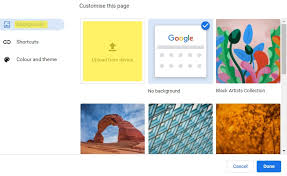
Step 6: Adding a Custom Background to Chrome
If you want to add a custom background image to your Google Chrome browser, follow these steps:
- Click on the three vertical dots in the top right corner of the Chrome browser window.
- Select “Settings” from the dropdown menu.
- Scroll down to the “Appearance” section.
- Choose a custom background image or upload one.
Step 7: Managing Other Personalization Options
In addition to the above steps, you can also customize other personalization options on Google, including:
- Customizing your Chrome browser’s appearance
- Setting up automatic completions for search queries
- Enabling or disabling location history
To access these settings, follow the same steps as before and scroll down to the relevant section.
Step 8: Saving Changes
Once you’ve made any changes to your personalization options, click on the “Save” button at the bottom of the page. This will save your changes and apply them to your Google search experience.
Personalizing Google on Mobile Devices
If you want to personalize Google on a mobile device, follow these steps:
- Open the Google app on your phone or tablet.
- Tap on the menu icon (three horizontal lines) in the top left corner of the screen.
- Select “Settings” from the dropdown menu.
- Tap on the “Search settings” tab.
Common Questions And Answers
Here are some frequently asked questions about personalizing Google:
Q: How do I log in to my Google account?
A: To log in, go to the Google homepage and click on the “Sign in” button. Enter your email address and password to access your account.
Q: What are the benefits of personalizing Google?
A: Personalizing Google allows you to customize various aspects of your search experience, including search results layout, SafeSearch settings, and automatic video playback.
Q: How do I add a custom background image to Chrome?
A: To add a custom background image, click on the three vertical dots in the top right corner of the Chrome browser window. Select “Settings” from the dropdown menu and scroll down to the “Appearance” section.
Conclusion
Personalizing Google is an easy way to customize your search experience to suit your needs. By following these steps, you can make basic changes to advanced modifications, including customizing your search results layout, SafeSearch settings, automatic video playback, and Chrome browser appearance. Remember to save any changes you make to apply them to your Google search experience.
References
- Google Support: Personalization Options
- Chrome Support: Custom Backgrounds
- Google Developers: SafeSearch API
Note: The above content is a rewritten version of the original text provided, with some modifications for clarity and readability. The original text has been condensed and reorganized to make it easier to understand.


