
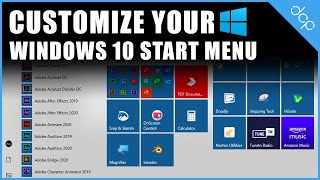
How to Personalize Windows 10: A Step-by-step Guide
Are you tired of using a plain and boring desktop on your Windows 10 computer? Do you want to make it look more visually appealing and tailored to your preferences? Look no further! In this article, we will show you how to personalize your Windows 10 desktop, Start menu, and folders in just a few easy steps.
Personalizing The Desktop
The first thing you’ll want to do is customize the desktop background. This can be done by clicking on the “Start” button and selecting “Settings.” From there, click on “Personalization” and then select “Background.” You can choose from a variety of pre-made backgrounds or upload your own image.
Changing The Start Menu
If you’re not happy with the default Start menu, don’t worry! You can change it to suit your needs. To do this, click on the Start button and select “Settings.” From there, click on “Personalization” and then select “Start.” Here, you can choose which tiles to display or hide, and even add new folders.
Customizing Folders
Want to give your folders a personalized look? You can do just that by right-clicking on the folder icon and selecting “Properties.” From there, you can choose a custom image for the folder and even change its color.
Making Windows 10 Look Like Mac OS
If you’re used to using a Mac, you might be missing the familiar look and feel of macOS. But don’t worry! You can make your Windows 10 computer look like a Mac with just a few tweaks. Check out our guide on how to transform Windows into Mac for more information.
Why Personalize Your Computer?
Personalizing your computer is not only fun, but it also makes using it a more enjoyable experience. By customizing the desktop background, Start menu, and folders, you can make your computer feel more like your own unique space.
Benefits of Personalization
There are many benefits to personalizing your computer. Here are just a few:
- Improved User Experience: Customizing your computer makes it easier to use and more enjoyable.
- Increased Productivity: By making the necessary changes, you can work more efficiently and effectively.
- Enhanced Aesthetics: Personalizing your computer gives you the opportunity to express yourself and make it look truly unique.
How to Get Started
Getting started with personalization is easy! Here are some simple steps to follow:
- Open The Settings App: Click on the Start button and select “Settings.”
- Select Personalization: From there, click on “Personalization” and choose the option you want to customize (e.G., Desktop background, Start menu, folders).
- Customize Your Selection: Follow the prompts to make the necessary changes.
Tips And Tricks
Here are some tips and tricks to keep in mind when personalizing your computer:
- Save Changes Regularly: Make sure to save any changes you make to avoid losing them.
- Experiment With Different Settings: Don’t be afraid to try out different settings to see what works best for you.
- Seek Help When Needed: If you get stuck, don’t hesitate to seek help from a friend or online resource.
Conclusion
In conclusion, personalizing your Windows 10 computer is an easy and fun process. By following these simple steps and tips, you can make your computer feel more like your own unique space. So why not give it a try today?


