
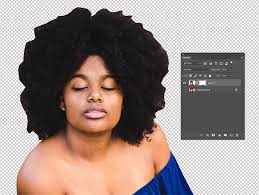
How to Retouch Hair in Photos With Photoshop: A Step-by-step Guide
Are you tired of dealing with unwanted hair in your photos? Do you want to learn how to retouch hair in photos like a pro? Look no further! In this article, we will guide you through the process of retouching hair in photos using Adobe Photoshop.
Why Retouch Hair in Photos?
Retouching hair in photos can be a game-changer for photographers and photo editors. It can help to:
- Remove unwanted hair from photos
- Enhance the overall look of a subject’s hair
- Create a more polished and professional-looking image
Getting Started With Photoshop
Before we dive into the step-by-step guide, make sure you have Adobe Photoshop installed on your computer. If not, you can download a free trial version or subscribe to Adobe Creative Cloud.
Step 1: Open The Image in Photoshop
To get started, open the photo that needs hair retouching in Photoshop. You can do this by going to File > Open and selecting the image from your computer.
Step 2: Select The Swift Mask Tool
Once the image is open, select the Swift Mask tool from the toolbar. This tool allows you to quickly and easily create a mask around the subject’s hair.
Step 3: Create a Mask Around The Hair
To create a mask around the hair, click on the Swift Mask tool and then draw a rectangle around the area where you want to remove the hair. You can also use the keyboard shortcut Ctrl + Shift + M (Windows) or Command + Shift + M (Mac).
Step 4: Select The Brush Tool
Once the mask is created, select the Brush tool from the toolbar.
Step 5: Paint Over The Hair
Using the Brush tool, paint over the hair that you want to remove. Make sure to be careful not to accidentally touch any other areas of the image.
Step 6: Use The History Brush Tool
If you make a mistake or need to undo any changes, use the History Brush tool to revert back to a previous state.
Step 7: Refine The Selection
Once you have painted over the hair, refine the selection by going to Select > Modify > Feather. This will help to soften the edges of the mask and create a more natural-looking result.
Using Photoshop Online
If you don’t have Adobe Photoshop installed on your computer, you can still use the online version of Photoshop to retouch hair in photos. Simply go to photoshop.Adobe.Com and follow the same steps as above.
Using Photoshop on Smartphone or Tablet
If you want to retouch hair in photos using a smartphone or tablet, you can download the Adobe Photoshop Express app. This app allows you to quickly and easily remove unwanted hair from photos using a simple and intuitive interface.
Conclusion
Retouching hair in photos with Photoshop is a straightforward process that can help to enhance the overall look of an image. By following these steps, you can learn how to retouch hair in photos like a pro and create professional-looking results.
Frequently Asked Questions
- What Are The Benefits of Using Adobe Photoshop?
Adobe Photoshop offers a range of benefits, including advanced editing tools, support for multiple file formats, and seamless integration with other Adobe Creative Cloud apps. - Can I Use Adobe Photoshop Online?
Yes, you can use Adobe Photoshop online by going to photoshop.Adobe.Com and following the same steps as above. - What Are Some Common Mistakes to Avoid When Retouching Hair in Photos?
Some common mistakes to avoid include over-processing the image, losing details, and creating an unnatural-looking result. - Can I Use Adobe Photoshop on Smartphone or Tablet?
Yes, you can use Adobe Photoshop on a smartphone or tablet by downloading the Adobe Photoshop Express app. - How do I Remove Unwanted Hair From Photos Using Adobe Photoshop?
To remove unwanted hair from photos using Adobe Photoshop, follow the steps outlined above: Select the Swift Mask tool, create a mask around the hair, select the Brush tool, and paint over the hair. - Can I Undo Any Changes Made to The Image?
Yes, you can undo any changes made to the image by using the History Brush tool or going back to an earlier state in the editing process. - How do I Save my Edited Image?
To save your edited image, go to File > Save As and select a file format of your choice. - Can I Use Adobe Photoshop For Commercial Purposes?
Yes, you can use Adobe Photoshop for commercial purposes, but be sure to check the terms of service and any applicable copyright laws.
Common Issues And Solutions
- Issue: Over-processing The Image
Solution: Reduce the opacity of the brush or feather the selection to soften the edges. - Issue: Losing Details
Solution: Increase the resolution of the image or use a higher-quality output file format. - Issue: Creating an Unnatural-looking Result
Solution: Refine the selection by going to Select > Modify > Feather, and then adjust the opacity of the brush as needed.


