
Cutting Songs on Android: A Step-by-step Guide
Are you tired of downloading songs and music apps on your computer just to cut a specific part of the song to use as a ringtone or notification sound? Look no further! In this article, we’ll show you how to cut songs directly on your Android smartphone using various apps.
Why Cut Songs on Android?
Cutting songs on Android is not only convenient but also saves time and storage space. By cutting only the desired part of the song, you can create a personalized ringtone, notification sound, or even a unique alarm sound without taking up unnecessary space on your device.
Methods to Cut Songs on Android
There are several methods to cut songs on Android, including:
- Ringtone Maker App: This is a free app available on the Google Play Store that allows you to cut and save specific parts of songs as ringtones.
- Mp3directcut (Lite): A mobile version of the popular desktop application for cutting audio files in MP3 format.
- Audiolab: A simple-to-use music editor app that allows you to cut, trim, and modify audio files.
- Other Apps: We’ll also explore some other apps available on the Google Play Store that can be used to cut songs on Android.
Method 1: Using Ringtone Maker App
The Ringtone Maker app is a user-friendly app that allows you to cut and save specific parts of songs as ringtones. Here’s how to use it:
- Download and install the Ringtone Maker app from the Google Play Store.
- Launch the app and grant the necessary permissions.
- Select the song you want to cut from your device’s music library.
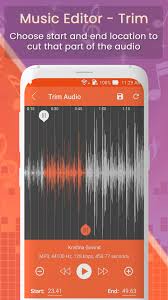
- Use the two grey indicators on the chart to delimit the beginning and end of the desired part of the song.
- Tap the floppy disk icon to save your ringtone.
- Choose the type of sound you want to assign the cut song (e.G., Ringtone, notification sound, or alarm sound).
- Assign a name to the cut song and tap the Save button.
Method 2: Using Mp3directcut (Lite)
Mp3DirectCut (Lite) is a mobile version of the popular desktop application for cutting audio files in MP3 format. Here’s how to use it:
- Download and install the mp3DirectCut (Lite) app from the Google Play Store.
- Launch the app and grant the necessary permissions.
- Select the song you want to cut from your device’s music library.
- Use the two grey indicators on the chart to delimit the beginning and end of the desired part of the song.
- Tap the Enforced Beginning and End buttons to save the selected part of the song.
- Choose the folder where you want to save the cut song and assign a name to it.
Method 3: Using Audiolab
AudioLab is a simple-to-use music editor app that allows you to cut, trim, and modify audio files. Here’s how to use it:
- Download and install the AudioLab app from the Google Play Store.
- Launch the app and grant the necessary permissions.
- Select the song you want to cut from your device’s music library.
- Use the red indicators on the chart to delimit the beginning and end of the desired part of the song.
- Tap the Trim button to save the selected part of the song.
- Choose the type of sound you want to assign the cut song (e.G., Ringtone, notification sound, or alarm sound).
Other Apps
If you’re not satisfied with the above methods, there are other apps available on the Google Play Store that can be used to cut songs on Android. Some popular alternatives include:
- Cutter musical – a simple app for cutting audio files in MP3 format.
- Mstudio – a more advanced app that includes features such as conversion, joining, and modifying audio files.
- Create Suonerie – an app for creating personalized ringtones by cutting specific parts of songs.
Conclusion
Cutting songs on Android is a convenient and time-saving process that can be achieved using various apps. Whether you’re looking to create a personalized ringtone or notification sound, the methods outlined above will guide you through the process with ease. Happy cutting!


