
Are you tired of receiving notifications from Facebook but don’t want to delete your account permanently? Do you want to take a break from the social network without losing your profile information? Look no further! In this article, we’ll guide you through the process of disabling your Facebook account temporarily or permanently, both on smartphones and PCs.
Why Disable Your Account?
Before we dive into the steps, let’s discuss why you might want to disable your Facebook account. Perhaps you’re taking a break from social media, or you’ve received unwanted messages or friend requests. Whatever the reason, disabling your account is a simple and reversible process.
Temporarily Disabling Your Facebook Account
If you want to temporarily disable your Facebook account, you can do so by following these steps:
- Open the Facebook app on your smartphone or tablet.
- Access your profile and click on the three horizontal lines (☰) in the top right corner.
- Select “Settings and Privacy” and then “Settings.”
- Scroll down to the “Account Ownership and Control” section and select “Deactivate Account.”
- Confirm that you want to deactivate your account by clicking “Continue.”
Disabling Your Facebook Account on a Smartphone
To disable your Facebook account on a smartphone or tablet, follow these steps:
- Open the Facebook app.
- Access your profile and click on the three horizontal lines (☰) in the top right corner.
- Select “Settings and Privacy” and then “Settings.”
- Scroll down to the “Account Ownership and Control” section and select “Deactivate Account.”
- Confirm that you want to deactivate your account by clicking “Continue.”
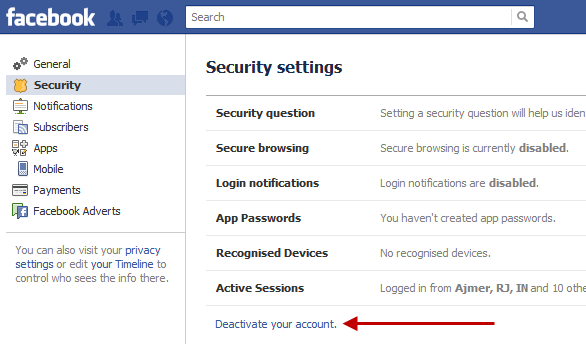
Disabling Your Facebook Account on a PC
To disable your Facebook account on a computer, follow these steps:
- Open the Facebook website.
- Access your profile and click on the arrow in the top right corner.
- Select “Settings” and then “Account Settings.”
- Scroll down to the “Security” section and select “Deactivate Account.”
- Confirm that you want to deactivate your account by clicking “Continue.”
Permanently Deleting Your Facebook Account
If you’re sure you want to delete your Facebook account permanently, follow these steps:
- Open the Facebook app on your smartphone or tablet.
- Access your profile and click on the three horizontal lines (☰) in the top right corner.
- Select “Settings and Privacy” and then “Settings.”
- Scroll down to the “Account Ownership and Control” section and select “Delete Account.”
- Confirm that you want to delete your account by clicking “Continue.”
Deleting Your Facebook Account on a Smartphone
To delete your Facebook account permanently on a smartphone or tablet, follow these steps:
- Open the Facebook app.
- Access your profile and click on the three horizontal lines (☰) in the top right corner.
- Select “Settings and Privacy” and then “Settings.”
- Scroll down to the “Account Ownership and Control” section and select “Delete Account.”
- Confirm that you want to delete your account by clicking “Continue.”
Deleting Your Facebook Account on a PC
To delete your Facebook account permanently on a computer, follow these steps:
- Open the Facebook website.
- Access your profile and click on the arrow in the top right corner.
- Select “Settings” and then “Account Settings.”
- Scroll down to the “Security” section and select “Delete Account.”
- Confirm that you want to delete your account by clicking “Continue.”
If Your Facebook Account Has Been Hacked
If you suspect someone has hacked your Facebook account, follow these steps:
- Go to the Facebook website.
- Click on the three horizontal lines (☰) in the top right corner and select “Settings.”
- Scroll down to the “Security” section and select “Signaling of the Account Commitments.”
- Follow the guided procedure to recover your account.
Conclusion
Disabling or deleting a Facebook account is a simple process that can be done on both smartphones and PCs. Whether you want to take a break from social media or delete your account permanently, we’ve provided step-by-step guides to help you through the process.
Remember to always follow the necessary precautions when dealing with sensitive information like your Facebook account.
Frequently Asked Questions
- Q: What is disabling my Facebook account?
A: Disabling your Facebook account temporarily removes your profile from public view, but you can reactivate it whenever you want. - Q: How do I delete my Facebook account permanently?
A: To delete your Facebook account permanently, follow the steps outlined in this article. - Q: Can I recover my hacked Facebook account?
A: Yes, if you suspect someone has hacked your Facebook account, you can follow the guided procedure on the Facebook website to recover it.


