
Facebook, once the dominant social media platform for staying connected with friends, family, and colleagues, may no longer serve the same purpose for everyone. Whether you’re concerned about privacy, need a digital detox, or have lost interest, many people are now looking for ways to deactivate or even permanently delete their Facebook accounts. If you find yourself in this category, you’re in the right place.
In this detailed guide, we’ll walk you through the step-by-step process of how to deactivate Facebook, either temporarily or permanently. We’ll also cover additional options for limiting your Facebook activity without fully deleting your account. Let’s dive into it!
Why Deactivate Facebook?
Before you take the steps to deactivate or delete your Facebook account, it’s important to understand why you’re making this decision. Here are some of the most common reasons people decide to take a break from the platform:
- Privacy concerns: Many users worry about the vast amount of personal data that Facebook collects and shares.
- Mental health: Taking a social media break can have positive effects on mental well-being.
- Time management: Social media can be a major distraction, and deactivating Facebook might help you reclaim your time.
- Security risks: Some users feel uncomfortable about potential security vulnerabilities or hacking attempts.
Regardless of your reason, the process of deactivation is simple, and you can always reactivate your account later if you change your mind.
What Happens When You Deactivate Facebook?
Before you proceed with deactivation, it’s essential to understand what this action entails. Here’s what happens:
- Your profile becomes invisible: When you deactivate your Facebook account, your profile and all your data (posts, photos, friends) become hidden from other users.
- Your messages remain visible: Even though your profile is hidden, any direct messages you’ve sent to other users will still be visible to them.
- You can reactivate anytime: Deactivation is temporary, meaning you can log back in whenever you want to reactivate your account.
However, if you’re looking for a more permanent solution, deleting your account might be a better choice.
How to Backup Your Facebook Data Before Deactivation
Before you proceed with either deactivating or permanently deleting your Facebook account, it’s a good idea to backup your data to ensure you don’t lose any important memories or information.
Steps to Backup Facebook Data
- Log in to your Facebook account.
- Click the down arrow at the top-right corner of Facebook and select Settings & Privacy.
- Go to Settings > Your Facebook Information.
- Click Download Your Information and select what data you’d like to save, such as photos, videos, messages, and posts.
- Select Create File. Once the backup is ready, you’ll receive an email with a link to download the file.
How to Deactivate Facebook Temporarily (Mobile and Desktop)
If you’re unsure about permanently leaving Facebook, you can temporarily deactivate your account. This option allows you to take a break without losing any data or friends.
Deactivating Facebook on Mobile Devices
If you’re using Facebook on a smartphone or tablet, here’s how you can deactivate your account:
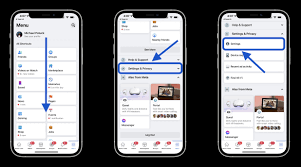
- Open the Facebook app.
- Tap the three lines (☰) at the bottom right of the screen.
- Scroll down to Settings & Privacy, then tap Settings.
- Go to Account Ownership and Control.
- Tap Deactivation and Deletion.
- Choose Deactivate Account and follow the prompts.
Deactivating Facebook on Desktop
For those who prefer using Facebook on a computer:
- Log in to your Facebook account.
- Click the down arrow at the top-right corner and choose Settings & Privacy.
- Select Settings and navigate to Your Facebook Information.
- Click on Deactivation and Deletion.
- Select Deactivate Account and follow the on-screen instructions.
How to Permanently Delete Your Facebook Account
If you’ve made up your mind to delete your Facebook account, this is a more permanent step than deactivation. Once deleted, you won’t be able to recover your account or any associated data. However, you have a 30-day grace period to cancel the deletion if you change your mind.
Steps to Delete Your Facebook Account
- Log in to your Facebook account.
- Click the down arrow and go to Settings & Privacy > Settings.
- Select Your Facebook Information and then Deactivation and Deletion.
- Choose Permanently Delete Account and confirm the process by entering your password.
How to Disable Facebook on Other Platforms
Many users use Facebook to log into other platforms like Instagram, Messenger, and third-party apps. If you’re planning to deactivate your account, you may also want to disable Facebook from these services.
Disconnecting Facebook from Instagram
- Open Instagram and go to Settings.
- Navigate to Account > Linked Accounts.
- Choose Facebook and tap Unlink.
Disabling Facebook Messenger
After deactivating your Facebook account, your Messenger remains active unless you manually deactivate it. To disable Messenger:
- Open Messenger and tap your profile picture in the top left.
- Scroll down to Account Settings.
- Tap Deactivate Messenger and confirm the deactivation.
Managing Your Facebook Privacy Without Deactivating
If you’re hesitant to deactivate or delete Facebook completely, you can take smaller steps to manage your privacy and limit your exposure.
Adjust Your Privacy Settings
You can control who sees your posts, the apps connected to your account, and more by going to Settings & Privacy > Privacy Shortcuts. There, you can adjust:
- Who can see your posts
- Who can send you friend requests
- Which apps have access to your Facebook account
How to Deactivate Facebook Protect
If you’ve enabled Facebook Protect—a feature designed to safeguard high-profile accounts—it cannot be deactivated once activated. However, you can continue using Facebook safely with this security in place.
How to Deactivate Facebook Dating
If you’ve activated Facebook Dating but no longer wish to use it, you can either pause your profile or delete it entirely.
Steps to Deactivate Facebook Dating
- Open the Facebook app and go to Dating.
- Tap the gear icon in the top-right corner.
- Select General and choose either Take a Break or Delete Profile.
How to Limit Facebook’s Background Activity on Mobile
If your main concern is the battery or data usage caused by Facebook running in the background, you can disable this functionality.
On Android
- Go to Settings > Apps > Facebook.
- Select Battery Usage and disable Allow Background Activity.
On iPhone
- Open Settings > Facebook.
- Turn off Background App Refresh.
Conclusion
Deactivating or deleting your Facebook account is a significant step, but it’s also a personal choice. Whether you need a temporary break from social media or want to step away permanently, Facebook provides options to suit your needs. Just be sure to backup your data and consider all the implications before making your final decision.
Frequently Asked Questions (FAQs)
Q1: Can I deactivate my Facebook account and still use Messenger?
Yes, you can deactivate your Facebook account but continue to use Messenger if you wish.
Q2: How long can I keep my account deactivated?
There is no time limit for how long you can keep your account deactivated. You can log back in anytime to reactivate it.
Q3: Will my posts and photos be deleted when I deactivate Facebook?
No, when you deactivate your account, your posts and photos are hidden but not deleted. They will be restored if you reactivate.
Q4: Can I recover my account after I delete it?
Once you delete your account, you have 30 days to change your mind and recover it. After that, it will be permanently deleted.
Q5: Does deactivating Facebook affect my other apps and services?
Yes, if you’ve used Facebook to log into other apps or services, deactivating may cause issues with those accounts.
Q6: Can I delete my Facebook account via the mobile app?
Yes, you can delete your account from the Facebook mobile app by following the same steps as on desktop.
Q7: What happens to my group admin roles after deactivation?
If you are the sole admin of a group, you should assign another admin before deactivating your account. Otherwise, the group may be left without an administrator.
Q8: How can I stop receiving Facebook emails after deactivation?
After deactivation, you can manage email notifications by visiting Settings > Notifications > Email and turning them off.


