
How to Disable Instagram Account Temporarily or Permanently: A Step-by-step Guide
Are you tired of Instagram but don’t want to delete your account permanently? Do you need a break from the social media platform, but still want to preserve your memories and followers? Look no further! In this article, we will guide you through the process of disabling your Instagram account temporarily or permanently.
Why Disable Your Instagram Account?
There are several reasons why you might want to disable your Instagram account. Perhaps you’re feeling overwhelmed by the constant stream of posts from friends and influencers, or maybe you’re taking a break from social media for personal or professional reasons. Whatever your reason, disabling your account can be a great way to take a step back and recharge.
Temporary Deactivation
If you want to temporarily disable your Instagram account, follow these steps:
- Open The Instagram App: Open the Instagram app on your smartphone or tablet.
- Go to Settings: Tap on the three horizontal lines (≡) in the top-right corner of the screen, then tap on “Settings.”
- Select Account: Scroll down and select “Account” from the menu.
- Choose Deactivation: Tap on “Deactivate account” at the bottom of the page.
- Confirm Your Decision: Select a reason for deactivating your account, enter your password, and tap “Temporary deactivation.”
Permanant Deletion
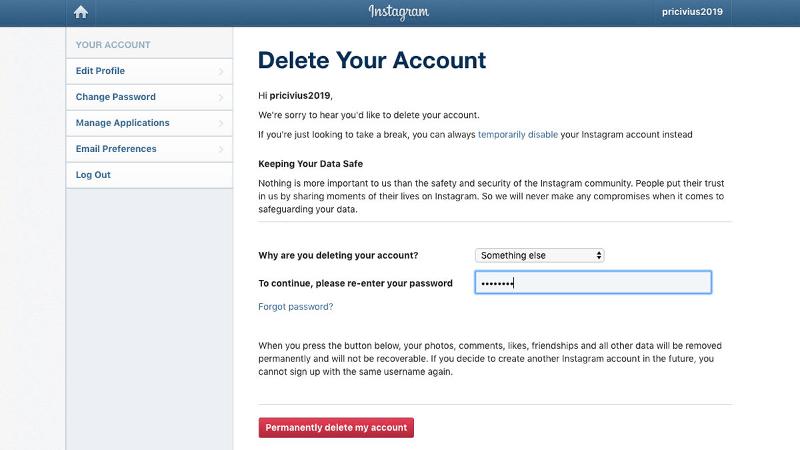
If you’re sure you want to delete your Instagram account permanently, follow these steps:
- Open The Instagram App: Open the Instagram app on your smartphone or tablet.
- Go to Settings: Tap on the three horizontal lines (≡) in the top-right corner of the screen, then tap on “Settings.”
- Select Account: Scroll down and select “Account” from the menu.
- Choose Deletion: Tap on “Delete account” at the bottom of the page.
- Confirm Your Decision: Select a reason for deleting your account, enter your password, and tap “Permanently delete account.”
Alternative Solutions
If you don’t want to disable or delete your Instagram account entirely, but still want to limit who can see your photos, consider these alternative solutions:
- Change Your Account Setting: Go to Settings > Privacy and Safety > Who Can See Your Posts, then select “Friends” or “Following” instead of “Public.”
- Hide Your Profile: Tap on the three horizontal lines (≡) in the top-right corner of the screen, then tap on your profile picture. Select “Edit Profile” and toggle off the switch next to “Make my profile public.”
Conclusion
Disabling or deleting your Instagram account can be a great way to take a break from social media or preserve your memories and followers. By following these steps, you can temporarily disable or permanently delete your account. If you’re unsure about what to do, consider talking to a friend or family member for advice.
Frequently Asked Questions
- Q: How Long Does it Take to Disable my Instagram Account?
A: The process typically takes only a few minutes. - Q: Will I Lose All my Followers And Posts if I Delete my Instagram Account?
A: Yes, deleting your account will permanently remove all your content and followers. - Q: Can I Reactivate my Instagram Account After Deactivating it Temporarily?
A: Yes, you can reactivate your account at any time by logging back in with your credentials. - Q: How do I Change my Account Setting to Limit Who Can See my Photos?
A: Go to Settings > Privacy and Safety > Who Can See Your Posts, then select “Friends” or “Following” instead of “Public.” - Q: Will Disabling or Deleting my Instagram Account Affect my Other Social Media Accounts?
A: No, disabling or deleting your Instagram account will not impact your other social media profiles.
Best Practices For Disabling or Deleting Your Instagram Account
- Make sure you have a backup of all your photos and content before disabling or deleting your account.
- Consider talking to a friend or family member for advice if you’re unsure about what to do.
- Take a break from social media to recharge and come back when you feel ready.


