
Disabling Samsung Pay: A Step-by-step Guide
Are you tired of receiving notifications from Samsung Pay? Do you want to disable the app without uninstalling it? Look no further! In this article, we will guide you through the process of disabling Samsung Pay and its associated notifications.
What is Samsung Pay?
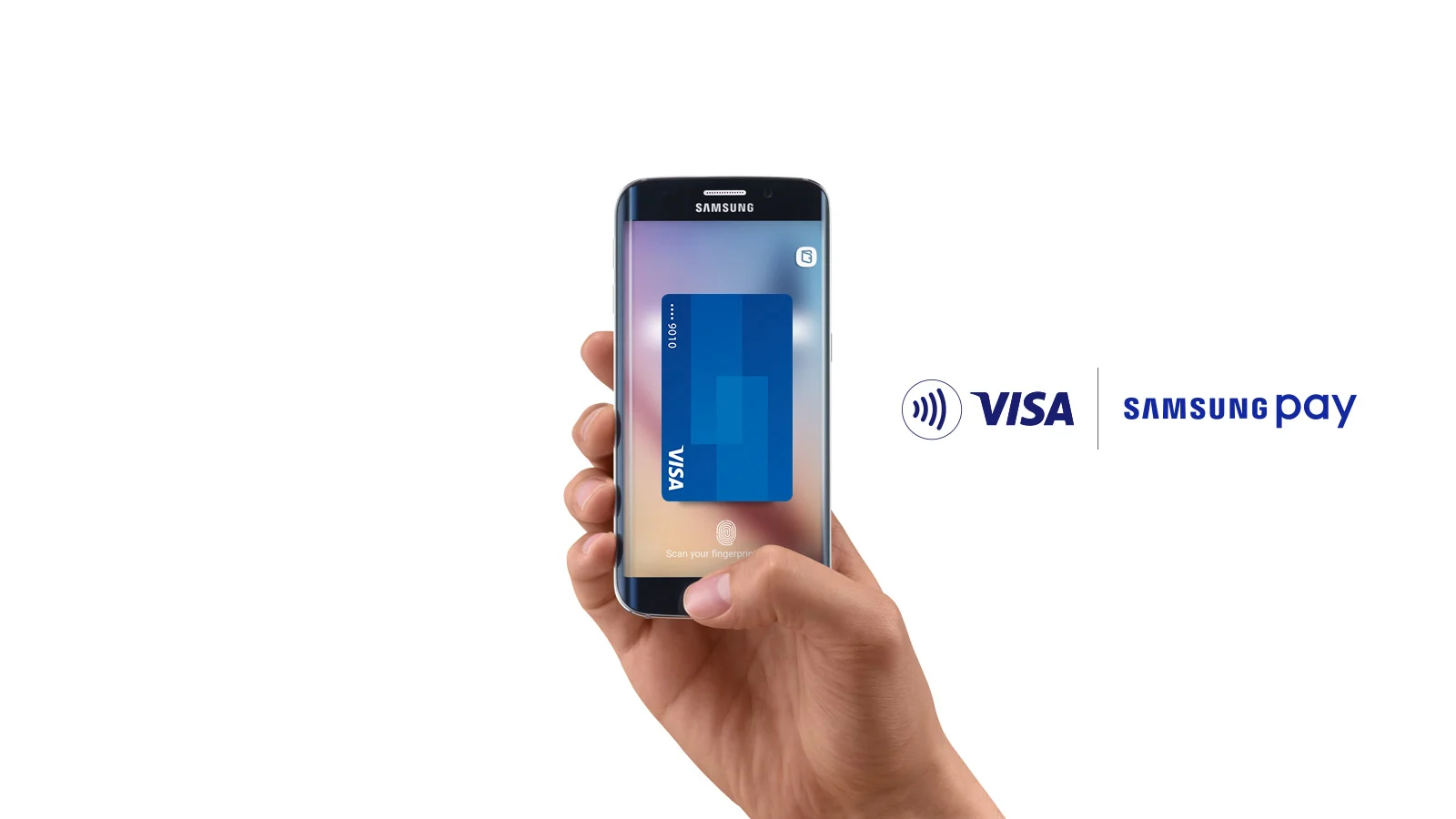
Samsung Pay is a mobile payment service developed by Samsung Electronics. It allows users to make payments using their smartphones, using near-field communication (NFC) technology. The app is pre-installed on many Samsung devices, but can also be downloaded from the Galaxy Store.
Why Disable Samsung Pay?
There are several reasons why you might want to disable Samsung Pay:
- You no longer use the service and want to free up space on your device.
- You receive unwanted notifications from the app.
- You prefer to use a different mobile payment service.
Disabling Samsung Pay: A Step-by-step Guide
- Access The Settings App: Go to your device’s settings menu, usually found by swiping down from the top of the screen and selecting “Settings”.
- Select Applications: In the settings menu, select “Applications” or “Apps” (the exact wording may vary depending on your device).
- Find Samsung Pay: Scroll through the list of installed apps until you find Samsung Pay.
- Disable Notifications: Tap on the Samsung Pay icon to open its settings page. Select “Notifications” and toggle off the switch next to “Allow notifications”.
- Unlink Cards: If you want to unlink your credit or debit card from Samsung Pay, select “Payment cards” and tap on each card to unlink it.
Disabling Notifications in Samsung Wallet
If disabling Samsung Pay altogether is not what you’re looking for, but rather just the notifications, you can also disable them within the Samsung Wallet app:
- Open Samsung Wallet: Launch the Samsung Wallet app.
- Select Settings: Tap on the three dots (⋮) in the top right corner to open the settings menu.
- Disable Notifications: Select “Notifications” and toggle off the switch next to “Allow notifications”.
Disabling Notifications in Samsung Pass
If you’re receiving unwanted notifications from Samsung Pass, you can disable them within the app:
- Open Samsung Pass: Launch the Samsung Pass app.
- Select Settings: Tap on the three dots (⋮) in the top right corner to open the settings menu.
- Disable Notifications: Select “Notifications” and toggle off the switch next to “Allow notifications”.
Tips And Variations
- If you’re using a recent version of Samsung Pay, it may be integrated with Samsung Wallet. In this case, disabling notifications within Samsung Wallet will also disable them for Samsung Pay.
- If you want to completely remove Samsung Pay from your device, go to the Settings app, select “Applications”, find Samsung Pay, and tap on the three dots (⋮) in the top right corner to uninstall it.
Conclusion
Disabling Samsung Pay is a straightforward process that can be completed within a few minutes. By following these steps, you can remove unwanted notifications from your device without uninstalling the app altogether. If you have any further questions or concerns, feel free to ask!
Frequently Asked Questions (FAQs)
- Q: Can I Disable Samsung Pay Without Uninstalling It?
A: Yes, you can disable Samsung Pay and its associated notifications without uninstalling the app. - Q: How do I Disable Notifications in Samsung Wallet?
A: To disable notifications in Samsung Wallet, launch the app, select settings, and toggle off the switch next to “Allow notifications”. - Q: Can I Unlink my Credit or Debit Card From Samsung Pay?
A: Yes, you can unlink your credit or debit card from Samsung Pay by selecting “Payment cards” and tapping on each card to unlink it. - Q: How do I Disable Notifications in Samsung Pass?
A: To disable notifications in Samsung Pass, launch the app, select settings, and toggle off the switch next to “Allow notifications”. - Q: What Happens if I Disable Samsung Pay Altogether?
A: If you disable Samsung Pay altogether, you will no longer receive notifications from the app. - Q: Can I Remove Samsung Pay From my Device Completely?
A: Yes, you can uninstall Samsung Pay by going to the Settings app, selecting “Applications”, finding Samsung Pay, and tapping on the three dots (⋮) in the top right corner to uninstall it.
Final Thoughts
Disabling Samsung Pay is a simple process that can be completed within a few minutes. By following these steps, you can remove unwanted notifications from your device without uninstalling the app altogether. If you have any further questions or concerns, feel free to ask!


