
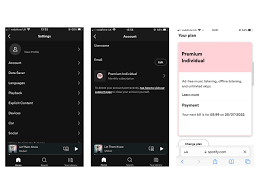
Are you tired of the premium features on your Spotify account but don’t know how to downgrade back to the free version? Don’t worry, we’ve got you covered! In this article, we’ll guide you through a step-by-step process on how to disable Spotify Premium on Android.
Why Disable Spotify Premium?
Spotify Premium is an excellent service that offers high-quality music streaming and ad-free listening. However, sometimes it’s necessary to cancel the subscription due to financial constraints or simply because you don’t need the premium features anymore.
Understanding The Process
Before we dive into the steps, it’s essential to understand that disabling Spotify Premium on Android is a straightforward process that can be completed within minutes.
Step 1: Access The Official Website
To start the process, you’ll need to access the official Spotify website using your browser. Open Google Chrome or any other browser of your choice and type in www.Spotify.Com. Click on the menu icon ☰ situated in the top-right corner.
Step 2: Log In to Your Account
In the menu that appears, click on “Access.” Enter your login details, which include your username and password. If you’re logged in with Facebook, click on the “Continue with Facebook” button.
Step 3: Cancel The Premium Subscription
Once you’ve logged in, navigate to the profile section of your Spotify account. Look for the card related to your Spotify Premium subscription and click on the cancel button. Confirm your decision by clicking on the “Cancel the subscription Premium” button.
Disabling Spotify Premium on PC
If you prefer to disable Spotify Premium on your computer, follow these steps:
- Open Google Chrome or any other browser of your choice.
- Type in www.Spotify.Com and press Enter.
- Click on the “Access” button situated in the top-right corner.
- Log in to your account using your username and password.
- Navigate to the profile section and look for the card related to Spotify Premium.
- Click on the cancel button and confirm your decision.
Tips And Tricks
Here are some additional tips and tricks to help you navigate this process:
- Make sure you have a stable internet connection to avoid any issues during the process.
- If you’re having trouble logging in, try using the Spotify app on your Android device instead.
- Don’t worry if you encounter any errors – simply restart the process from Step 1.
Conclusion
Disabling Spotify Premium on Android is a simple and straightforward process that can be completed within minutes. By following these steps, you’ll be able to cancel your premium subscription and switch back to the free version of Spotify. If you have any further questions or concerns, feel free to ask!


