
How to Disable Tiktok: A Step-by-step Guide
Are you tired of using TikTok but don’t know how to disable it? Look no further! In this article, we’ll guide you through the process of disabling your TikTok account on both mobile devices and the website.
Why Would You Want to Disable Tiktok?
Before we dive into the steps, let’s briefly discuss why someone might want to disable their TikTok account. Perhaps you’re taking a break from social media or simply don’t have time for it anymore. Whatever the reason, disabling your account is a straightforward process that can be completed in just a few minutes.
Disabling Your Account on Mobile Devices
If you’re using an Android device, follow these steps:
- Open Tiktok: Tap on the app icon to open TikTok.
- Go to Profile: Tap on the profile icon at the bottom right corner of the screen.
- Tap Menu: Tap on the three horizontal lines at the top right corner of the screen.
- Settings And Privacy: Tap on “Settings and privacy.”
- Account: Tap on “Account.”
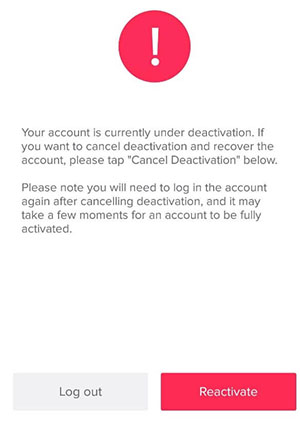
- Deactivate or Delete Account: Tap on “Deactivate or delete account” and then tap on “Deactivate account.”
If you’re using an iOS device, follow these steps:
- Open Tiktok: Tap on the app icon to open TikTok.
- Go to Profile: Tap on the profile icon at the bottom right corner of the screen.
- Tap Menu: Tap on the three horizontal lines at the top right corner of the screen.
- Settings And Privacy: Tap on “Settings and privacy.”
- Account: Tap on “Account.”
- Deactivate or Delete Account: Tap on “Deactivate or delete account” and then tap on “Deactivate account.”
Disabling Your Account on The Website
If you’re using a computer, follow these steps:
- Go to Tiktok.Com: Open your web browser and navigate to tiktok.Com.
- Log in: Log in to your account using your username and password.
- Click Profile: Click on the profile icon at the top right corner of the screen.
- Click Settings: Click on the settings icon next to the profile icon.
- Account: Click on “Account.”
- Deactivate or Delete Account: Click on “Deactivate or delete account” and then click on “Deactivate account.”
Disabling Tiktok Business Account
If you have a business account, follow these steps:
- Open Tiktok: Tap on the app icon to open TikTok.
- Go to Profile: Tap on the profile icon at the bottom right corner of the screen.
- Tap Menu: Tap on the three horizontal lines at the top right corner of the screen.
- Settings And Privacy: Tap on “Settings and privacy.”
- Account: Tap on “Account.”
- Spend to Personal Account: Tap on “Spend to personal account.”
Disabling Tiktok Amplify
If you have a TikTok Amplify account, follow these steps:
- Open Tiktok: Tap on the app icon to open TikTok.
- Go to Profile: Tap on the profile icon at the bottom right corner of the screen.
- Tap Menu: Tap on the three horizontal lines at the top right corner of the screen.
- Settings And Privacy: Tap on “Settings and privacy.”
- Tiktok Amplify: Tap on “TikTok Amplify.”
- Turn Off: Turn off TikTok Amplify by tapping on the toggle switch.
Disabling Notifications
If you want to disable notifications, follow these steps:
- Open Tiktok: Tap on the app icon to open TikTok.
- Go to Profile: Tap on the profile icon at the bottom right corner of the screen.
- Tap Menu: Tap on the three horizontal lines at the top right corner of the screen.
- Settings And Privacy: Tap on “Settings and privacy.”
- Notifications: Tap on “Notifications.”
- Turn Off: Turn off notifications by tapping on the toggle switch.
Disabling Live Camera
If you want to disable the live camera, follow these steps:
- Open Tiktok: Tap on the app icon to open TikTok.
- Go to Profile: Tap on the profile icon at the bottom right corner of the screen.
- Tap Menu: Tap on the three horizontal lines at the top right corner of the screen.
- Settings And Privacy: Tap on “Settings and privacy.”
- Account: Tap on “Account.”
- Live Stream Settings: Tap on “Live stream settings.”
Disabling Profile Visualization
If you want to disable profile visualization, follow these steps:
- Open Tiktok: Tap on the app icon to open TikTok.
- Go to Profile: Tap on the profile icon at the bottom right corner of the screen.
- Tap Menu: Tap on the three horizontal lines at the top right corner of the screen.
- Settings And Privacy: Tap on “Settings and privacy.”
- Account: Tap on “Account.”
- Profile Visualization: Tap on “Profile visualization.”
And that’s it! By following these steps, you should be able to disable your TikTok account on both mobile devices and the website.
How to Disable Other Features
If you want to disable other features such as comments or likes, follow these steps:
- Open Tiktok: Tap on the app icon to open TikTok.
- Go to Profile: Tap on the profile icon at the bottom right corner of the screen.
- Tap Menu: Tap on the three horizontal lines at the top right corner of the screen.
- Settings And Privacy: Tap on “Settings and privacy.”
- Account: Tap on “Account.”
Conclusion
Disabling your TikTok account is a straightforward process that can be completed in just a few minutes. Whether you’re taking a break from social media or simply don’t have time for it anymore, disabling your account will prevent others from seeing your profile and will remove notifications.
If you have any questions about how to disable TikTok, please leave a comment below!


