
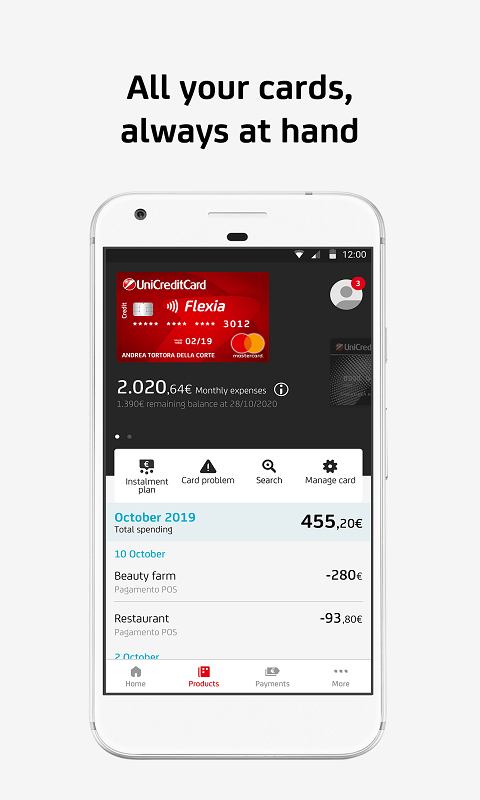
Are you looking to disable the UniCredit app on your smartphone or tablet? Look no further! In this article, we will guide you through the process of disabling the app, whether it’s due to a change in phone or for security reasons. We’ll also explore when it’s best to keep the app active and how to delete it if needed.
Why Disable Unicredit App?
Before we dive into the steps, let’s consider why you might want to disable the UniCredit app. Perhaps you’re switching phones or tablets, and you don’t want the app to remain active on your old device. Or maybe you’re concerned about security and want to prevent unauthorized access to your account.
Disable Unicredit App on Android
To disable the UniCredit app on an Android device:
- Open the Settings app
- Tap on “Safety and devices”
- Select “Enforced devices”
- Tap on “Disattiva all devices”
That’s it! The app will be disabled, and you’ll receive a confirmation message.
Disable Unicredit App on Iphone
The process is similar on an iPhone:
- Open the Settings app
- Tap on your name at the top
- Select “Settings” from the menu
- Tap on “Mobile”
- Open the “Application Smart Phone” sheet
- Tap on “Disattiva of Bank road Internet”
You’ll receive a confirmation message once the app is disabled.
Disable Unicredit App on PC
To disable the app on your computer:
- Log in to the official UniCredit website
- Click on the “Access Area Clients” icon
- Enter your code accession and PIN
- Click on the “Disattiva” button
You may be asked to enter a security code (you can find it in the schedule with several codes sent by UniCredit or use the Piece of furniture Token present in the official app).
How to Check if The Unicredit App is Open
Want to see if the UniCredit app is open on your device? On Android, you can:
- Swipe up from the bottom to reveal the app icons
- Drag up to split the screen and find the UniCredit app
On iPhone, you can:
- Swipe up from the bottom to reveal the home screen
- Drag up to close all open apps
- Find the UniCredit app in the list of closed apps
How to Delete Unicredit App
If you’ve disabled the UniCredit app and want to delete it, follow these steps on Android:
- Access the menu by swiping up from the bottom or pressing the button with the boxes in the center
- Hold down on the UniCredit icon
- Select “Disinstalla”
- Confirm the deletion
On iPhone:
- Tap and hold on the UniCredit icon
- Select “Delete app” or “Stir up app”
That’s it! The UniCredit app will be deleted from your device.
Conclusion
In this article, we’ve guided you through the process of disabling and deleting the UniCredit app on various devices. Remember to only disable the app if necessary and to keep it active for security reasons. If you have any questions or need further assistance, don’t hesitate to reach out.
Frequently Asked Questions (FAQs)
- Why do I Need to Disable The Unicredit App?
To prevent unauthorized access to your account or to switch phones/tablets. - How do I Disable The Unicredit App on Android?
Follow the steps outlined in this article: Settings > Safety and devices > Enforced devices > Disattiva all devices. - How do I Disable The Unicredit App on Iphone?
Follow the steps outlined in this article: Settings > Mobile > Application Smart Phone > Disattiva of Bank road Internet. - Can I Delete The Unicredit App if It’s Already Disabled?
Yes, follow the deletion steps outlined in this article. - What Happens if I Disable The Unicredit App on my Old Device?
Your account will still be secure, and you can access it with your new device.
Note: This text appears to be a step-by-step guide on how to disable and delete the UniCredit app from various devices (Android, iPhone, PC), along with some additional information and FAQs.


