
The Ultimate Guide to Defragmenting Your Mac
Are you tired of your Mac slowing down over time? Do you wonder if defragmenting your hard drive is necessary? Look no further! In this comprehensive guide, we’ll explore the world of Mac defragmentation and provide you with all the information you need to keep your device running smoothly.
What is Defragmentation?
Defragmentation is the process of reorganizing data on a hard drive to improve performance. On Windows, it’s a common practice to run a disk defragmenter regularly to ensure optimal system speed. But what about Macs?
Do I Need to Defrag My Mac?
The short answer is: No. If you’re using a modern Mac with an SSD (Solid-State Drive), defragmentation is not necessary. In fact, it’s not even recommended. Here’s why:
- Ssds Don’t Require Defragmentation: Since SSDs don’t have moving parts, data access times are instantaneous, making defragmentation unnecessary.
- Apfs And Hfs+ do The Job: MacOS uses advanced file systems like APFS (Apple File System) and HFS+, which automatically manage fragmentation and optimize performance.
When Should I Defrag My Mac?
While defragmentation is not essential for most modern Macs, there are specific situations where it might be helpful:
- Older Macs With Mechanical Hard Drives: If you’re using an older Mac with a traditional hard drive (HDD), defragmentation can still be beneficial to improve performance.
- Heavy Video Editing or Data Manipulation: If you work with large files or engage in intense video editing, fragmentation might become a problem. In these cases, defragmenting your Mac can help.
How to Defrag My Mac?
If you’ve determined that defragmentation is necessary for your specific situation, here’s how to do it:
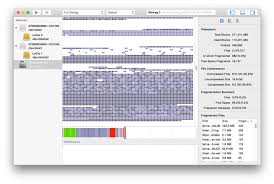
- Use Idefrag: This third-party software works on macOS and can help with disk defragmentation.
- Check if Trim is Enabled: If you’re using an SSD, make sure the TRIM feature is enabled. This will help maintain performance and prolong your SSD’s lifespan.
Alternative Solutions to Defragmenting Your Mac
If defragmentation doesn’t resolve your performance issues, there are other factors at play:
- Temp Files And Cache Buildup: Regularly clean out temporary files and cache to free up space and improve speed.
- Unnecessary Applications And Malware: Remove unused apps and malware to prevent system slowdowns.
Conclusion
In conclusion, defragmenting your Mac is not a necessary task for most users. If you’re using a modern Mac with an SSD, you can skip this step altogether. However, if you’re working with older hardware or engaging in resource-intensive activities, defragmentation might be helpful. Always consider alternative solutions to optimize performance and maintain your Mac’s overall health.
Frequently Asked Questions
- Q: Is Defragmentation Necessary For All Macs?
A: No, only those using older mechanical hard drives (HDD) or engaging in heavy data manipulation. - Q: How do I Check if Trim is Enabled on my Ssd?
A: Use the Terminal commandtrimforce enableto activate TRIM on your SSD. - Q: What Happens if I Defragment my Mac Too Many Times?
A: Over-defragmentation can lead to system slowdowns and decreased performance. - Q: Are There Any Alternative Solutions to Defragmenting my Mac?
A: Yes, cleaning out temporary files, removing unnecessary apps, and updating your operating system can improve performance without relying on defragmentation. - Q: Can I Use Idefrag on my Newer Mac With Apfs?
A: No, iDefrag is not compatible with APFS, so it’s best to avoid using this software on newer Macs. - Q: How Often Should I Clean Out Temporary Files And Cache?
A: Regularly clean out temp files and cache to maintain optimal performance and system health. - Q: What if my Mac is Still Slow After Trying Defragmentation?
A: Investigate other factors, such as malware or resource-intensive apps, that might be causing the slowdown. - Q: Can I Use Cleanmymac X to Optimize my Mac’s Performance?
A: Yes, this third-party software can help with cleaning out temp files and cache, removing unnecessary apps, and improving overall system speed.
Hope you enjoyed this comprehensive guide!


