
How to Defragment a Pc: A Step-by-step Guide
As we use our computers more and more, they can become slower due to various reasons such as file fragmentation, disk errors, and malware attacks. In this article, we will explore the concept of defragmentation, its importance, and how to defragment a PC using different methods.
What is Defragmentation?
Defragmentation is the process of reorganizing the files on your hard drive to improve performance and reduce loading times. When you save a file, it gets fragmented into small pieces scattered across the disk. This can lead to slower data access times as the computer has to read these fragments from different parts of the disk.
Why Defragment Your Pc?
Defragmenting your PC is essential for several reasons:
- Improved Performance: By reorganizing files, you can reduce loading times and make your computer feel faster.
- Increased Reliability: A defragmented hard drive is less prone to errors and data loss.
- Better Disk Space Management: Defragmentation helps free up disk space by removing unnecessary fragments.
How to Defragment a Pc: Windows 10 And 11
Windows 10 and 11 have an integrated tool called the “Optimize Drives” feature, which can be used to defragment your hard drive. Here’s how to use it:
- Open The File Explorer: Press the Windows key + E to open File Explorer.
- Click on This PC: In the left-hand sidebar, click on “This PC.”
- Select Your Hard Drive: In the main window, right-click on your hard drive and select “Properties.”
- Optimize Drives: Click on the “Optimize” button to run a disk check and defragmentation process.
How to Defragment a Pc: Windows 7
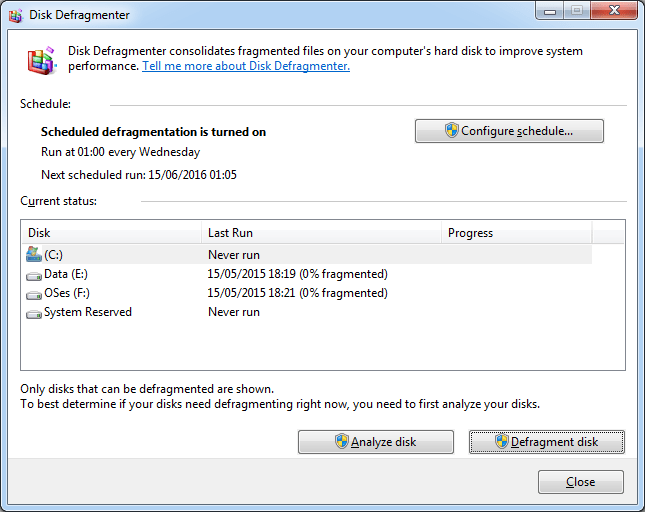
Windows 7 also has an integrated tool called the “Disk Defragmenter,” which can be used to defragment your hard drive. Here’s how to use it:
- Open The Start Menu: Press the Windows key + X to open the start menu.
- Click on Computer: In the start menu, click on “Computer.”
- Select Your Hard Drive: In the main window, right-click on your hard drive and select “Properties.”
- Disk Defragmenter: Click on the “Defragment” button to run a disk check and defragmentation process.
Other Helpful Solutions For Defragmenting a Pc: Windows
If the built-in tools don’t meet your requirements, there are several third-party software options available that can help you defragment your hard drive. Some popular choices include:
- Piriform Defragger: A free tool that allows you to defragment your hard drive and schedule regular maintenance tasks.
- Auslogics Disk Defrag: A powerful tool that can defragment your hard drive quickly and efficiently.
Defragmenting a PC on Mac
Mac computers use solid-state drives (SSDs) by default, which don’t require defragmentation. However, if you’re using an older Mac with a traditional hard drive, you can use the built-in “Disk Utility” tool to defragment your disk. Here’s how:
- Open Disk Utility: Press Command + Shift + U to open Disk Utility.
- Select Your Hard Drive: In the main window, select your hard drive from the list of available drives.
- Run a First Aid Check: Click on the “First Aid” button to run a disk check and defragmentation process.
Conclusion
Defragmenting your PC is an essential maintenance task that can improve performance, increase reliability, and free up disk space. Whether you’re using Windows or Mac, there are various tools available to help you defragment your hard drive. By following the steps outlined in this guide, you can keep your computer running smoothly and efficiently.
Faqs
Q: What is Defragmentation?
A: Defragmentation is the process of reorganizing files on a hard drive to improve performance and reduce loading times.
Q: Why Should I Defragment my Pc?
A: Defragmenting your PC can improve performance, increase reliability, and free up disk space by removing unnecessary fragments.
Q: How do I Defragment my PC Using Windows 10 or 11?
A: You can use the built-in “Optimize Drives” feature to defragment your hard drive. Simply open File Explorer, click on This PC, select your hard drive, and click on the Optimize button.
Q: How do I Defragment my PC Using Windows 7?
A: You can use the built-in “Disk Defragmenter” tool to defragment your hard drive. Simply open the start menu, click on Computer, right-click on your hard drive, and select Properties. Then, click on the Defragment button.
Q: What Are Some Other Helpful Solutions For Defragmenting a Pc?
A: There are several third-party software options available, such as Piriform Defragger and Auslogics Disk Defrag.
Q: How do I Defragment my PC on Mac?
A: If you’re using an older Mac with a traditional hard drive, you can use the built-in “Disk Utility” tool to defragment your disk. Simply open Disk Utility, select your hard drive, and click on the First Aid button.


