
The Ultimate Guide to Defragmentation: What You Need to Know
Are you tired of your computer slowing down due to fragmented files? Do you want to know how to defragment your hard drive like a pro? Look no further! In this comprehensive guide, we’ll walk you through the process of defragmentation and provide you with expert tips on how to optimize your PC’s performance.
What is Defragmentation?
Defragmentation is a process that rearranges fragmented files on your hard disk to improve computer performance. As you use your computer, files are broken down into smaller pieces called fragments, which can slow down your system. By defragmenting your hard drive, you can reduce the time it takes for your PC to access and read files.
Why is Defragmentation Important?
Defragmentation is essential for maintaining a healthy and efficient computer system. As files become fragmented, they can cause:
- Slower computer performance
- Increased risk of file corruption
- Difficulty in opening or accessing files
Who Needs to Defragment Their Hard Drive?
Anyone who uses their computer regularly should defragment their hard drive periodically. This includes:
- Home users with Windows-based computers
- Business professionals using PCs for work-related tasks
- Gamers and video editors who require fast file access
- Anyone experiencing slow computer performance
How to Defragment Your Pc: A Step-by-step Guide
Defragmenting your hard drive is a relatively simple process. Here’s how to do it:
- Check if You Need to Defragment: Open the Disk Cleanup tool in Windows (built-in) or use third-party software like CCleaner.
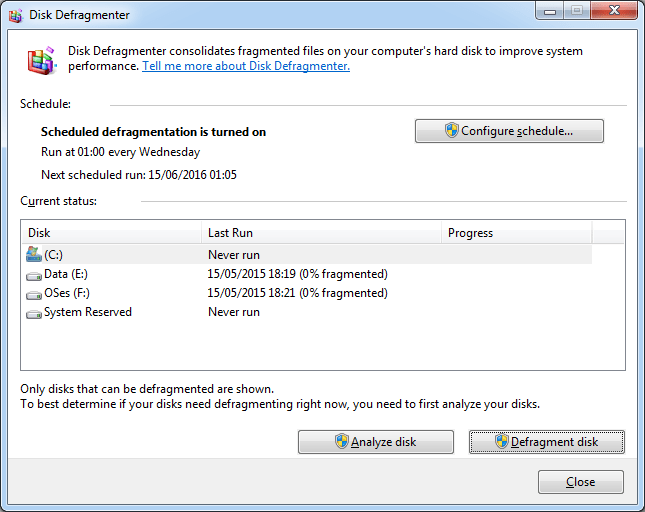
- Open Defragmentation Tool: Type “defragment” in the search bar and select the relevant option.
- Select The Drive to Defragment: Choose the hard drive you want to defragment from the list of available drives.
- Click Start: Begin the defragmentation process, which may take several hours depending on the size of your hard drive.
- Monitor Progress: Check the status bar or third-party software for updates on the defragmentation process.
Defragmenting Different Operating Systems
While Windows-based systems require defragmentation, other operating systems have different approaches:
- Windows 11: Follow the steps above to defragment your PC.
- Windows 10/8.1/8: Use the built-in Defragmenter tool or third-party software like CCleaner.
- Mac: MacOS has an automatic disk optimization feature called TRIM, which eliminates the need for manual defragmentation.
What to Do When Your Hard Drive is Full
When your hard drive is full, you may experience slower computer performance and difficulty in accessing files. Here’s what to do:
- Check Your Storage Needs: Consider upgrading your hard drive or switching to a solid-state drive (SSD).
- Delete Unnecessary Files: Remove temporary files, duplicates, and other items taking up space on your hard drive.
- Consider Cloud Storage: Use online services like Google Drive or Dropbox for storing and accessing files.
Defragmenting External Hard Drives
External hard drives require defragmentation just like internal hard drives:
- Connect The External Hard Drive: Attach the device to your computer via USB or other interfaces.
- Open Defragmentation Tool: Follow the same steps as above to initiate the defragmentation process.
Can I Defragment My Android Phone?
Unfortunately, it’s not possible to defragment an Android phone’s internal storage:
- Android Phones Use Flash Memory: Files are stored in a way that eliminates fragmentation issues.
- External Storage is a Different Story: External storage devices like microSD cards may require defragmentation, but this is rare and usually unnecessary.
Conclusion
Defragmenting your hard drive is an essential maintenance task to ensure optimal computer performance. By following the steps outlined above, you can defragment your PC and keep it running smoothly for years to come.
Frequently Asked Questions (FAQs)
- What is The Difference Between Defragmentation And Disk Cleanup?
Disk Cleanup removes temporary files and other items taking up space on your hard drive, while defragmentation rearranges fragmented files to improve performance.
- How Often Should I Defragment my Pc?
Defragment your PC every 3-6 months or whenever you notice significant slow downs.
- Can I Defragment a Mac?
MacOS has an automatic disk optimization feature called TRIM, which eliminates the need for manual defragmentation.
- What Happens if I Don’t Defragment my Hard Drive?
Ignoring defragmentation can lead to slower computer performance, increased risk of file corruption, and difficulty in accessing files.
- Can I Defragment a Solid-state Drive (SSD)?
SSDs don’t require manual defragmentation since they use flash memory that eliminates fragmentation issues.
- How do I Know if my Hard Drive is Fragmented?
Check the Disk Cleanup tool or third-party software like CCleaner to see if your hard drive needs defragmentation.
- Can I Defragment a Usb Drive?
No, it’s not necessary or recommended to defragment a USB drive since they use flash memory that eliminates fragmentation issues.
- What Are Some Tips For Maintaining Optimal PC Performance?
Regularly update your operating system and software, close unnecessary programs, and maintain a healthy storage capacity by deleting temporary files and duplicates.


