
How to Erase a Gmail Account: A Step-by-step Guide
Are you tired of using your Gmail account but don’t know how to erase it? Look no further! This article will guide you through the process of deleting your Gmail account, including backing up your data and closing your account permanently.
Why Back Up Your Data Before Erasing Your Account
Before erasing your Gmail account, it’s essential to back up your data. This includes contacts, emails, and other important information associated with your account. You can use Google Takeout to export your data in a format that you can easily access later.
Step 1: Back Up Your Data Using Google Takeout
To backup your data using Google Takeout, follow these steps:
- Go to the Google Takeout page and sign in with your Google account.
- Select the data you want to back up, including contacts and emails.
- Choose the format for exporting your data (e.G., MBOX or HTML).
- Select the maximum size of the export file (up to 2 GB).
- Click on “Create export” to start the backup process.
Step 2: Erase Your Gmail Account
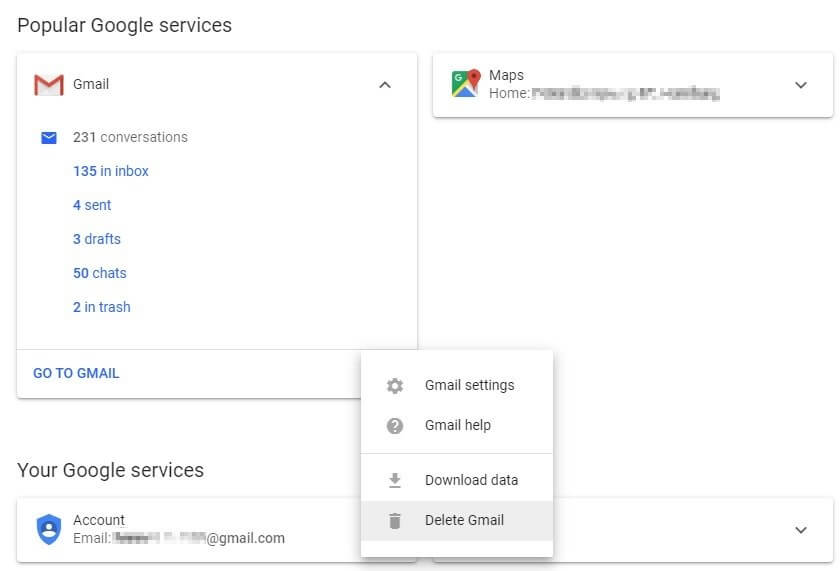
Once you have backed up your data, you can proceed with erasing your Gmail account. Here’s how:
- Go to the Google Account settings page and sign in with your Google account.
- Click on “Data and personalization” and then select “Delete a service.”
- Select Gmail from the list of services and click on “Delete.”
- If prompted, enter an alternative email address that you want to use instead of your current Gmail address.
How to Erase Your Gmail Account Without a Password
If you’ve forgotten your password or can’t access your account, don’t worry! You can still erase your Gmail account without using your password. Follow these steps:
- Go to the Google Account settings page and click on “Forgot password.”
- Enter an alternative email address that you want to use instead of your current Gmail address.
- Create a new password for your Google account.
Erasing Your Gmail Account From a Device
If you’ve associated your Gmail account with a device (e.G., Android or iOS), you can erase the account from the device. Here’s how:
- Go to the Settings app on your device and select “Account.”
- Select “Google” and then choose the Gmail account you want to erase.
- Tap on the three dots (…) Next to the account name and select “Delete account.”
Erasing Your Gmail Account From a Computer
If you’ve associated your Gmail account with a computer (e.G., Windows or Mac), you can erase the account from the device. Here’s how:
- Go to the Start menu and select “Settings.”
- Click on “Account” and then select “Google.”
- Click on the three dots (…) Next to the account name and select “Delete account.”
Frequently Asked Questions
Q: Why do I need to back up my data before erasing my Gmail account?
A: Backing up your data ensures that you don’t lose important information associated with your account.
Q: How long does it take to erase a Gmail account?
A: The time it takes to erase a Gmail account varies depending on the size of your data and the speed of your internet connection.
Q: Can I still use my Google account after erasing my Gmail account?
A: Yes, you can still use your Google account for other services like Google Drive or Google Calendar.
Q: How do I recover my data if I’ve erased my Gmail account by mistake?
A: You can try recovering your data using Google Takeout or contacting Google support for assistance.
Q: Can I erase my Gmail account from a device without losing access to my Google account?
A: Yes, you can erase your Gmail account from a device without affecting your Google account on other devices.
Conclusion
Erasing a Gmail account is a straightforward process that requires backing up your data and closing your account permanently. Remember to follow the steps outlined in this article carefully to avoid losing access to your important information. If you have any further questions or concerns, feel free to ask!
Additional Resources
- Google Takeout: A helpful tool for exporting your data from various Google services.
- Google Account settings page: Where you can manage your account and delete services like Gmail.
- Google support: A resource for assistance with issues related to your Google account.
Erasing a Gmail Account Without Password [H2]
If you’ve forgotten your password or can’t access your account, don’t worry! You can still erase your Gmail account without using your password. Follow these steps:
- Go to the Google Account settings page and click on “Forgot password.”
- Enter an alternative email address that you want to use instead of your current Gmail address.
- Create a new password for your Google account.
Erasing a Gmail Account From Android [H2]
If you’ve associated your Gmail account with an Android device, you can erase the account from the device. Here’s how:
- Go to the Settings app on your device and select “Account.”
- Select “Google” and then choose the Gmail account you want to erase.
- Tap on the three dots (…) Next to the account name and select “Delete account.”
Erasing a Gmail Account From Iphone [H2]
If you’ve associated your Gmail account with an iPhone, you can erase the account from the device. Here’s how:
- Go to the Settings app on your device and select “Mail.”
- Select “Accounts” and then choose the Gmail account you want to erase.
- Tap on the three dots (…) Next to the account name and select “Delete account.”
Erasing a Gmail Account From PC [H2]
If you’ve associated your Gmail account with a Windows or Mac computer, you can erase the account from the device. Here’s how:
- Go to the Start menu and select “Settings.”
- Click on “Account” and then select “Google.”
- Click on the three dots (…) Next to the account name and select “Delete account.”


