
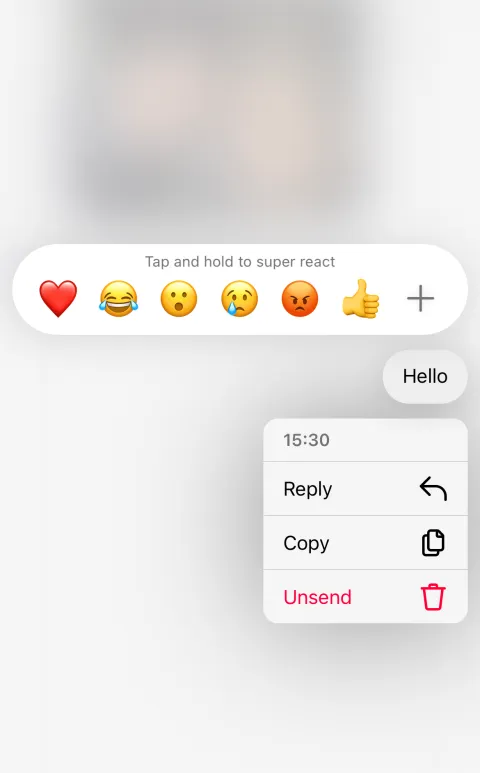
How to Delete a Reaction on Instagram: A Step-by-step Guide
Are you tired of having unwanted reactions on your Instagram posts? Do you want to know how to delete them quickly and easily? Look no further! In this article, we’ll guide you through the simple process of deleting reactions on Instagram using both Android and iOS devices.
Understanding Instagram Reactions
Before we dive into the step-by-step guide, it’s essential to understand what Instagram reactions are. Instagram reactions allow users to react to posts with various emojis. These reactions can be thought of as a way to express emotions or opinions about a particular post. However, sometimes you might want to delete a reaction that was mistakenly sent or no longer applies.
Deleting Reactions on Android Devices
If you’re using an Android device, deleting a reaction is a straightforward process. Here’s how:
- Open The Instagram App: First, open the Instagram app on your Android device.
- Access Your Account: Next, access your account by tapping on your profile picture in the top-right corner of the screen.
- Go to Private Messages: Now, navigate to the private messages section by tapping on the chat icon at the bottom of the screen.
- Find The Conversation: Look for the conversation with the user you want to delete a reaction from.
- Tap on The Reaction: Tap on the reaction you want to delete in the conversation thread.
- Cancel The Reaction: Finally, tap on the “Cancel” button to delete the reaction.
Deleting Reactions on Ios Devices
If you’re using an iOS device, deleting a reaction is also easy. Here’s how:
- Open The Instagram App: First, open the Instagram app on your iOS device.
- Access Your Account: Next, access your account by tapping on your profile picture in the top-right corner of the screen.
- Go to Messages: Now, navigate to the messages section by tapping on the chat icon at the bottom of the screen.
- Find The Conversation: Look for the conversation with the user you want to delete a reaction from.
- Tap on The Reaction: Tap on the reaction you want to delete in the conversation thread.
- Cancel The Reaction: Finally, tap on the “Cancel” button to delete the reaction.
Deleting Reactions on PC
If you’re using a PC to access Instagram, deleting a reaction is also possible. Here’s how:
- Access Your Account: First, log in to your Instagram account on your PC.
- Go to Messages: Next, navigate to the messages section by clicking on the chat icon at the top of the screen.
- Find The Conversation: Look for the conversation with the user you want to delete a reaction from.
- Tap on The Reaction: Tap on the reaction you want to delete in the conversation thread.
- Cancel The Reaction: Finally, tap on the “Cancel” button to delete the reaction.
Deleting Sticker Reactions
If you’ve accidentally sent a sticker reaction that you now want to delete, here’s how:
- Access Your Account: First, log in to your Instagram account on your PC or mobile device.
- Go to Messages: Next, navigate to the messages section by clicking or tapping on the chat icon at the top of the screen.
- Find The Conversation: Look for the conversation with the user you want to delete a sticker reaction from.
- Tap on The Sticker Reaction: Tap on the sticker reaction you want to delete in the conversation thread.
- Cancel The Sticker Reaction: Finally, tap or click on the “Cancel” button to delete the sticker reaction.
Conclusion
Deleting reactions on Instagram is a simple process that can be completed using both Android and iOS devices, as well as PCs. By following these steps, you’ll be able to quickly and easily remove unwanted reactions from your Instagram posts.


