
How to Delete All Emails From Your Email Account
Are you tired of having a cluttered email inbox? Do you want to delete all emails from your account, but don’t know how? Look no further! In this article, we’ll guide you through the process of deleting all emails from popular email services like Gmail, Outlook, iCloud, Yahoo Mail, and more.
Why Delete All Emails?
Deleting all emails can be a good idea if:
- You’re experiencing email overload and want to start fresh.
- You’re concerned about data security and don’t want to store sensitive information in your inbox.
- You’re switching to a new email service provider and want to transfer all your contacts, but not the emails.
Method 1: Deleting All Emails From Gmail
To delete all emails from your Gmail account:
- Access Your Gmail Account on a computer or mobile device.
- Go to The “Gmail” Tab, click on the gear icon in the upper-right corner, and select “See all settings.”
- Click on The “Filters And Blocked Addresses” Tab.
- Select All Emails by clicking on the checkbox next to “From” at the top of the page.
- Scroll Down to The Bottom of The Page, click on the “Create filter” button, and select “Delete it.”
- Confirm That You Want to Delete All Emails.
Method 2: Deleting All Emails From Outlook
To delete all emails from your Outlook account:
- Access Your Outlook Account on a computer or mobile device.
- Click on The “Inbox” Tab, select all emails by pressing Ctrl+A (Windows) or Command+A (Mac).
- Right-click on The Selected Emails and choose “Delete.”
- Confirm That You Want to Delete All Emails.
Method 3: Deleting All Emails From Icloud
To delete all emails from your iCloud account:
- Access Your Icloud Mail Account on a computer or mobile device.
- Go to The “Mail” Tab, click on the gear icon in the upper-right corner, and select “Preferences.”
- Click on The “Filters” Tab.
- Select All Emails by clicking on the checkbox next to “From” at the top of the page.
- Scroll Down to The Bottom of The Page, click on the “Create filter” button, and select “Delete it.”
- Confirm That You Want to Delete All Emails.
Method 4: Deleting All Emails From Yahoo Mail
To delete all emails from your Yahoo Mail account:
- Access Your Yahoo Mail Account on a computer or mobile device.
- Click on The “Inbox” Tab, select all emails by pressing Ctrl+A (Windows) or Command+A (Mac).
- Right-click on The Selected Emails and choose “Delete.”
- Confirm That You Want to Delete All Emails.
Method 5: Deleting All Emails From Free Mail
To delete all emails from your Free Mail account:
- Access Your Free Mail Account on a computer or mobile device.
- Click on The “Inbox” Tab, select all emails by pressing Ctrl+A (Windows) or Command+A (Mac).
- Right-click on The Selected Emails and choose “Delete.”
- Confirm That You Want to Delete All Emails.
Method 6: Deleting All Emails From Alice
To delete all emails from your Alice account:
- Access Your Alice Account on a computer or mobile device.
- Click on The “Inbox” Tab, select all emails by pressing Ctrl+A (Windows) or Command+A (Mac).
- Right-click on The Selected Emails and choose “Delete.”
- Confirm That You Want to Delete All Emails.
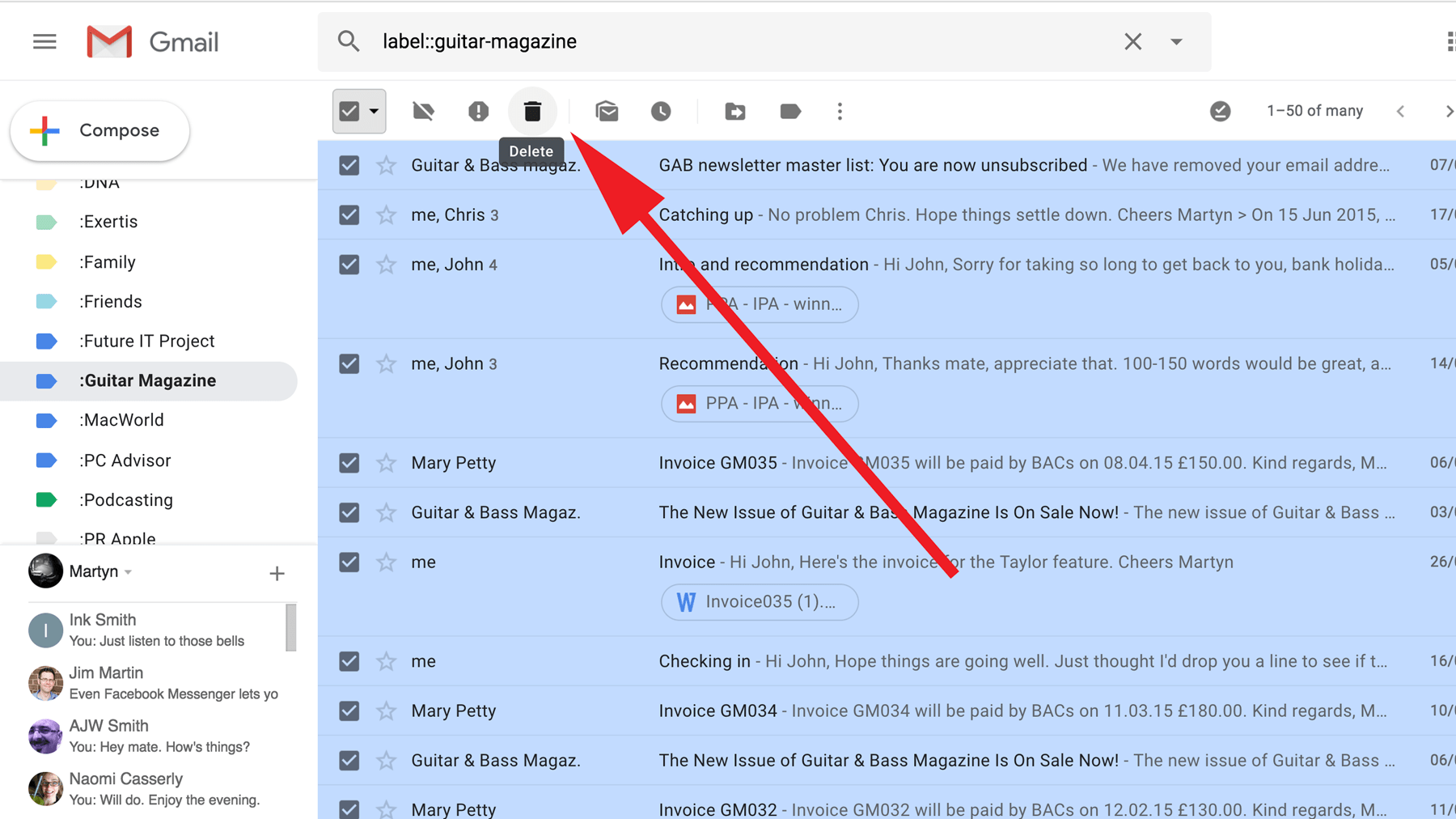
Deleting All Emails From a Specific Sender
To delete all emails from a specific sender:
- Access Your Email Account.
- Search For Emails From The Sender using the search bar.
- Select All Emails from the sender by clicking on the checkbox next to their name.
- Delete The Selected Emails.
Conclusion
Deleting all emails from your email account can be a good idea if you’re experiencing email overload or want to transfer contacts without storing sensitive information. Remember to always follow the steps for your specific email service provider, and confirm that you want to delete all emails before proceeding.
Frequently Asked Questions (FAQs)
-
Q: How do I Delete All Emails From my Gmail Account?
A: To delete all emails from your Gmail account, go to the “Gmail” tab, click on the gear icon in the upper-right corner, and select “See all settings.” Then, click on the “Filters and Blocked Addresses” tab and follow the instructions. -
Q: Can I Undelete Emails That I’ve Already Deleted?
A: Unfortunately, no. Once you delete an email, it’s gone forever. However, if you’re using Gmail, you can recover recently deleted emails from the Trash folder for a limited time. -
Q: How do I Delete All Emails From my Outlook Account?
A: To delete all emails from your Outlook account, click on the “Inbox” tab, select all emails by pressing Ctrl+A (Windows) or Command+A (Mac), and right-click on the selected emails to choose “Delete.” -
Q: What Happens if I Delete All Emails From my Icloud Account?
A: If you delete all emails from your iCloud account, they will be permanently deleted from your device. -
Q: Can I Delete All Emails From a Specific Sender?
A: Yes! To delete all emails from a specific sender, search for their emails using the search bar, select all emails from them by clicking on the checkbox next to their name, and then delete the selected emails. -
Q: How do I Prevent Spam Emails From Clogging my Inbox?
A: To prevent spam emails from clogging your inbox, you can mark them as spam or report them to your email service provider. -
Q: Can I Use a Third-party App to Manage And Delete Emails?
A: Yes! There are many third-party apps available that allow you to manage and delete emails across multiple accounts. -
Q: What Should I do if I Accidentally Delete an Important Email?
A: If you accidentally delete an important email, try contacting your email service provider’s customer support for assistance in recovering the deleted email.


