
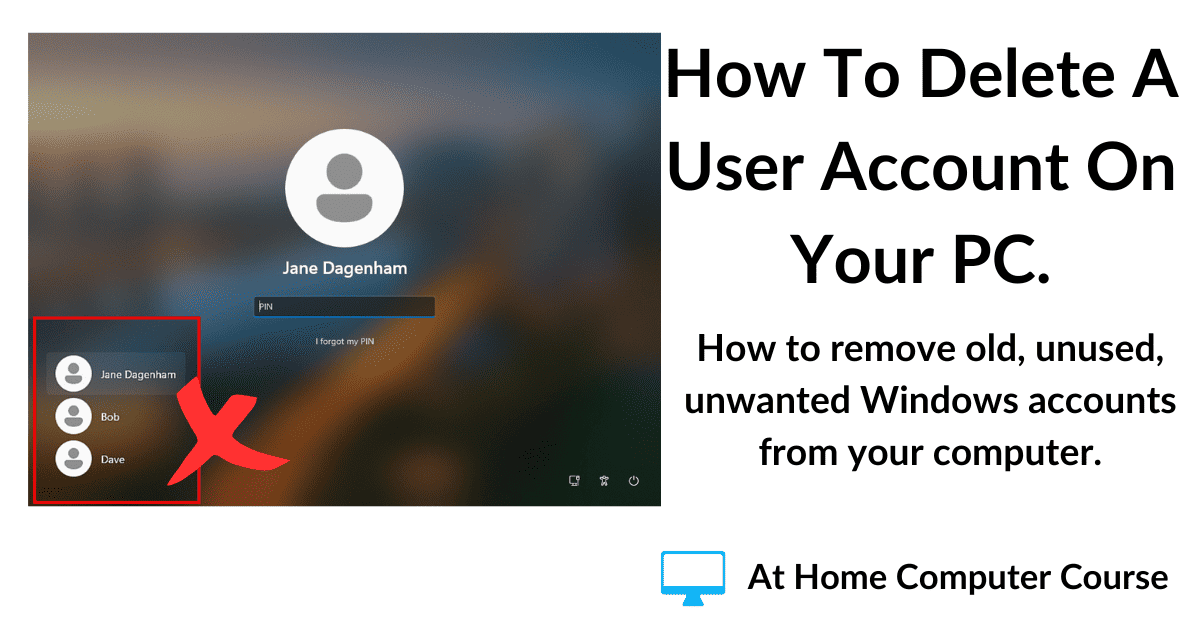
How to Delete a PC Account: A Step-by-step Guide
Are you tired of having multiple user accounts on your computer that you no longer use? Do you want to know how to delete them quickly and easily? Look no further! In this article, we will guide you through the process of deleting a PC account, including steps for Windows 11, Windows 10, and macOS.
Why Delete a PC Account?
Deleting a PC account is not only a good way to declutter your computer, but it’s also essential for security reasons. If you have an unused account on your computer, it can be vulnerable to hacking and other malicious activities. By deleting the account, you’re reducing the risk of unauthorized access to your personal data.
Deleting a PC Account: Windows 11
To delete a PC account on Windows 11, follow these steps:
- Open Settings: Click on the Start button and select the Settings icon.
- Account: Click on the “Account” tab and then select “Other users.”
- Select The User Account to Delete: Choose the user account you want to delete from the list of accounts.
- Delete Account And Data: Click on the “Delete account and data” button.
Deleting a PC Account: Windows 10
To delete a PC account on Windows 10, follow these steps:
- Open Settings: Click on the Start button and select the Settings icon.
- Account: Click on the “Account” tab and then select “Family & other users.”
- Select The User Account to Delete: Choose the user account you want to delete from the list of accounts.
- Delete Account And Data: Click on the “Delete account and data” button.
Deleting a PC Account: Macos
To delete a PC account on macOS, follow these steps:
- Open System Preferences: Click on the Apple menu and select “System Preferences.”
- Users & Groups: Select the “Users & Groups” tab.
- Select The User Account to Delete: Choose the user account you want to delete from the list of accounts.
- Delete Account: Click on the “-” button next to the user account you want to delete.
Dissociating Microsoft Account And Accessing With Local Account
If you have a Microsoft account associated with your computer, but you want to access it using a local account instead, follow these steps:
- Open Settings: Click on the Start button and select the Settings icon.
- Account: Click on the “Account” tab and then select “Access with a local account.”
- Enter Password: Enter your Microsoft account password and click on the “Next” button.
- Create a New Local Account: Create a new local account by entering a username, password, and security question.
Dissociating Google Account
If you have a Google account associated with your computer, but you want to dissociate it, follow these steps:
- Open Settings: Click on the Start button and select the Settings icon.
- Account: Click on the “Account” tab and then select “Google.”
- Select The Google Account to Delete: Choose the Google account you want to delete from the list of accounts.
- Delete Account: Click on the “Delete account” button.
Deleting a Gmail Account
If you have a Gmail account associated with your computer, but you want to delete it, follow these steps:
- Open Settings: Click on the Start button and select the Settings icon.
- Account: Click on the “Account” tab and then select “Put email & account.”
- Select The Gmail Account to Delete: Choose the Gmail account you want to delete from the list of accounts.
- Delete Account: Click on the “Delete account” button.
Conclusion
Deleting a PC account is a simple process that can be completed in just a few steps. By following the instructions outlined in this article, you can delete a user account on Windows 11, Windows 10, and macOS, as well as dissociate Microsoft and Google accounts from your computer. Remember to always follow best practices for security and data protection when deleting accounts.
Faqs
- Q: How do I Delete a PC Account if I’m Not The Administrator?
A: If you’re not the administrator, you can create a new administrative profile and then delete the unwanted account. - Q: Can I Delete a Microsoft Account Associated With my Computer?
A: Yes, you can delete a Microsoft account associated with your computer by following the steps outlined in this article. - Q: How do I Dissociate a Google Account From my Computer?
A: To dissociate a Google account from your computer, follow the steps outlined in this article and select the Google account to delete. - Q: Can I Delete a Gmail Account Associated With my Computer?
A: Yes, you can delete a Gmail account associated with your computer by following the steps outlined in this article. - Q: How do I Delete a PC Account on Macos?
A: To delete a PC account on macOS, follow the steps outlined in this article and select the user account to delete from the list of accounts. - Q: Can I Delete Multiple PC Accounts at Once?
A: Yes, you can delete multiple PC accounts at once by selecting all the unwanted accounts from the list of accounts. - Q: How do I Know if an Account is Still Associated With my Computer?
A: If an account is still associated with your computer, it will be listed in the Settings or System Preferences under “Accounts” or “Users & Groups.” - Q: Can I Delete a PC Account That’s Been Inactive For a Long Time?
A: Yes, you can delete a PC account that’s been inactive for a long time by following the steps outlined in this article.
Table 1: Steps to Delete a PC Account
| Step | Action |
|---|---|
| 1 | Open Settings or System Preferences |
| 2 | Select “Account” or “Users & Groups” tab |
| 3 | Choose the unwanted account from the list of accounts |
| 4 | Click on the “Delete account and data” button |
Table 2: Steps to Dissociate Microsoft Account
| Step | Action |
|---|---|
| 1 | Open Settings or System Preferences |
| 2 | Select “Account” or “Users & Groups” tab |
| 3 | Choose the Microsoft account from the list of accounts |
| 4 | Click on the “Access with a local account” button |
Table 3: Steps to Dissociate Google Account
| Step | Action |
|---|---|
| 1 | Open Settings or System Preferences |
| 2 | Select “Account” or “Users & Groups” tab |
| 3 | Choose the Google account from the list of accounts |
| 4 | Click on the “Delete account” button |
Table 4: Steps to Delete a Gmail Account
| Step | Action |
|---|---|
| 1 | Open Settings or System Preferences |
| 2 | Select “Account” or “Users & Groups” tab |
| 3 | Choose the Gmail account from the list of accounts |
| 4 | Click on the “Delete account” button |
Table 5: Steps to Delete a PC Account on Macos
| Step | Action |
|---|---|
| 1 | Open System Preferences |
| 2 | Select “Users & Groups” tab |
| 3 | Choose the user account from the list of accounts |
| 4 | Click on the “-” button next to the user account |
Table 6: Steps to Delete Multiple PC Accounts
| Step | Action |
|---|---|
| 1 | Open Settings or System Preferences |
| 2 | Select “Account” or “Users & Groups” tab |
| 3 | Choose all the unwanted accounts from the list of accounts |
| 4 | Click on the “Delete account and data” button |
Table 7: Steps to Delete a PC Account That’s Been Inactive For a Long Time
| Step | Action |
|---|---|
| 1 | Open Settings or System Preferences |
| 2 | Select “Account” or “Users & Groups” tab |
| 3 | Choose the inactive account from the list of accounts |
| 4 | Click on the “Delete account and data” button |
Note: The steps outlined in this article are general guidelines and may vary depending on your specific operating system and configuration.


