
How to Erase Apps on Your Phone: A Step-by-step Guide
Are you tired of cluttered phone screens and slow performance? Do you want to know how to erase apps that are taking up space on your device? Look no further! In this article, we will guide you through the process of erasing apps on both Android and iOS devices.
Why Erase Apps?
Before we dive into the steps, let’s talk about why you might want to erase apps in the first place. Over time, our phones can accumulate a large number of apps that we no longer use or need. This can lead to:
- Slow performance: Too many apps can slow down your phone’s processing speed.
- Cluttered screens: Having too many apps on your home screen can make it hard to find what you’re looking for.
- Security risks: Some apps may collect personal data or contain malware.
Erasng Apps on Android Devices
If you have an Android device, here are the steps to erase apps:
Method 1: Erasing Apps From The Home Screen
- Tap And Hold: Tap and hold on the app icon you want to delete.
- Delete Option: A menu will pop up with options for editing or deleting the app.
- Select Delete: Choose the “Delete” option to remove the app.
Method 2: Erasing Apps From Settings
- Settings App: Open the Settings app on your device.
- Apps: Tap on the “Apps” or “Application Manager” option.
- App List: A list of all installed apps will appear.
- Select App: Find and select the app you want to delete.
- Uninstall: Choose the “Uninstall” option to remove the app.
Erasng Apps on Ios Devices
If you have an iOS device, here are the steps to erase apps:
Method 1: Erasing Apps From The Home Screen
- Swipe Left or Right: Swipe left or right on the home screen to find the app you want to delete.
- Delete Option: A red minus sign will appear next to the app’s icon.
- Select Delete: Tap the red minus sign to remove the app.
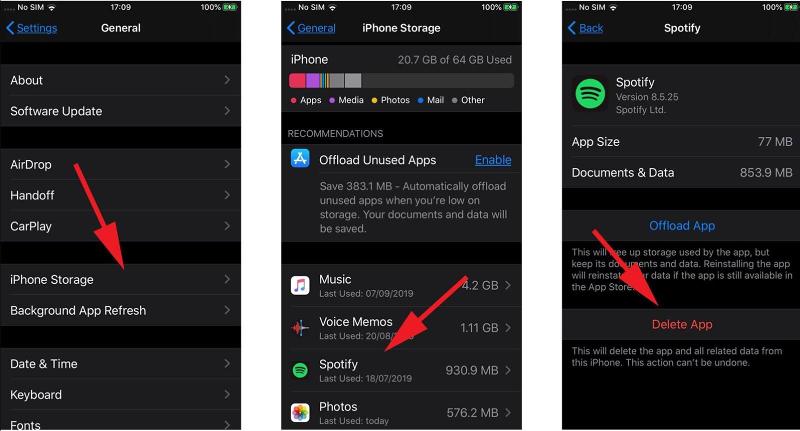
Method 2: Erasing Apps From Settings
- Settings App: Open the Settings app on your device.
- General: Tap on the “General” option.
- Iphone Storage: Select the “iPhone Storage” option.
- App List: A list of all installed apps will appear.
- Select App: Find and select the app you want to delete.
- Delete App: Choose the “Delete App” option to remove the app.
What About Pre-installed Apps?
Some Android devices come with pre-installed apps that can’t be deleted in the usual way. If you want to disable these apps, follow these steps:
- Settings App: Open the Settings app on your device.
- Apps: Tap on the “Apps” or “Application Manager” option.
- App List: A list of all installed apps will appear.
- Select App: Find and select the pre-installed app you want to disable.
- Disable Option: Choose the “Disable” option to turn off the app.
What About Apps That Are Still Running?
Sometimes, an app may still be running in the background even though it’s no longer visible on your screen. To close these apps:
- Swipe Up or Down: Swipe up or down on the home screen to find the app you want to close.
- Force Close Option: A red minus sign will appear next to the app’s icon.
- Select Force Close: Tap the red minus sign to force-close the app.
Conclusion
Erasing apps is a simple process that can help keep your phone organized and running smoothly. Whether you’re using an Android or iOS device, these steps should guide you through the process of deleting unwanted apps. Remember to always be cautious when deleting pre-installed apps or closing apps that are still running in the background.
Faqs
- Q: How do I Erase Multiple Apps at Once?
A: On both Android and iOS devices, you can select multiple apps to delete by tapping on them while holding down the “Shift” key (on Android) or using the “Select All” option (on iOS). - Q: Will Erasing an App Remove All Its Data?
A: Yes, when you erase an app, it will also delete any associated data. - Q: How do I Disable Pre-installed Apps on my Android Device?
A: Follow the steps outlined above to disable pre-installed apps on your Android device. - Q: Can I Still Use an App if I’ve Deleted It?
A: No, deleting an app will remove all its data and functionality from your device.
We hope this guide has helped you learn how to erase apps on your phone!


