
The Ultimate Guide to Erasing Cookies on Google Chrome
Are you tired of cookies taking up precious space on your computer or mobile device? Do you want to maintain your online privacy and security? Look no further! In this article, we will guide you through the simple process of erasing cookies on Google Chrome, whether you’re using a PC, Android, iPhone, or iPad.
What Are Cookies Anyway?
Cookies are small files created by websites when you visit them. They help websites remember your preferences and tailor your browsing experience. However, they can also be used to track your online activity and store sensitive information. That’s why it’s essential to erase cookies periodically to maintain your online security and anonymity.
Why Erase Cookies on Google Chrome?
Erasing cookies on Google Chrome can help you:
- Maintain your online privacy by preventing websites from tracking your browsing history
- Free up space on your device by deleting unnecessary cookie files
- Improve your browsing experience by removing cached data that may be slowing down your browser
How to Erase Cookies on Google Chrome (PC)
Erasin cookies on Google Chrome is a straightforward process. Here’s how:
- Open Google Chrome and click on the three vertical dots in the top-right corner.
- Select Settings from the dropdown menu.
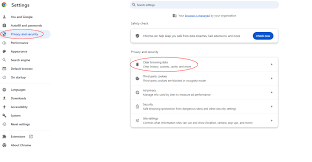
- Scroll down to the Privacy And Security section.
- Click on Clear Browsing Data.
- Choose the types of data you want to delete, including cookies and other site data.
- Set the time range to delete data for (e.G., Last hour, last day, or all time).
- Click Clear Data to complete the process.
How to Erase Cookies on Google Chrome (Android)
Erasin cookies on Google Chrome for Android is similar to erasing them on a PC. Here’s how:
- Open Google Chrome and tap the three vertical dots in the top-right corner.
- Select Settings from the dropdown menu.
- Scroll down to the Privacy And Security section.
- Tap on Clear Browsing Data.
- Choose the types of data you want to delete, including cookies and other site data.
- Set the time range to delete data for (e.G., Last hour, last day, or all time).
- Tap Clear Data to complete the process.
How to Erase Cookies on Google Chrome (iPhone/iPad)
Erasin cookies on Google Chrome for iPhone and iPad is also relatively simple. Here’s how:
- Open Google Chrome and tap the three horizontal dots in the top-right corner.
- Select Settings from the dropdown menu.
- Scroll down to the Privacy And Security section.
- Tap on Clear Browsing Data.
- Choose the types of data you want to delete, including cookies and other site data.
- Set the time range to delete data for (e.G., Last hour, last day, or all time).
- Tap Clear Data to complete the process.
Tips And Tricks
Here are some additional tips and tricks to keep in mind:
- Erasing cookies will log you out of websites that use them for login purposes.
- You can also erase cache files, which can help improve your browsing experience by removing unnecessary data.
- Consider using a browser extension like Ghostery or uBlock Origin to block trackers and protect your online privacy.
Conclusion
Erasing cookies on Google Chrome is an essential step in maintaining your online security and anonymity. By following the simple steps outlined above, you can easily clear cookies, cache files, and other site data from your browser. Remember to also use browser extensions and other tools to further protect yourself online.
FAQs
- What Are Cookies, And Why do They Matter?
Cookies are small files created by websites when you visit them. They help websites remember your preferences and tailor your browsing experience. However, they can also be used to track your online activity and store sensitive information.
* How Often Should I Erase Cookies on Google Chrome?
You should erase cookies periodically to maintain your online security and anonymity. A good rule of thumb is to clear cookies every time you close your browser or every few days if you’re a heavy user.
* Will Erasing Cookies Log me Out of Websites?
Yes, erasing cookies will log you out of websites that use them for login purposes. If you want to maintain access to these sites, consider using password managers or two-factor authentication.
Hope this helps!


