
How to Delete Cookies: A Step-by-step Guide
Are you tired of having your browsing history tracked? Do you want to delete cookies from your browser? Look no further! In this article, we will guide you through the process of deleting cookies from various browsers, including Chrome, PC, mobile, and tablet.
What Are Cookies?
Cookies are small text files that websites store on your device to remember your preferences, login information, and other data. While cookies can be helpful in making your browsing experience smoother, they can also be used to track your online activities without your consent.
Why Delete Cookies?
Deleting cookies is essential for maintaining your online privacy and security. By deleting cookies, you can:
- Prevent websites from tracking your browsing history
- Remove login information and other sensitive data stored by websites
- Improve the performance of your browser by reducing the number of cookies stored
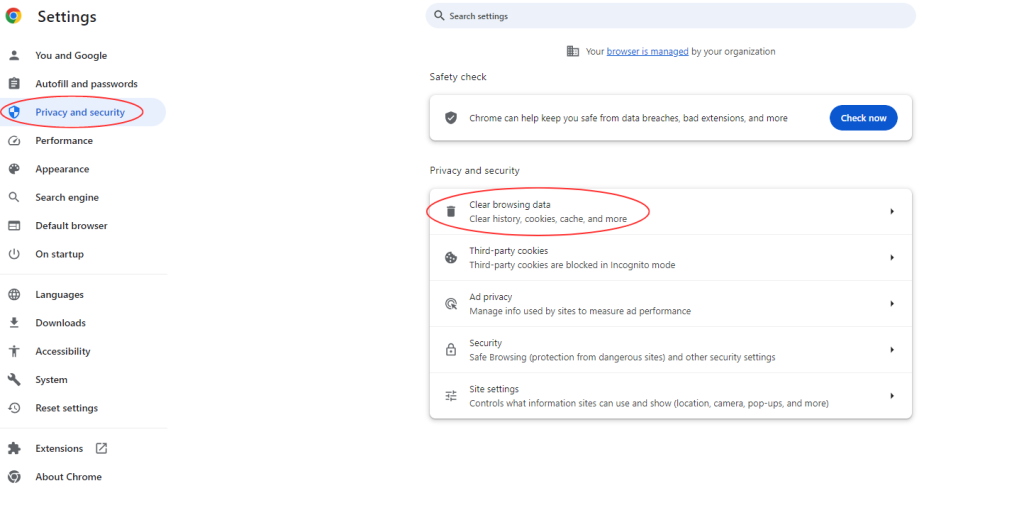
How to Delete Cookies in Chrome
To delete cookies in Chrome on your PC:
- Open Chrome and click on the three dots icon in the top right corner.
- Select “Settings” from the dropdown menu.
- Click on “Advanced” at the bottom of the page.
- Scroll down to the “Cookies and other site data” section.
- Click on “See all cookies and site data”.
- Select the type of cookie you want to delete (e.G., Cookies, site data).
- Choose the interval for deleting cookies (e.G., When closing Chrome).
To delete cookies in Chrome on your mobile device:
- Open Chrome and tap the three dots icon in the bottom right corner.
- Tap “Settings”.
- Scroll down to the “Cookies” section.
- Tap “See all cookies and site data”.
- Select the type of cookie you want to delete (e.G., Cookies, site data).
- Choose the interval for deleting cookies (e.G., When closing Chrome).
How to Delete Cookies in PC
To delete cookies on your PC using Firefox:
- Open Firefox and click on the three dots icon in the top right corner.
- Select “Options” from the dropdown menu.
- Click on “Privacy & Security”.
- Scroll down to the “Cookies and Site Data” section.
- Click on “See all cookies and site data”.
- Select the type of cookie you want to delete (e.G., Cookies, site data).
- Choose the interval for deleting cookies (e.G., When closing Firefox).
To delete cookies using Edge:
- Open Edge and click on the three dots icon in the top right corner.
- Select “Settings” from the dropdown menu.
- Click on “Privacy, search & services”.
- Scroll down to the “Cookies and other data of sites” section.
- Click on “See all cookies and site data”.
- Select the type of cookie you want to delete (e.G., Cookies, site data).
- Choose the interval for deleting cookies (e.G., When closing Edge).
How to Delete Cookies in Mobile Device
To delete cookies on your mobile device using Firefox:
- Open Firefox and tap the three dots icon in the bottom right corner.
- Tap “Settings”.
- Scroll down to the “Cookies” section.
- Tap “See all cookies and site data”.
- Select the type of cookie you want to delete (e.G., Cookies, site data).
- Choose the interval for deleting cookies (e.G., When closing Firefox).
To delete cookies using Edge on your mobile device:
- Open Edge and tap the three dots icon in the bottom right corner.
- Tap “Settings”.
- Scroll down to the “Cookies” section.
- Tap “See all cookies and site data”.
- Select the type of cookie you want to delete (e.G., Cookies, site data).
- Choose the interval for deleting cookies (e.G., When closing Edge).
How to Delete Cookies in Safari
To delete cookies on your Mac using Safari:
- Open Safari and click on the Safari menu.
- Select “Preferences” from the dropdown menu.
- Click on the “Privacy” tab.
- Click on “Manage website data”.
- Select the type of cookie you want to delete (e.G., Cookies, site data).
- Choose the interval for deleting cookies (e.G., When closing Safari).
To delete cookies on your iPhone using Safari:
- Open Safari and tap the icon in the bottom right corner.
- Tap “Settings”.
- Scroll down to the “Cookies” section.
- Tap “Manage website data”.
- Select the type of cookie you want to delete (e.G., Cookies, site data).
- Choose the interval for deleting cookies (e.G., When closing Safari).
How to Delete Cookies From a Specific Website
To delete cookies from a specific website using Chrome:
- Open Chrome and click on the three dots icon in the top right corner.
- Select “Settings” from the dropdown menu.
- Click on “Advanced”.
- Scroll down to the “Cookies and other site data” section.
- Click on “See all cookies and site data”.
- Select the website you want to delete cookies for.
To delete cookies from a specific website using Firefox:
- Open Firefox and click on the three dots icon in the top right corner.
- Select “Options” from the dropdown menu.
- Click on “Privacy & Security”.
- Scroll down to the “Cookies and Site Data” section.
- Click on “See all cookies and site data”.
- Select the website you want to delete cookies for.
Conclusion
Deleting cookies is an essential step in maintaining your online privacy and security. By following the steps outlined above, you can delete cookies from various browsers, including Chrome, PC, mobile, and tablet. Remember to always review the settings of your browser before deleting cookies to ensure that you are not inadvertently removing important data.
Faqs
- What Happens if I Delete All Cookies?
Deleting all cookies will remove login information, preferences, and other data stored by websites. - Can I Delete Specific Cookies From a Website?
Yes, most browsers allow you to delete specific cookies from a website. - Will Deleting Cookies Improve my Browsing Experience?
Deleting cookies can help improve your browsing experience by reducing the number of cookies stored on your device. - Are Cookies Secure?
Cookies can be used to track your online activities and store sensitive data, making them a security risk if not properly managed. - Can I Delete Cookies Automatically?
Yes, most browsers allow you to set up automatic cookie deletion at regular intervals (e.G., When closing the browser). - Will Deleting Cookies Remove All Website Data?
Deleting cookies will only remove login information and other data stored by websites. Other website data, such as bookmarks and history, will remain intact. - Can I Delete Cookies on Multiple Devices?
Yes, most browsers allow you to delete cookies on multiple devices connected to the same account. - Are There Any Risks Associated With Deleting Cookies?
Deleting cookies can lead to lost login information or other data stored by websites, so it’s essential to review your browser settings before deleting cookies.


