
How to Delete Cookies on Your Pc: A Step-by-step Guide
Are you tired of dealing with cookies on your computer? Do you want to know how to delete them easily? Look no further! In this article, we will guide you through the process of deleting cookies on different browsers, including Chrome, Edge, Firefox, and Safari.
What Are Cookies?
Before we dive into the deletion process, let’s quickly explain what cookies are. Cookies are small text files that websites store on your computer to remember your preferences, login information, and browsing history. They can also be used for tracking purposes by advertisers and marketers. While cookies can be useful in some cases, they can also be a privacy concern if not managed properly.
Why Delete Cookies?
Deleting cookies can have several benefits:
- Improved Privacy: Deleting cookies can help protect your online identity and prevent unwanted tracking.
- Better Performance: Cookies can slow down your browser or computer over time, especially if you have many cookies stored on your device.
- Simplified Browsing Experience: By deleting cookies, you can ensure that your browsing experience is clutter-free and more efficient.
How to Delete Cookies on Different Browsers
Here’s a step-by-step guide on how to delete cookies on various browsers:
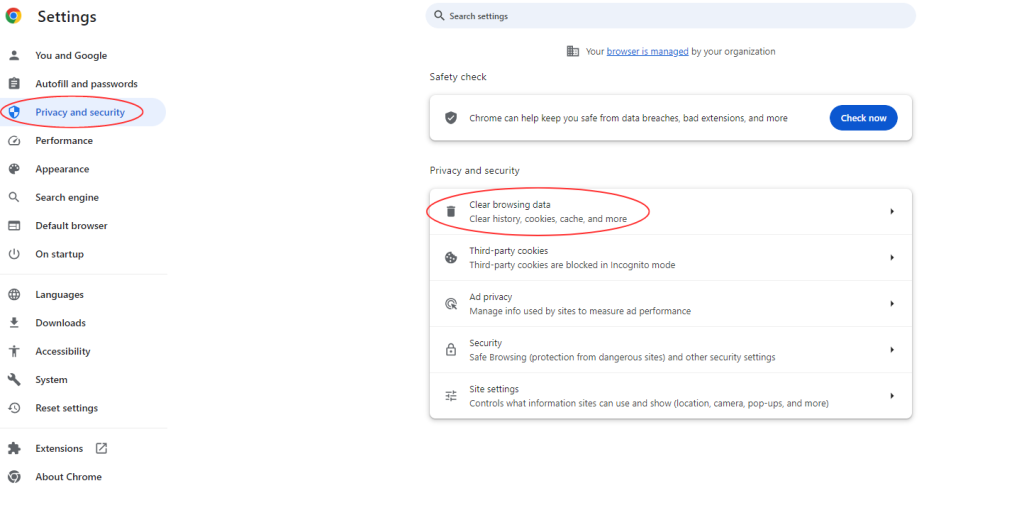
Chrome
- Open Google Chrome and click on the three vertical dots in the upper right corner.
- Click on “Settings” from the dropdown menu.
- Scroll down to the “Advanced” section and click on “Clear browsing data.”
- Select the types of data you want to delete (including cookies).
- Choose the time range for which you want to delete data (e.G., Last hour, last day, etc.).
- Click on “Clear data” to confirm.
Edge
- Open Microsoft Edge and click on the three horizontal dots in the upper right corner.
- Click on “Settings” from the dropdown menu.
- Scroll down to the “Privacy and services” section and click on “Choose what to delete.”
- Select the types of data you want to delete (including cookies).
- Choose the time range for which you want to delete data (e.G., Last hour, last day, etc.).
- Click on “Delete now” to confirm.
Firefox
- Open Mozilla Firefox and click on the three horizontal lines in the upper right corner.
- Click on “Options” from the dropdown menu.
- Scroll down to the “Privacy and security” section and click on “Clear your recent history.”
- Select the types of data you want to delete (including cookies).
- Choose the time range for which you want to delete data (e.G., Last hour, last day, etc.).
- Click on “OK” to confirm.
Safari
- Open Apple Safari and click on the three horizontal lines in the upper right corner.
- Click on “Preferences” from the dropdown menu.
- Scroll down to the “Privacy” section and click on “Manage Website Data.”
- Select the types of data you want to delete (including cookies).
- Choose the time range for which you want to delete data (e.G., Last hour, last day, etc.).
- Click on “Remove Now” to confirm.
How to Delete Cookies on Mobile Devices
If you’re using a mobile device, follow these steps:
Chrome For Android And Iphone
- Open the Google Chrome app.
- Tap on the three horizontal dots in the upper right corner.
- Tap on “Settings.”
- Scroll down to the “Privacy and security” section and tap on “Clear browsing data.”
- Select the types of data you want to delete (including cookies).
- Choose the time range for which you want to delete data (e.G., Last hour, last day, etc.).
Edge For Android And Iphone
- Open the Microsoft Edge app.
- Tap on the three horizontal dots in the upper right corner.
- Tap on “Settings.”
- Scroll down to the “Privacy and services” section and tap on “Choose what to delete.”
- Select the types of data you want to delete (including cookies).
- Choose the time range for which you want to delete data (e.G., Last hour, last day, etc.).
Firefox For Android And Iphone
- Open the Mozilla Firefox app.
- Tap on the three horizontal lines in the upper right corner.
- Tap on “Options.”
- Scroll down to the “Privacy and security” section and tap on “Clear your recent history.”
- Select the types of data you want to delete (including cookies).
- Choose the time range for which you want to delete data (e.G., Last hour, last day, etc.).
Tips And Tricks
Here are some additional tips and tricks to keep in mind:
- Regularly Clear Cookies: To prevent cookie clutter from building up, regularly clear your cookies every few days or weeks.
- Use a Password Manager: Consider using a password manager like LastPass or 1Password to securely store your login credentials and preferences.
- Adjust Your Browser Settings: Adjust your browser settings to limit the types of cookies that are stored on your device.
Conclusion
Deleting cookies can be an essential step in maintaining online privacy, improving browsing performance, and simplifying your digital experience. By following this guide, you should now know how to delete cookies on various browsers and mobile devices. Remember to regularly clear cookies, use a password manager, and adjust your browser settings to ensure a secure and clutter-free online experience.
Frequently Asked Questions (FAQs)
Q: Why do I need to delete cookies?
A: Deleting cookies can help protect your online identity, improve browsing performance, and simplify your digital experience.
Q: How often should I clear cookies?
A: Regularly clearing cookies every few days or weeks is recommended to prevent cookie clutter from building up.
Q: Can I delete cookies on my mobile device?
A: Yes, you can delete cookies on various browsers and mobile devices, including Chrome, Edge, Firefox, Safari, Android, and iPhone.
Q: How do I adjust my browser settings to limit cookie storage?
A: Adjust your browser settings to select the types of cookies that are stored on your device, such as session cookies or persistent cookies.
Q: Can I use a password manager with cookies?
A: Yes, using a password manager can securely store your login credentials and preferences, while deleting cookies helps protect your online identity.
Q: How do I delete cookies on Instagram?
A: To delete cookies on Instagram, follow the steps for deleting cookies on mobile devices or use the instructions provided in our dedicated guide.
Q: What are some additional tips for managing cookies?
A: Regularly clearing cookies, using a password manager, and adjusting browser settings can help maintain online privacy, improve browsing performance, and simplify your digital experience.


