
How to Erase Whatsapp Messages on Your Smartphone or Tablet
Are you tired of having unwanted messages saved on your WhatsApp conversation? Do you want to know how to erase them without losing any important information? In this article, we will guide you through the process of erasing WhatsApp messages on both Android and iOS devices.
Erasing Whatsapp Messages on Android Devices
If you have an Android device, you can easily erase WhatsApp messages by following these simple steps:
- Open The Phone App: Find the icon of the phone app on your home screen or in the apps drawer. Tap on it to open it.
- Access The Clipboard: Tap on the “3 dots” icon at the top right corner of the screen, and then tap on “Clipboard”.
- Clear The Clipboard: A window will appear asking if you want to clear the entire clipboard or just the selected item. Choose to clear the entire clipboard by tapping on “Clear all”.
- Confirm The Action: You’ll be asked to confirm that you want to clear the clipboard. Tap on “OK” to proceed.
Alternatively, you can use the “Clear Clipboard History” app available on Google Play Store to erase WhatsApp messages on your Android device.
Erasing Whatsapp Messages on Ios Devices
If you have an iOS device (iPhone or iPad), you can follow these steps to erase WhatsApp messages:
- Open The Notes App: Find the icon of the notes app on your home screen or in the apps drawer. Tap on it to open it.
- Create a New Note: Tap on the “3 dots” icon at the bottom right corner of the screen, and then tap on “New Note”.
- Copy Something: Type any random text in the note to create a new item in your clipboard.
- Copy The Message: Long press on the text you just typed and select “Copy”.
- Delete The Original Message: Go back to WhatsApp and delete the original message.
Alternatively, you can use the “Clear Clipboard” feature available in the “Workflow” app (formerly known as “Workflow”) by tapping on the icon of the Workflow app, tapping on the “Gallery” button at the bottom right corner of the screen, typing “Clear clipboard”, tapping on the “OK” button, and then confirming that you want to clear the clipboard.
Erasing Whatsapp Messages on Windows And Macos
If you’re using WhatsApp on your computer or laptop (Windows or macOS), you can erase messages in a similar way:
- Open Whatsapp: Launch WhatsApp on your computer.
- Access The Chat Window: Find the conversation that contains the message you want to delete.
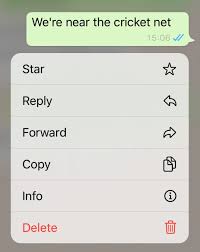
- Right-click on The Message: Right-click on the message you want to delete, and select “Delete” from the context menu.
Conclusion
Erasing unwanted messages on WhatsApp is a simple process that can be done on both Android and iOS devices. Remember to always keep your device clean of unnecessary information to ensure it runs smoothly and efficiently.
Faqs
- Q: Can I Restore Deleted Messages on Whatsapp?
A: Unfortunately, no. Once you delete a message on WhatsApp, it’s gone forever. - Q: How Can I Prevent Unwanted Messages From Being Saved in my Clipboard?
A: You can set up your device to automatically clear the clipboard history after each use. - Q: Can I Erase Messages on Multiple Chats at Once?
A: Yes, you can select multiple chats and delete all messages simultaneously. - Q: Is There a Way to Permanently Delete Whatsapp Data?
A: Yes, if you want to completely remove WhatsApp from your device, go to Settings > Apps > WhatsApp and select “Clear Data” and “Clear Cache”. - Q: How Can I Protect my Whatsapp Conversations From Unauthorized Access?
A: Always use a strong password and enable two-factor authentication on your account. - Q: Can I Report a Conversation That Contains Unwanted or Harassing Messages?
A: Yes, you can report the conversation to WhatsApp by going to Settings > Report conversation. - Q: How do I Prevent Someone From Saving Our Conversation in Their Clipboard?
A: You can’t directly prevent someone from saving your conversation in their clipboard, but you can delete messages you don’t want saved.
Erasing Messages on Whatsapp – A Step-by-step Guide
| Device | Steps to Erase Message |
|---|---|
| Android | Open Phone app, access Clipboard, clear entire clipboard, confirm action |
| Ios | Open Notes app, create new note, copy something, copy message, delete original message |
| Windows/macos | Open WhatsApp on computer, access chat window, right-click on message, select “Delete” from context menu |
Tips And Tricks
- Regularly clear your clipboard history to prevent unwanted messages from being saved.
- Use strong passwords and enable two-factor authentication on your account for added security.
- If you’re experiencing harassment or unwanted behavior in a WhatsApp conversation, report the conversation immediately.
By following these simple steps and tips, you’ll be able to keep your WhatsApp conversations private and secure.


