
How to Delete Your Discord Account: A Step-by-step Guide
Are you tired of using Discord or want to take a break from the platform? Deleting your account might seem like a daunting task, but don’t worry; we’ve got you covered. In this article, we’ll guide you through the process of deleting your Discord account on both computer and mobile devices.
Why Delete Your Discord Account?
Before we dive into the steps, let’s talk about why you might want to delete your Discord account in the first place. Perhaps you’re no longer interested in using the platform or have experienced issues with harassment, spam, or other problems. Whatever the reason, deleting your account is a straightforward process that will remove all your data and connections from the platform.
Preliminary Information
Before we proceed, keep in mind that deleting your Discord account is an irreversible procedure. This means that once you delete your account, all chat history, messages, and data associated with it will be lost forever. Additionally, if you’re a server owner, you won’t be able to recover the account or access any data related to it.
How to Delete Your Discord Account on Computer
To delete your Discord account on computer, follow these steps:
- Access The Discord Website: Open a web browser and navigate to the official Discord website (www.Discord.Com).
- Log In: Enter your login credentials (email or phone number and password) in the respective fields.
- Select Your Account: Click on “My Account” in the top-right corner of the screen.
- Settings: Select the settings icon (gear symbol) next to your username.
- Account Settings: In the account settings menu, click on “Remove My Account.”
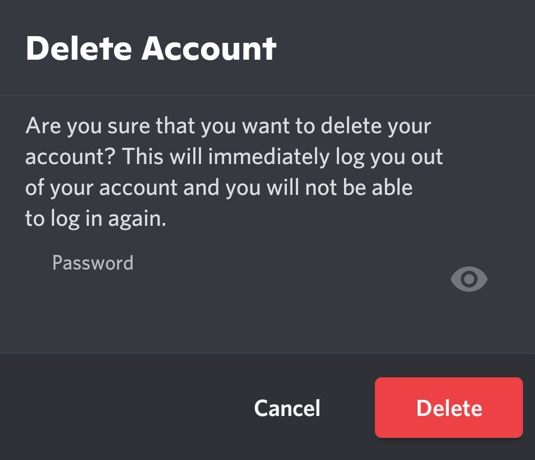
- Confirmation: Confirm that you want to delete your account by entering your password and clicking “Confirm.”
How to Delete Your Discord Account on Mobile
To delete your Discord account on mobile devices (Android or iOS), follow these steps:
- Open The Discord App: Launch the Discord app on your device.
- Log In: Enter your login credentials in the respective fields.
- Tap on “Your Account”: Tap on your username in the top-left corner of the screen.
- Account Settings: Select the settings icon (gear symbol).
- Remove My Account: Tap on “Remove My Account.”
- Confirmation: Confirm that you want to delete your account by entering your password and tapping “Confirm.”
Alternative Solutions: Disabling Your Account
If you’re not ready to delete your account completely, consider disabling it instead. This will temporarily remove your profile from the platform, allowing you to reactivate it later if needed.
To disable your Discord account on computer:
- Follow Steps 1-4 above.
- Select “Disattiva Account”: Instead of removing your account, select the option to disable it.
On mobile devices:
- Open The Discord App and follow steps 1-3 above.
- Tap on “Disattiva Account”: Select this option instead of removing your account.
Server Owners: Transfer Ownership or Delete Your Server
If you’re a server owner, you can transfer ownership to another user or delete the server entirely. To do so:
- Access Your Server: Open the Discord app and navigate to your server.
- Tap on The Three Dots: Select the three dots next to your username.
- Server Settings: Tap on “Settings.”
- Members: Scroll down to the members section and tap on “Manage.”
- Transfer Ownership or Delete Server: Select one of these options to transfer ownership or delete the server.
Conclusion
Deleting your Discord account is a straightforward process that can be completed in just a few steps. Remember to confirm your deletion request twice to ensure that you don’t accidentally remove your account. If you have any questions or concerns, feel free to reach out to us in the comments below.


