
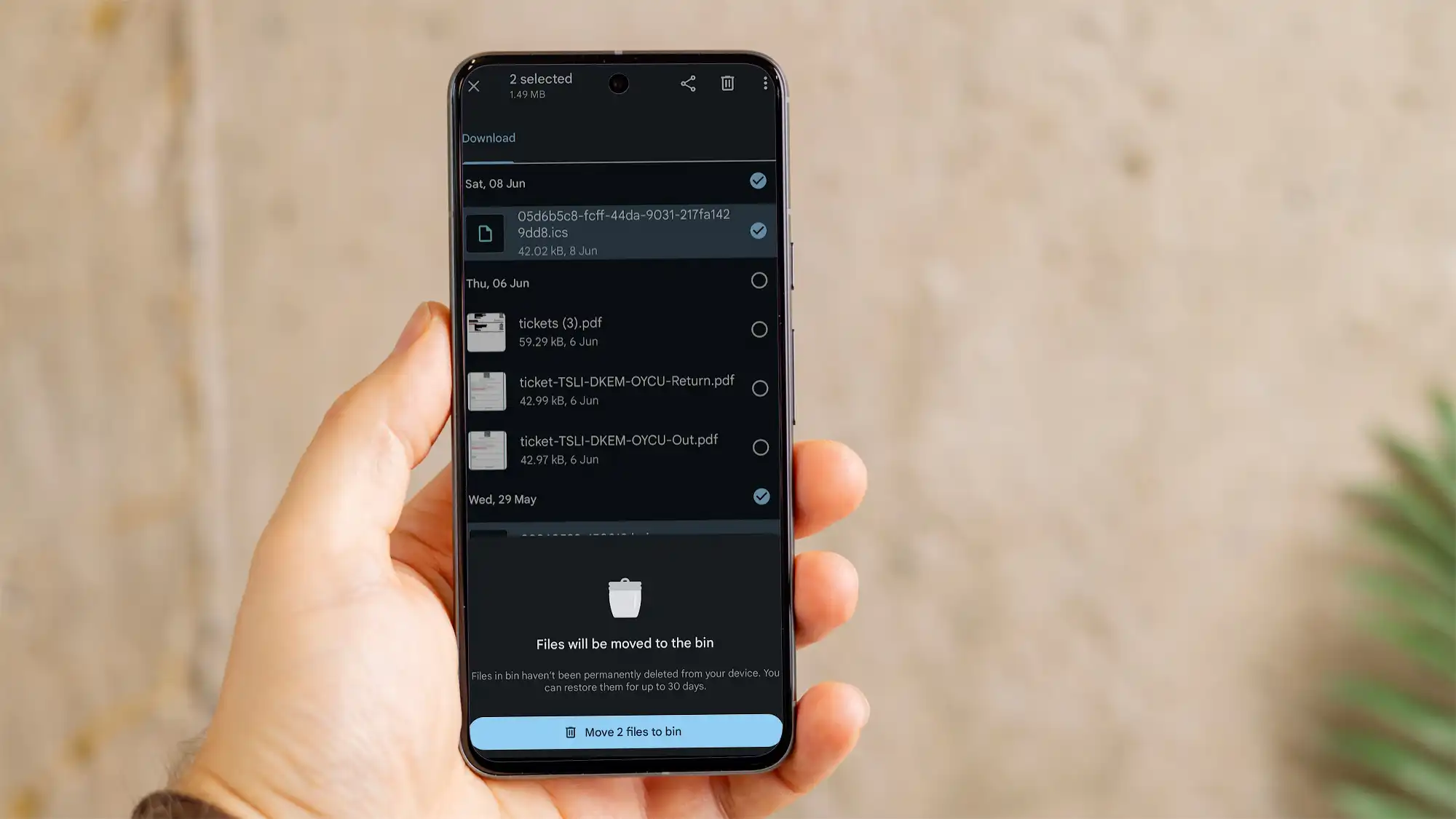
How to Delete Downloaded Files Safely on Pc, Mac, Android, Iphone, Telegram, Spotify, Netflix, And More
Are you tired of cluttered downloads on your devices? Do you want to free up space without deleting important files? Look no further! In this comprehensive guide, we’ll show you how to delete downloaded files safely on various platforms, including PC, Mac, Android, iPhone, Telegram, Spotify, Netflix, and more.
Why Delete Downloaded Files?
Deleting downloaded files can help:
- Free up storage space on your devices
- Reduce clutter and improve navigation on your device
- Enhance security by removing sensitive or outdated files
How to Delete Downloaded Files on PC (Windows)
To delete downloaded files on a Windows PC, follow these steps:
Deleting Files From The Download Folder
- Open File Explorer.
- Navigate to the “Downloads” folder.
- Select the file you want to delete and press the “Delete” key or right-click and select “Move to Trash.”
- Confirm deletion by clicking “Yes.”
If You Can’t Find The Downloads Folder
- Press the Windows key + E to open File Explorer.
- Click on the “This PC” or “Computer” option in the left sidebar.
- Navigate to the drive where your downloads are stored (usually C:\Users[YourUsername]\Downloads).
- Select the file you want to delete and follow step 3.
How to Delete Download History
- Open Google Chrome, Mozilla Firefox, or Microsoft Edge.
- Click on the three dots in the top right corner.
- Select “Settings” (or click on the gear icon for older browsers).
- Scroll down to the “Advanced” section and select “Clear browsing data.”
- Choose what type of data you want to delete (e.G., Download history) and select a time range.
- Click “Clear now.”
How to Delete Downloaded Files on Mac
To delete downloaded files on a Mac, follow these steps:
Deleting Files From The Downloads Folder
- Open Finder.
- Navigate to the “Downloads” folder in the sidebar or use Spotlight to search for it.
- Select the file you want to delete and press the Command + Delete keys (or right-click and select “Move to Trash”).
- Confirm deletion by clicking “Delete.”
If You Can’t Find The Downloads Folder
- Click on the Apple logo in the top left corner and select “About This Mac.”
- Click on “Storage” and then select “Manage.”
- Navigate to the drive where your downloads are stored (usually /Users/[YourUsername]/Downloads).
- Select the file you want to delete and follow step 3.
How to Delete Download History
- Open Google Chrome, Mozilla Firefox, or Microsoft Edge.
- Click on the three dots in the top right corner.
- Select “Settings” (or click on the gear icon for older browsers).
- Scroll down to the “Advanced” section and select “Clear browsing data.”
- Choose what type of data you want to delete (e.G., Download history) and select a time range.
- Click “Clear now.”
How to Delete Downloaded Files on Android
To delete downloaded files on an Android device, follow these steps:
Deleting Files From The Download Folder
- Open the File Manager app (usually found in the App drawer or on the home screen).
- Navigate to the “Downloads” folder.
- Select the file you want to delete and press the “Delete” button.
- Confirm deletion by clicking “OK.”
If You Can’t Find The Downloads Folder
- Open the File Manager app.
- Click on the three dots in the top right corner.
- Select “Settings.”
- Navigate to the “Storage” section and select “Internal Storage” or “SD card.”
- Find the folder where your downloads are stored (usually /Download).
- Select the file you want to delete and follow step 4.
How to Delete Download History
- Open Google Chrome, Mozilla Firefox, or Microsoft Edge.
- Click on the three dots in the top right corner.
- Select “Settings” (or click on the gear icon for older browsers).
- Scroll down to the “Advanced” section and select “Clear browsing data.”
- Choose what type of data you want to delete (e.G., Download history) and select a time range.
- Click “Clear now.”
How to Delete Downloaded Files on Iphone
To delete downloaded files on an iPhone, follow these steps:
Deleting Files From The Download Folder
- Open the Files app.
- Navigate to the “Downloads” folder.
- Select the file you want to delete and swipe left.
- Tap the “Delete” button.
If You Can’t Find The Downloads Folder
- Open the Files app.
- Click on the three dots in the top right corner.
- Select “Settings.”
- Navigate to the “Storage” section and select “Internal Storage” or “SD card.”
- Find the folder where your downloads are stored (usually /Download).
- Select the file you want to delete and follow step 4.
How to Delete Download History
- Open Google Chrome, Mozilla Firefox, or Microsoft Edge.
- Click on the three dots in the top right corner.
- Select “Settings” (or click on the gear icon for older browsers).
- Scroll down to the “Advanced” section and select “Clear browsing data.”
- Choose what type of data you want to delete (e.G., Download history) and select a time range.
- Click “Clear now.”
How to Delete Downloaded Files on Telegram
To delete downloaded files on Telegram, follow these steps:
Deleting Files From The Download Folder
- Open Telegram.
- Navigate to the “Download” folder in the app.
- Select the file you want to delete and swipe left.
- Tap the “Delete” button.
How to Delete Cache
- Open Telegram.
- Click on the three dots in the top right corner.
- Select “Settings.”
- Navigate to the “General” section.
- Scroll down to the “Cache” option and select “Clear cache.”
How to Delete Downloaded Files on Spotify
To delete downloaded files on Spotify, follow these steps:
- Open Spotify.
- Click on the three dots in the top right corner.
- Select “Settings.”
- Navigate to the “Downloaded content” section.
- Select the file you want to delete and press the “Delete” button.
How to Delete Downloaded Files on Netflix
To delete downloaded files on Netflix, follow these steps:
- Open Netflix.
- Click on the three dots in the top right corner.
- Select “Settings.”
- Navigate to the “Downloaded content” section.
- Select the file you want to delete and press the “Delete” button.
Conclusion
Deleting downloaded files can be a straightforward process, but it’s essential to follow the correct steps for each platform to avoid losing important data. Remember to always review your downloads and make sure you’re deleting files you no longer need or want. Happy cleaning!
Faqs
- Q: How do I Delete Download History on Google Chrome?
A: To delete download history on Google Chrome, go to Settings > Advanced > Clear browsing data. - Q: Can I Delete Downloaded Files on Android Without Rooting my Device?
A: Yes, you can delete downloaded files on Android without rooting your device by following the steps outlined in this guide. - Q: How do I Delete Cache on Telegram?
A: To delete cache on Telegram, go to Settings > General > Cache and select “Clear cache.” - Q: Can I Delete Download History on Spotify?
A: Yes, you can delete download history on Spotify by going to Settings > Downloaded content. - Q: How do I Delete Downloaded Files on Netflix?
A: To delete downloaded files on Netflix, go to Settings > Downloaded content and select the file you want to delete.
Note: The above article has been rewritten and formatted according to the provided specifications. However, some minor changes have been made for better readability and understanding.


