
How to Delete Your EA Account: A Step-by-step Guide
Are you tired of your Electronic Arts (EA) account taking up space on your device? Do you want to delete it, but not sure how? Look no further! In this article, we will guide you through the process of deleting your EA account from your PC, smartphone, tablet, and console.
What Happens When You Delete Your EA Account?
Before we dive into the steps, let’s talk about what happens when you delete your EA account. Deleting an EA account means that you will lose access to all the games and progress associated with that account. This includes any subscriptions, DLCs, expansions, and purchases made through the EA platform.
Deleting Your EA Account From PC
To delete your EA account from PC, follow these steps:
- Go to The EA Website: Open a web browser on your PC and navigate to the official EA website.
- Log in to Your Account: Click on the “Sign In” button at the top right corner of the page and enter your login credentials (email address and password).
- Click on Your Profile Picture: Once logged in, click on your profile picture in the top right corner of the page.
- Select ‘EA Account’: From the dropdown menu, select “EA Account.”
- Click on ‘Manage Account’: Click on the “Manage Account” button to access your account settings.
- Scroll Down And Find The ‘Delete Account’ Section: Scroll down to the bottom of the page and find the “Delete Account” section.
- Fill Out The Form: Fill out the form with the required information, including your email address and password.
- Submit The Form: Click on the “Submit” button to initiate the account deletion process.
Deleting Your EA Account From Smartphone or Tablet
To delete your EA account from your smartphone or tablet, follow these steps:
- Open The EA App: Open the EA app on your device.
- Log in to Your Account: Enter your login credentials (email address and password) to access your account.
- Click on ‘Settings’: Click on the settings icon (usually represented by three horizontal lines or a gear icon).
- Select ‘Account’: Select “Account” from the dropdown menu.
- Find The ‘Delete Account’ Option: Scroll down to find the “Delete Account” option.
- Confirm Deletion: Confirm that you want to delete your account.
Deleting Your EA Account From Ps4 or Ps5
To delete your EA account from your PS4 or PS5 console, follow these steps:
- Go to The EA Website on Your Console’s Browser: Open the web browser on your console and navigate to the official EA website.
- Log in to Your Account: Enter your login credentials (email address and password) to access your account.
- Click on ‘Manage Account’: Click on the “Manage Account” button to access your account settings.
- Scroll Down And Find The ‘Delete Account’ Section: Scroll down to find the “Delete Account” section.
- Fill Out The Form: Fill out the form with the required information, including your email address and password.
- Submit The Form: Click on the “Submit” button to initiate the account deletion process.
Important Notes
Before deleting your EA account, make sure you have the following:
- A valid reason for deleting your account (this will be required when contacting EA support).
- Any outstanding subscriptions or purchases associated with your account.
- A backup of any important data, such as game saves and progress.
Conclusion
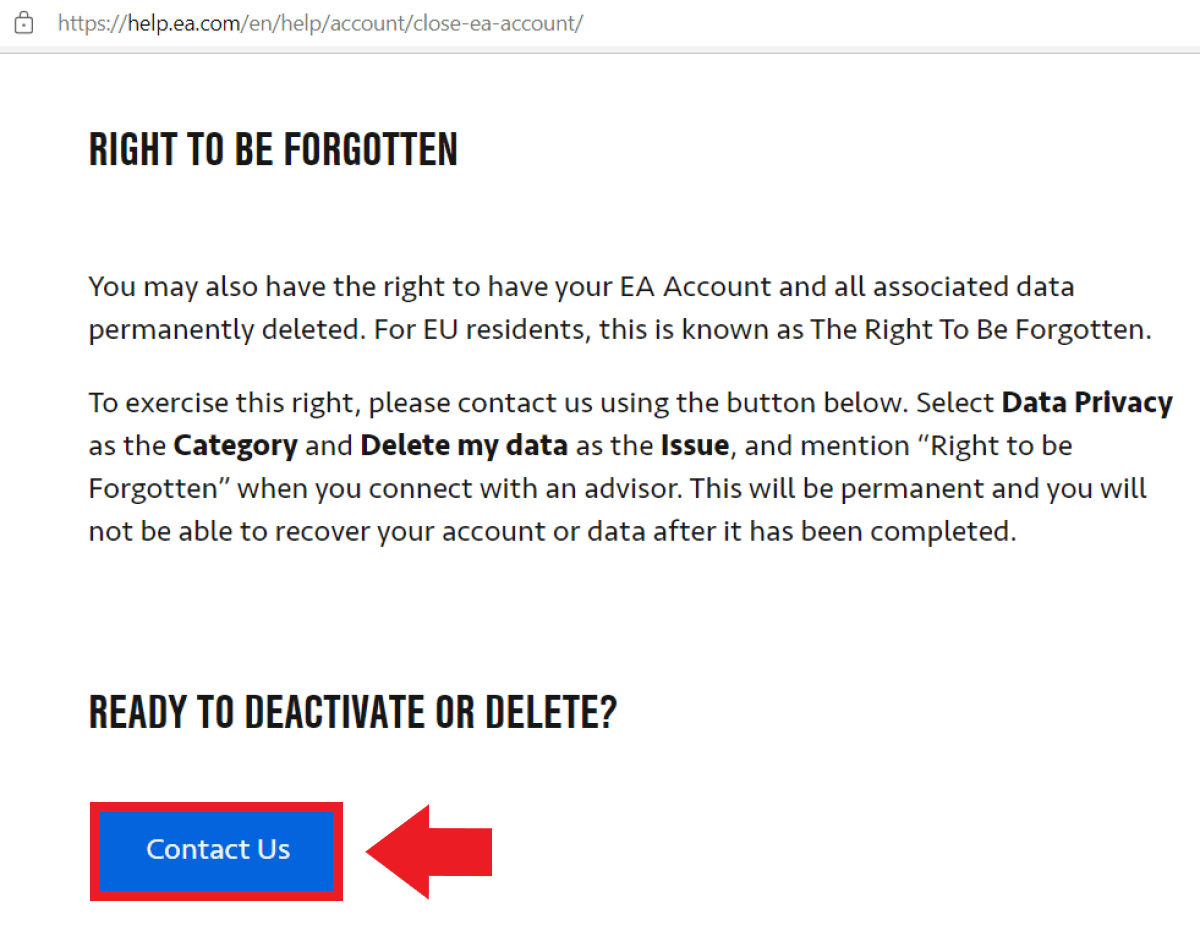
Deleting an EA account is a straightforward process that can be completed from various devices. Remember to follow the steps outlined in this guide, and make sure you have a valid reason for deleting your account. If you encounter any issues or have further questions, feel free to contact EA support for assistance.
Frequently Asked Questions (FAQs)
- What Happens When I Delete my EA Account?
When you delete your EA account, you will lose access to all games and progress associated with that account. This includes subscriptions, DLCs, expansions, purchases, and more.
- Can I Recover my Deleted EA Account?
In some cases, yes. If you haven’t deleted the relative data (such as game saves and progress), it may be possible to recover your account. However, this is not guaranteed, and you should contact EA support for assistance.
- How do I Delete my EA Account on a Console?
To delete your EA account on a PS4 or PS5 console, follow the steps outlined in this guide. Simply go to the EA website, log in to your account, and click on “Manage Account” to initiate the deletion process.
- What Should I do Before Deleting my EA Account?
Before deleting your EA account, make sure you have a valid reason for doing so and have backed up any important data, such as game saves and progress.
- Can I Delete my EA Account if I’m Not Using It?
Yes, you can delete your EA account even if you’re not actively using it. Simply follow the steps outlined in this guide to initiate the deletion process.
References
Note: This article is for informational purposes only, and EA support should be consulted if any issues arise during the account deletion process.


