
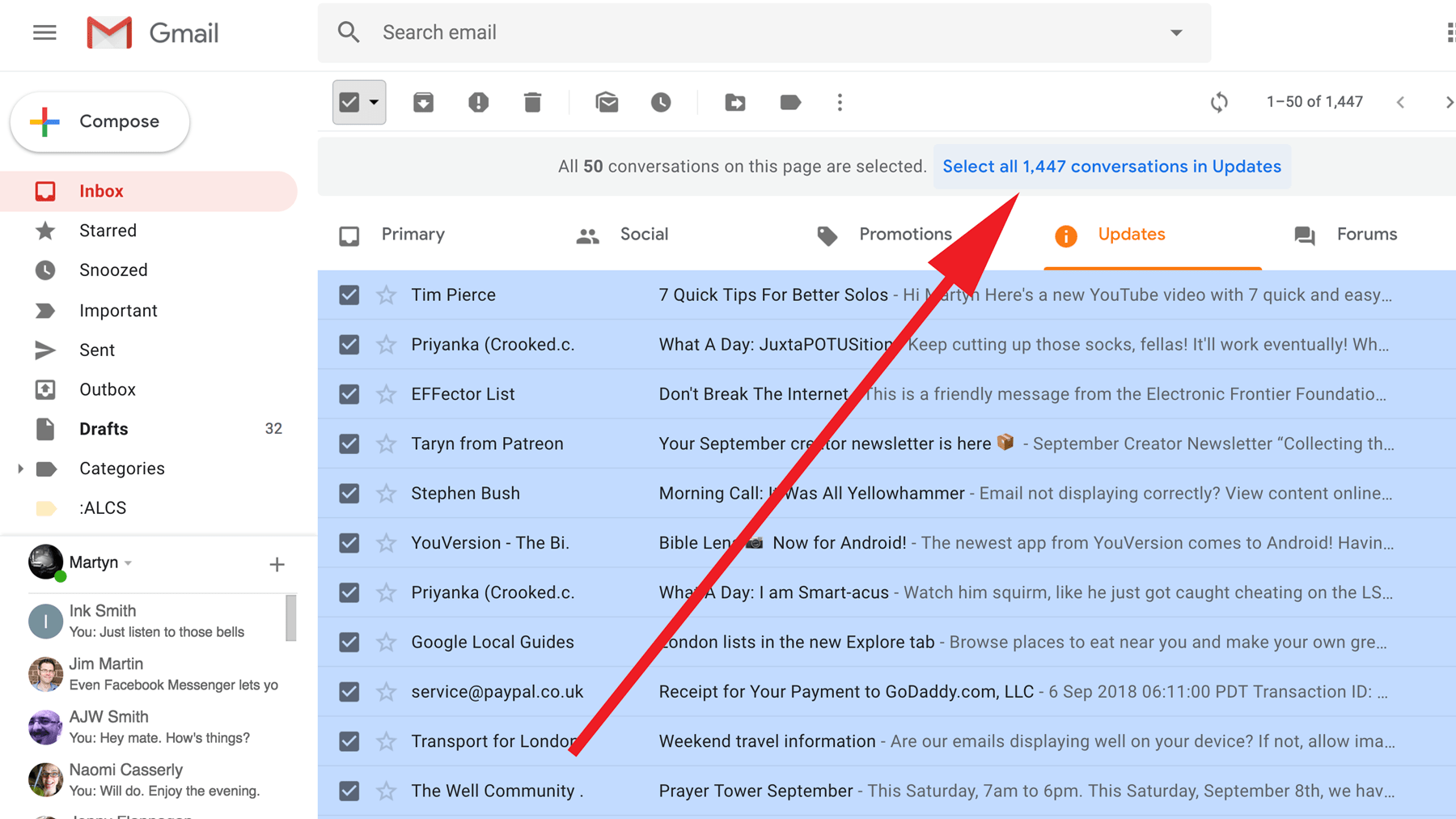
How to Delete Emails on Gmail: A Step-by-step Guide
Are you tired of cluttered email boxes? Do you want to delete unwanted emails without compromising your important messages? Look no further! This guide will walk you through the process of deleting emails on Gmail, whether you’re using the classic panel Web or the official app for Android and iOS/iPadOS.
Deleting Emails: A Quick Overview
Before we dive into the details, let’s take a quick look at how to delete emails on Gmail. You can either use the classic panel Web or the official app for Android and iOS/iPadOS. Both methods are easy to follow and allow you to filter your messages in various ways.
Deleting Emails on Gmail: PC Version
To start, log in to your Gmail account using a computer. Once you’re logged in, click on the gear icon at the top right corner of the page. From there, select “See all settings” and then scroll down to the “Filters and Blocked Addresses” section.
Step 1: Find The Conversation
To delete an email conversation, find it in your inbox or conversations list. Click on the conversation to open it, and then click on the three vertical dots at the top right corner of the conversation window.
Step 2: Select Delete This Message
From the dropdown menu, select “Delete this message.” You will be asked to confirm whether you want to delete the entire conversation or just a single message. If you choose to delete the entire conversation, all messages in that thread will be deleted. If you choose to delete a single message, only that specific message will be deleted.
Step 3: Confirm Deletion
Click on “Delete” to confirm that you want to delete the email(s). You will receive a confirmation message stating that the email has been moved to the Trash folder.
Using Filters to Find And Delete Emails
Gmail allows you to filter your emails using various criteria, such as sender, recipient, subject, and date. To find a specific email or conversation, use the search bar at the top of the page. You can also apply filters to refine your search results.
Deleting Emails on Gmail: App Version
If you prefer using the Gmail app on your Android or iOS/iPadOS device, follow these steps:
- Open the Gmail app and tap on the three horizontal lines at the top left corner.
- Tap on “See all settings” and then scroll down to the “Filters and Blocked Addresses” section.
- Find the conversation you want to delete and tap on it to open it.
- Tap on the menu icon (⋮) at the top right corner of the conversation window and select “Delete this message.”
- Confirm that you want to delete the email(s).
Deleting Spam Emails
To delete spam emails, follow these steps:
- Open your Gmail account and go to the Spam folder.
- Select the messages you want to delete and tap on the three vertical dots at the top right corner of the window.
- Tap on “Delete” to confirm that you want to delete the email(s).
Deleting Multiple Emails
To delete multiple emails, select the conversations or individual messages you want to delete and follow the steps outlined above.
Deleting Gmail Account
If you’re looking to delete your entire Gmail account, follow these steps:
- Go to the Google Account settings page.
- Scroll down to the “Account options” section.
- Select “Delete account.”
- Confirm that you want to delete your account by clicking on the “Delete account” button.
Important Note
Before deleting your Gmail account, make sure to export your data using Google Takeout. This will ensure that you have a backup of your emails and other Google services associated with your account.
Frequently Asked Questions (FAQs)
- How do I Delete an Email on Gmail?
To delete an email on Gmail, find the conversation or message you want to delete and follow the steps outlined above. - Can I Filter my Emails to Find Specific Messages?
Yes, Gmail allows you to filter your emails using various criteria such as sender, recipient, subject, and date. - How do I Delete Spam Emails on Gmail?
To delete spam emails, go to the Spam folder, select the messages you want to delete, and tap on the “Delete” button. - Can I Delete Multiple Emails at Once?
Yes, select the conversations or individual messages you want to delete and follow the steps outlined above. - How do I Delete my Gmail Account?
To delete your Gmail account, go to the Google Account settings page, scroll down to the “Account options” section, and select “Delete account.” - Will Deleting my Gmail Account Affect Other Google Services?
Yes, deleting your Gmail account will also delete associated services such as Google Drive. - Can I Recover Deleted Emails on Gmail?
No, once you’ve deleted an email, it cannot be recovered.
Conclusion
Deleting unwanted emails on Gmail is a straightforward process that can help keep your inbox clutter-free. Whether you’re using the classic panel Web or the official app for Android and iOS/iPadOS, following these steps will ensure that you can delete emails with ease. Remember to export your data before deleting your account to avoid losing important information.


