
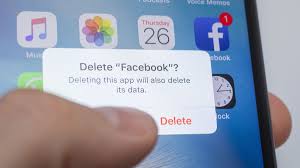
How to Delete a Business Facebook Account: A Step-by-step Guide
Are you tired of managing your business on Facebook but don’t know how to delete the account? You’re not alone! Many business owners find themselves in this situation, especially when they no longer need or want to use the platform for their business. In this article, we’ll guide you through the process of deleting a business Facebook account.
Why Delete a Business Facebook Account?
Before we dive into the steps, let’s briefly discuss why you might want to delete your business Facebook account. Perhaps you’ve decided to shift your marketing efforts to other platforms, or maybe you simply don’t have time to manage another social media presence. Whatever your reason, deleting the account will eliminate any remaining commitments and responsibilities.
Deleting a Business Facebook Account: The Process
Step 1: Access Your Business Manager Account
To delete your business Facebook account, you’ll need to access the Business Manager account first. If you haven’t already done so, follow these steps:
- Log in to your personal Facebook account.
- Click on the three horizontal lines (≡) at the top right corner of the page.
- Select “Businesses” from the drop-down menu.
- Choose the business account you want to delete.
Step 2: Access Your Business Settings
Once you’ve accessed your Business Manager account, follow these steps:
- Click on the three horizontal lines (≡) at the top right corner of the page.
- Select “Settings” from the drop-down menu.
- Choose the business settings option.
Step 3: Deactivate The Professional Mode
To deactivate the professional mode, follow these steps:
- Scroll down to the “Professional Mode” section.
- Click on the toggle button next to it.
- Select “Deactivate” from the drop-down menu.
Step 4: Confirm Account Closure
Confirm your decision by clicking “Close account” in the prompt that appears. You will be asked to confirm again. Once confirmed, you will no longer have access to your Business Manager account.
Important Considerations
Before deleting your business Facebook account, keep in mind:
- All advertising campaigns and associated content will be deleted.
- Any pending payments or invoices will be cleared.
- You may not be able to recover your account even after 24 hours.
Removing Professional Mode From a Profile: A Step-by-step Guide
If you’re looking to remove the professional mode from your personal profile, follow these steps:
Step 1: Access Your Profile
Click on your name at the top right corner of the page or tap on the miniature of your profile picture. Then click on “Profile.”
Step 2: Click on The Three Horizontal Lines
Tap on the three horizontal lines (≡) at the top right corner of the page.
Step 3: Select Settings And Privacy
Click on “Settings & privacy” from the drop-down menu.
Step 4: Scroll Down to Professional Mode
Scroll down to the “Professional mode” section.
Step 5: Click on Deactivate
Select “Deactivate” from the drop-down menu.
Step 6: Confirm Account Closure
Confirm your decision by clicking “Close account” in the prompt that appears. You will be asked to confirm again. Once confirmed, you will no longer have access to your profile.
Removing Professional Mode From a Profile on Mobile
To remove professional mode from a profile on mobile:
Step 1: Open Facebook App
Open the Facebook app and log in with your personal account credentials.
Step 2: Click on Your Name or Profile Picture
Click on your name at the top of the screen or tap on your profile picture.
Step 3: Tap Three Horizontal Lines
Tap on the three horizontal lines (≡) at the top right corner of the screen.
Step 4: Select Settings And Privacy
Select “Settings & privacy” from the drop-down menu.
Step 5: Scroll Down to Professional Mode
Scroll down to the “Professional mode” section.
Step 6: Click on Deactivate
Tap on the toggle button next to professional mode. Then select “Deactivate”.
Important Considerations
Before removing professional mode, keep in mind:
- All associated content and advertising campaigns will be deleted.
- Any pending payments or invoices will be cleared.
- You may not be able to recover your account even after 24 hours.
Step 7: Confirm Account Closure
Confirm your decision by clicking “Close account” in the prompt that appears. You will be asked to confirm again. Once confirmed, you will no longer have access to your profile.
Common Questions
- What Happens When I Delete my Business Facebook Account?
When you delete your business Facebook account, all associated content, advertising campaigns, and pending payments or invoices will be deleted. - Can I Recover my Account After 24 Hours?
No, once your account is deleted, it cannot be recovered even after 24 hours.
By following these steps, you can successfully delete a business Facebook account. Please note that deleting the account will eliminate any remaining commitments and responsibilities.
Conclusion
Deleting a business Facebook account or removing professional mode from a profile may seem daunting, but with this guide, you’ll be able to navigate through the process. Always consider your options before making any decisions.
This article has been created for educational purposes only.


