
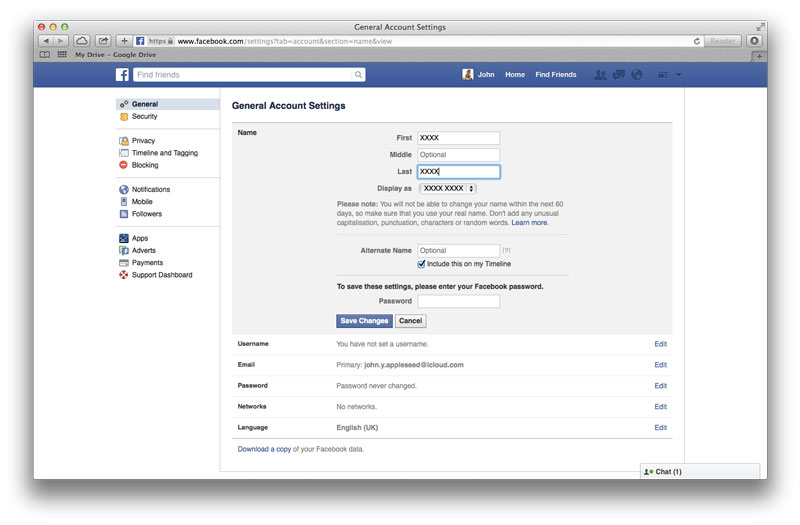
How to Erase Your Facebook Profile: A Step-by-step Guide
Are you tired of Facebook? Do you want to take a break from the social network, but don’t know how to erase your profile without losing all your data? Look no further! In this article, we’ll guide you through the process of erasing your Facebook profile, including temporary and permanent deletion options.
Why Erase Your Facebook Profile?
Before we dive into the step-by-step guide, let’s talk about why you might want to erase your Facebook profile. Maybe you’ve had enough of the algorithm-driven feed, or perhaps you’re concerned about data privacy issues. Whatever your reason, erasing your profile is a straightforward process that can be done from either your smartphone or computer.
Temporary Deletion: A Safety Net
If you’re not ready to commit to deleting your account permanently, temporary deletion might be the way to go. This feature allows you to deactivate your account for a certain period, giving you time to think about whether you want to come back to Facebook. To do this:
- Log in to your Facebook account from either your smartphone or computer.
- Click on the three dots at the top right corner of the screen and select “Settings.”
- From the drop-down menu, choose “Settings” again.
- Scroll down to the “Security” section and click on “Deactivate Account.”
- Enter your password and confirm that you want to deactivate your account.
Permanent Deletion: A Final Goodbye
If you’re sure you want to delete your Facebook profile permanently, follow these steps:
- Log in to your Facebook account from either your smartphone or computer.
- Click on the three dots at the top right corner of the screen and select “Settings.”
- From the drop-down menu, choose “Settings” again.
- Scroll down to the “Security” section and click on “Deactivate Account.”
- Select “Delete Account” from the options.
- Enter your password and confirm that you want to delete your account.
Erasing Facebook Profile From Smartphone or Tablet
If you want to erase your Facebook profile from your smartphone or tablet:
- Open the Facebook app and tap on the three horizontal lines at the top right corner of the screen.
- Select “Settings” from the drop-down menu.
- Scroll down to the “Account Settings” section and tap on “Deactivate Account.”
- Enter your password and confirm that you want to deactivate your account.
Erasing Facebook Profile From PC
If you want to erase your Facebook profile from your computer:
- Open a web browser and navigate to the official Facebook website.
- Click on the three dots at the top right corner of the screen and select “Settings.”
- From the drop-down menu, choose “Settings” again.
- Scroll down to the “Security” section and click on “Deactivate Account.”
- Select “Delete Account” from the options.
Erasing Facebook Profile of a Deceased Person
If you’ve lost someone close and want to erase their Facebook profile, follow these steps:
- Go to the official Facebook website.
- Click on the three dots at the top right corner of the screen and select “Help.”
- From the drop-down menu, choose “Report a problem” and select “Account Deactivation.”
- Fill out the form with the deceased person’s information.
- Upload the necessary documents to verify their death.
Erasing Facebook Profile Without Password
If you’ve forgotten your password or don’t have access to it:
- Go to the official Facebook website and click on “Forgot Account?”
- Enter your email address or phone number associated with your account.
- Follow the instructions to reset your password.
Erasing Duplicate Facebook Profiles
If you have duplicate Facebook profiles, follow these steps:
- Log in to one of the accounts using either your smartphone or computer.
- Click on the three dots at the top right corner of the screen and select “Settings.”
- From the drop-down menu, choose “Account Settings” and select “Merge Accounts.”
- Follow the instructions to merge the two profiles.
Conclusion
Erasing your Facebook profile is a straightforward process that can be done from either your smartphone or computer. Temporary deletion provides a safety net for those who want to take a break without losing all their data. Permanent deletion, on the other hand, gives you a fresh start free of social media clutter. Whatever your reason for deleting your account, we hope this guide has been helpful.
Faqs
- Q: How Long Does it Take to Delete my Facebook Profile?
A: The process typically takes a few minutes to complete. - Q: Can I Recover my Deleted Facebook Profile?
A: No, once you’ve permanently deleted your account, there’s no way to recover it. - Q: Will Deleting my Facebook Profile Delete All my Data?
A: Yes, deleting your Facebook profile will delete all your data and activity history. - Q: Can I Still Access my Facebook Messenger Account After Deleting my Facebook Profile?
A: No, deleting your Facebook profile will also delete your Facebook Messenger account. - Q: How do I Know if Someone Has Accessed my Deleted Facebook Profile?
A: Facebook will notify you via email or message if anyone tries to access your deleted profile. - Q: Can I Report a Deceased Person’s Facebook Profile For Deletion?
A: Yes, you can follow the steps outlined above to report and delete a deceased person’s Facebook profile. - Q: How do I Merge Two Duplicate Facebook Profiles?
A: Follow the steps outlined above to merge your duplicate profiles. - Q: Can I Still Use my Facebook Account if I’ve Temporarily Deleted It?
A: Yes, you can reactivate your account by logging back in and following the prompts.


