
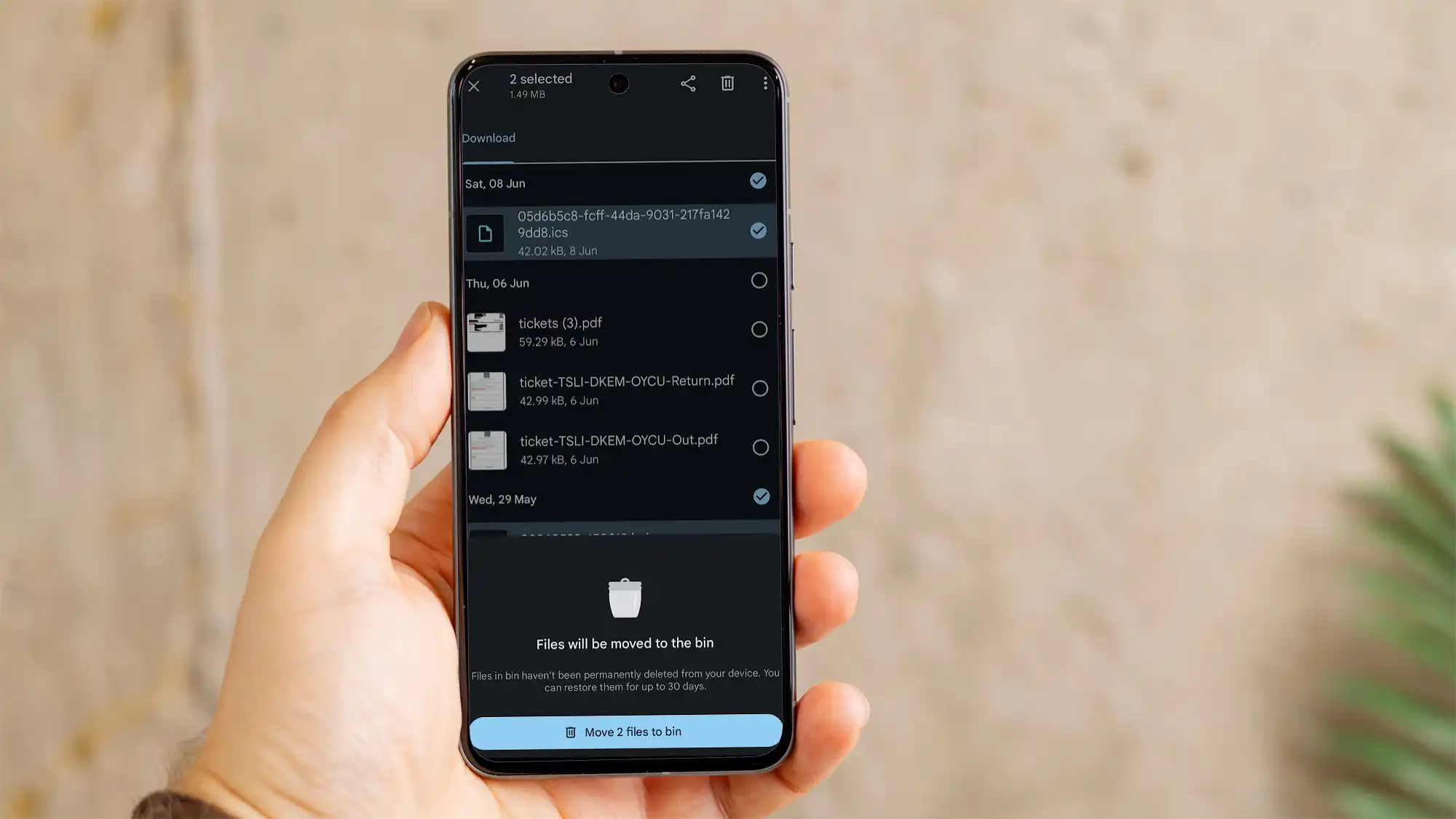
How to Delete Unnecessary Files on Your Mobile Device
Are you tired of running out of space on your mobile device? Do you find yourself constantly deleting files, photos, and videos just to free up some storage? Well, you’re not alone! In this article, we’ll show you how to delete unnecessary files on your mobile device, whether it’s an Android or iOS device.
The Problem of Storage Space
With the increasing demand for high-quality content, our mobile devices are storing more and more data. Photos, videos, apps, and even temporary files are taking up valuable space on our devices. This can lead to a slow-down in performance, making it difficult to access your favorite apps and features.
Why Deleting Unnecessary Files Matters
Deleting unnecessary files is essential for maintaining the health of your mobile device. It helps:
- Free up Storage Space: By deleting unused files, you’ll have more room to store new content, photos, and videos.
- Improve Performance: A clutter-free device means faster app loading times, smoother navigation, and better overall performance.
- Reduce Data Loss Risks: Deleting temporary files and duplicates reduces the risk of losing important data due to storage issues.
How to Delete Unnecessary Files on Android Devices
If you use an Android device, follow these steps:
Using The Google Files App
- Install The Google Files App: Download and install the Google Files app from the Play Store.
- Open The App: Launch the app and navigate to the “Memory” or “SD card” section, depending on your device’s storage setup.
- Select The Downloads Folder: Find the Downloads folder within the app and tap on it.
- Delete Unwanted Files: Select the files you want to delete and choose the “Delete” option.
Using The Phone’s Built-in File Manager
- Open The File Manager: Access your device’s built-in file manager by navigating to the Settings app, then selecting “Storage.”
- Select The Downloads Folder: Find the Downloads folder within the file manager.
- Delete Unwanted Files: Select the files you want to delete and choose the “Delete” option.
How to Delete Unnecessary Files on Ios Devices
If you use an iOS device, follow these steps:
Using The Photos App
- Open The Photos App: Launch the Photos app and navigate to the “Albums” tab.
- Select The Photos Tab: Find the Photos tab within the Albums section.
- Delete Unwanted Photos And Videos: Select the photos and videos you want to delete and choose the “Delete” option.
Using The Files App
- Open The Files App: Launch the Files app and navigate to the “On My iPhone” or “iCloud Drive” tab, depending on your storage setup.
- Select The Downloads Folder: Find the Downloads folder within the Files app.
- Delete Unwanted Files: Select the files you want to delete and choose the “Delete” option.
How to Delete Temporary Files (Cache) on Android Devices
Temporary files can take up a significant amount of storage space. To delete them:
- Reboot Your Device: Shut down your device, then turn it back on.
- Enter Recovery Mode: Press and hold the power button and volume-down button simultaneously to enter Recovery Mode.
- Highlight “Wipe Cache Partition”: Use the volume buttons to navigate to the “Wipe cache partition” option.
- Confirm Deletion: Select the “Yes” or “OK” option to confirm deletion.
How to Delete Temporary Files (Cache) on Ios Devices
Unfortunately, there’s no straightforward way to delete temporary files (cache) on iOS devices like you can on Android devices. However, you can try:
- Clearing Safari History: Open the Settings app and navigate to “Safari” > “Advanced” > “Data.”
- Deleting Browser Data: Select the “Show Develop menu in favorites bar” option.
- Refreshing The Page: Press and hold on the refresh button.
Additional Tips
To maintain your mobile device’s health, follow these additional tips:
- Regularly Clean up Storage Space: Set aside time each week to delete unnecessary files, photos, and videos.
- Use Cloud Services: Consider using cloud services like Google Photos or iCloud Drive to store and access your content.
- Monitor Your App Usage: Keep an eye on the apps you use most frequently and consider deleting those that no longer serve a purpose.
By following these steps and tips, you’ll be able to delete unnecessary files, free up storage space, and maintain the health of your mobile device.


