
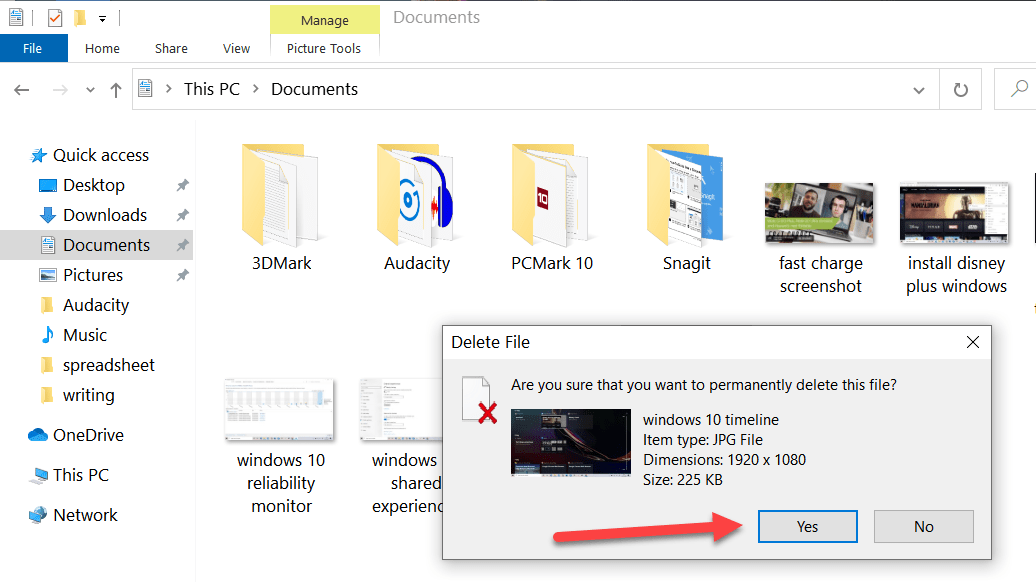
How to Erase Files Permanently From Your Computer
Are you looking for a way to delete files permanently from your computer? Look no further! In this article, we will guide you through the process of erasing files in a definitive manner using various software and methods.
What Happens When You Delete a File?
When you delete a file, it doesn’t actually disappear. Instead, the operating system marks the space on the hard drive as available for reuse. This means that the deleted file can still be recovered using specialized software or techniques.
Why Erase Files Permanently?
There are several reasons why you might want to erase files permanently from your computer. For example:
- You may have sensitive information stored on your computer that you don’t want others to access.
- You may be selling your computer and want to ensure that all personal data is erased.
- You may simply want to free up space on your hard drive by deleting unnecessary files.
Methods For Erasing Files Permanently
There are several methods you can use to erase files permanently from your computer. Here are a few:
Eraser
One popular method for erasing files permanently is using the Eraser software. This free, open-source program allows you to delete files securely and irretrievably.
To use Eraser, simply download and install it on your computer, then follow these steps:
- Launch Eraser and select the file or folder you want to erase.
- Click “Clean” to initiate the erasure process.
- Confirm that you want to erase the file by clicking “Yes.”
Recovery of Windows
If you’re running a version of Windows, you can use the built-in Recovery feature to erase all files on your computer.
To do this:
- Press the Windows key + X and select Settings.
- Click Update & Security > Recovery.
- Select “Reset this PC” and choose which files and settings you want to keep or remove.
- Confirm that you want to reset your PC by clicking “Reset.”
Other Solutions
In addition to Eraser and Recovery of Windows, there are several other software solutions available for erasing files permanently.
Some popular options include:
- Wipefile: A free program that allows you to delete files securely using multiple methods.
- Moo0 File Shredder: A free tool that securely deletes files by overwriting them multiple times.
- Eraserdrop: A simple, user-friendly software solution for erasing files permanently.
How to Erase Files From a Mac
If you’re running a Mac, the process of erasing files permanently is slightly different. Here’s how:
- Use the CleanMyMac X application to securely delete files.
- If you want to erase all files on your Mac, use the Recovery feature of macOS.
Recovery of Macos
To erase all files on your Mac using Recovery:
- Restart your Mac and immediately hold down the power button until it shuts off.
- Turn your Mac back on and enter recovery mode by holding down the Command (⌘) + R keys.
- Select “Disk Utility” from the Utilities menu.
- Select the disk you want to erase and click “Erase.”
- Confirm that you want to erase the disk.
Conclusion
Erasing files permanently can be a complex process, but it’s essential for protecting your sensitive information and ensuring that your computer is secure before selling or disposing of it. By using software solutions like Eraser, Recovery of Windows, and CleanMyMac X, you can securely delete files and free up space on your hard drive.
Faqs
- Q: How do I Erase Files Permanently From my Computer?
A: You can use software solutions like Eraser, Recovery of Windows, or CleanMyMac X to erase files securely. - Q: Why do I Need to Erase Files Permanently?
A: To protect your sensitive information and ensure that your computer is secure before selling or disposing of it. - Q: Can I Still Recover Deleted Files?
A: Yes, but only if you haven’t erased the files using a secure method like Eraser. - Q: How do I Erase All Files on my Mac?
A: Use the Recovery feature of macOS to erase all files on your Mac. - Q: Can I Use These Methods For Deleting Files From my Smartphone or Tablet?
A: No, as most smartphones and tablets store data on non-removable storage that can’t be erased using traditional methods.
I hope this article has helped you understand the importance of erasing files permanently and provided you with the necessary tools to do so. If you have any further questions, feel free to ask!


