
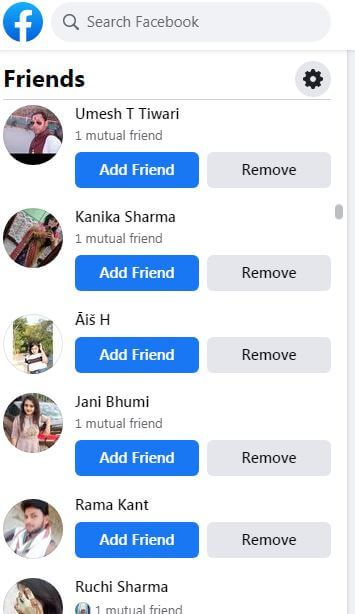
How to Delete Facebook Friend Suggestions: A Step-by-step Guide
Are you tired of receiving friend suggestions on Facebook that you don’t want? Do you wish there was a way to delete them permanently? Well, you’re in luck! In this article, we’ll show you how to delete Facebook friend suggestions from your account, whether you’re using a smartphone or computer.
Understanding Facebook Friend Suggestions
Before we dive into the step-by-step guide, it’s essential to understand how Facebook generates friend suggestions. The social media giant uses an algorithm that considers various factors such as shared friends, mutual interests, and profile information to suggest potential friends. While this feature can be helpful in finding new connections, it can also become annoying if you’re not interested.
Deleting Friend Suggestions From a Smartphone
If you want to delete friend suggestions on Facebook using your smartphone, follow these steps:
- Open The Facebook App: Tap on the Facebook icon on your home screen or find it in your apps list.
- Access Your Profile: Tap on the hamburger menu (three horizontal lines) and select “Profile” from the drop-down list.
- Go to Settings: Scroll down and tap on “Settings.”
- Select “Account Settings”: From the settings menu, choose “Account Settings.”
- Delete Friend Suggestions: Tap on the “Friend Suggestions” section and toggle off the switch next to “Suggest Friends.”
That’s it! You should no longer receive friend suggestions from Facebook.
Deleting Friend Suggestions From a Computer
If you prefer using your computer to delete friend suggestions, follow these steps:
- Log in to Your Facebook Account: Go to facebook.Com and enter your login credentials.
- Access Your Profile: Click on the “Profile” tab at the top right corner of the screen.
- Go to Settings: Click on the three dots next to your name and select “Settings.”
- Select “Account Settings”: From the account settings menu, choose “Account Settings.”
- Delete Friend Suggestions: Scroll down to the “Friend Suggestions” section and toggle off the switch next to “Suggest Friends.”
How to Avoid Showing Up in Friend Suggestion Lists
If you want to avoid showing up in friend suggestion lists altogether, follow these steps:
- Access Your Profile Settings: Go to your Facebook profile settings.
- Select “Privacy”: Choose “Privacy” from the menu.
- Adjust Your Settings: Adjust your settings so that only friends can see your profile.
Additional Tips And Tricks
Here are some additional tips and tricks to help you manage friend suggestions on Facebook:
- Remove Unwanted Profiles: If you receive friend requests from people you don’t know or don’t want to connect with, remove them.
- Adjust Your Settings: Regularly adjust your privacy settings to ensure that only friends can see your profile.
Conclusion
Deleting friend suggestions on Facebook is a straightforward process. By following the steps outlined in this article, you’ll be able to delete friend suggestions from both your smartphone and computer. Remember to also adjust your privacy settings to avoid showing up in friend suggestion lists. Happy deleting!
FAQs
- Q: Can I Delete Friend Suggestions Permanently?
A: Yes, you can delete friend suggestions permanently by following the steps outlined in this article. - Q: How do I Remove Unwanted Profiles From my Friends List?
A: To remove unwanted profiles, access your Facebook profile settings and select “Remove Friend” from the menu. - Q: Can I Adjust my Privacy Settings to Avoid Showing up in Friend Suggestion Lists?
A: Yes, you can adjust your privacy settings to avoid showing up in friend suggestion lists by following the steps outlined in this article. - Q: How do I Contact Facebook Support For Help With Deleting Friend Suggestions?
A: To contact Facebook support, click on the “Help” tab at the top right corner of the screen and select “Contact Support.” - Q: Can I Delete Friend Suggestions From my Account if I’m Using a Different Device?
A: Yes, you can delete friend suggestions from your account even if you’re using a different device. - Q: How do I Know if Someone Has Sent me a Friend Request That I’ve Already Accepted?
A: To find out if someone has sent you a friend request that you’ve already accepted, access your Facebook profile settings and select “Friend Requests.” - Q: Can I Delete All of my Friends at Once?
A: No, you cannot delete all of your friends at once. If you want to remove friends from your list, you’ll need to do so individually. - Q: Will Deleting Friend Suggestions Affect my Facebook Friends Count?
A: Deleting friend suggestions will not affect your Facebook friends count.


