
How to Delete Google Account on Android: A Step-by-step Guide
Are you looking to delete a Google account on your Android device? Perhaps you’ve acquired a second-hand smartphone from a friend, but you want to erase their account without uninstalling all the apps or resetting the phone’s settings. Well, you’re in luck! Deleting a Google account on Android is a straightforward process that can be completed in just 30 seconds.
Deleting a Google Account: A Simple Process
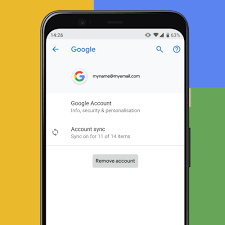
To delete a Google account on your Android device, follow these steps:
- Access The Settings Menu: First, access the settings menu on your Android device. You can do this by finding the icon of the gear (Settings) on your home screen or in the drawer.
- Select Account Options: Scroll through the menu until you find the option for “Account” (or “Users and accounts”). Tap on this option to proceed.
- Choose Google Account: Select the Google account that you want to delete from your device. You may have multiple Google accounts associated with your device, so make sure to choose the correct one.
- Confirm Deletion: Once you’ve selected the Google account, confirm your intention to delete it by tapping on the “Delete” button.
That’s it! Your Google account will be deleted, and all associated data will be removed from your Android device.
Adding a New Google Account
If you want to add a new Google account to your Android device, follow these steps:
- Access The Settings Menu: Access the settings menu on your Android device.
- Select Account Options: Select the option for “Account” (or “Users and accounts”).
- Choose Google Account: Choose the Google account that you want to add to your device.
- Create a New Account: If you don’t have an existing Google account, tap on the option to create a new one.
Erasing a Google Account After Restore
If you’ve restored your Android device and it’s asking for access to a previous Google account, don’t worry! You can delete this account by following the same steps as above. If you’re unable to access the password, try recovering it using the instructions provided in this tutorial.
Why Erase a Google Account?
There are several reasons why you might want to erase a Google account from your Android device:
- Security: Deleting a Google account can help protect your device’s security by removing any potential vulnerabilities.
- Space: If you’re running low on storage space, deleting a Google account can free up some much-needed space on your device.
- Personalization: Erasing a Google account can also give you the opportunity to personalize your device with your own settings and preferences.
Frequently Asked Questions
Q: Can I delete multiple Google accounts at once?
A: No, each Google account must be deleted separately.
Q: Will deleting a Google account affect my other Google services (e.G., Gmail, YouTube)?
A: Yes, deleting a Google account will also erase all associated data from these services.
Q: Can I recover my deleted Google account?
A: Unfortunately, no. Deleting a Google account is an irreversible process.
Q: How long does it take to delete a Google account?
A: The process typically takes around 30 seconds to complete.
Q: Will deleting a Google account affect my device’s performance?
A: No, deleting a Google account will not impact your device’s performance.
Q: Can I add multiple Google accounts to my device?
A: Yes, you can add multiple Google accounts to your device for convenience and organization purposes.
Conclusion
Deleting a Google account on Android is a straightforward process that can be completed in just 30 seconds. By following these simple steps, you can erase any unwanted Google accounts from your device and start fresh with a new one. Remember to always take necessary precautions when deleting data from your device to avoid any potential security risks.
Additional Resources
For more information on erasing a Google account or adding multiple accounts to your device, check out the following resources:
- Google Account Support: Visit the official Google support website for detailed instructions and troubleshooting guides.
- Android Device Guide: Consult your Android device’s user manual or online guide for specific instructions on managing Google accounts.


