
How to Erase Google’s Search History on Your PC
Are you concerned about your online privacy? Do you want to know how to delete your search history on Google? Look no further! In this article, we will guide you through the simple steps of erasing your Google search history on various browsers, including Chrome, Edge, and Firefox.
Why Erase Google’s Search History?
Before we dive into the step-by-step instructions, let’s briefly discuss why you might want to erase your Google search history. With every search query you make on Google, a record is created that can be accessed by the search engine itself. This means that if someone were to access your Google account, they could see all of your previous searches, which may raise some privacy concerns.
Erasing Search History: A Step-by-step Guide
Erasing Search History Online
Firstly, let’s discuss how to erase your search history online through Google’s settings. This method will delete your search history from the server and prevent future suggestions based on your previous searches.
- Log in to your Google account.
- Click on the “Data & personalization” tab.
- Scroll down to the “Activity” section.
- Click on the “Web & App Activity” button.
- Select the “Manage activity” option.
- Choose the time range for which you want to delete your search history (e.G., Last hour, last day).
- Click on the “Delete” button.
That’s it! Your search history will be deleted from Google’s servers, and you won’t receive any more suggestions based on your previous searches.
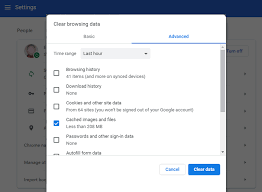
Erasing Local Search History on Chrome
Now, let’s move on to erasing local search history on Chrome. This method will delete your search history stored locally on your device, but it won’t affect your online search history.
- Open Google Chrome.
- Click on the three vertical dots in the top-right corner.
- Select “Settings” from the drop-down menu.
- Scroll down to the “Advanced” section.
- Click on the “Clear browsing data” button.
- Choose the time range for which you want to delete your search history (e.G., Last hour, last day).
- Select the types of data you want to delete (e.G., Browsing history, cookies).
- Click on the “Clear” button.
Erasing Local Search History on Edge
If you’re using Microsoft Edge as your browser, here’s how to erase local search history:
- Open Microsoft Edge.
- Click on the three horizontal dots in the top-right corner.
- Select “Settings” from the drop-down menu.
- Scroll down to the “Clear browsing data” section.
- Click on the “Clear” button.
- Choose the types of data you want to delete (e.G., Browsing history, cookies).
- Select the time range for which you want to delete your search history.
Erasing Local Search History on Firefox
Lastly, let’s discuss how to erase local search history on Firefox:
- Open Mozilla Firefox.
- Click on the three horizontal lines in the top-right corner.
- Select “Options” from the drop-down menu.
- Scroll down to the “Privacy & Security” section.
- Click on the “Settings” button next to “Clear your recent history”.
- Choose the types of data you want to delete (e.G., Browsing history, cookies).
- Select the time range for which you want to delete your search history.
Tips And Tricks
- If you want to prevent future suggestions based on your previous searches, make sure to check the “Don’t show suggestions” box when deleting your search history online.
- If you’re concerned about your local search history, consider using a VPN or incognito mode to browse privately.
- To prevent Google from storing any personal data related to your search queries, make sure to disable location services and cookie tracking.
Conclusion
Erasing your Google search history on your PC is a simple process that can be completed in just a few steps. Whether you’re concerned about online privacy or simply want to keep your browsing history private, this guide has provided you with the necessary information to delete your search history on various browsers.
Frequently Asked Questions (FAQs)
- Q: Will Erasing my Google Search History Also Delete my Account Data?
A: No, deleting your search history will not affect any other data stored in your Google account. - Q: Can I Restore Deleted Search History if I Change my Mind?
A: Unfortunately, no, you cannot restore deleted search history. - Q: Will Erasing Local Search History on Chrome Prevent Future Suggestions Based on my Previous Searches?
A: Yes, deleting local search history on Chrome will prevent future suggestions based on your previous searches.
Hope this helps!


