
Deleting Google Photos Account: A Step-by-step Guide
Are you tired of using Google Photos but don’t know how to delete your account? Look no further! In this article, we’ll guide you through the process of deleting your Google Photos account on various devices, including smartphones, tablets, and computers.
Why Delete Your Google Photos Account?
Before we dive into the steps, let’s quickly discuss why you might want to delete your Google Photos account. Perhaps you’re concerned about data storage and don’t want your photos taking up space on Google’s servers. Maybe you’ve switched to a different photo management app or service. Whatever your reason, deleting your Google Photos account is a straightforward process that we’ll walk you through.
Deleting Google Photos Account From Smartphone And Tablet (Android)
To delete your Google Photos account from an Android device:
- Open the Google Photos app on your smartphone or tablet.
- Tap on your profile picture in the top-right corner of the screen.
- Select “Settings” from the menu that appears.
- Scroll down to the “Backup and Sync” section.
- Toggle off the switch next to “Backup & Sync.”
- Confirm that you want to discontinue syncing by tapping “Stop.”
Deleting Google Photos Account From Smartphone And Tablet (iOS/iPadOS)
To delete your Google Photos account from an iOS or iPadOS device:
- Open the Google Photos app on your smartphone or tablet.
- Tap on your profile picture in the top-right corner of the screen.
- Select “Settings” from the menu that appears.
- Scroll down to the “Backup and Sync” section.
- Toggle off the switch next to “Backup & Sync.”
- Confirm that you want to discontinue syncing by tapping “Stop.”
Deleting Google Photos Account From Computer
To delete your Google Photos account from a computer:
- Open Google Drive on your computer.
- Click on the gear icon in the top-right corner of the screen.
- Select “Preferences” from the menu that appears.
- Scroll down to the “Account” section.
- Click on the “Disconnect account” button.
Deleting Google Photos Account Completely
If you want to delete your Google Photos account completely, including all associated data, follow these steps:
- Back up your photos and data using Google Takeout (more on this below).
- Delete your Google Photos account from each device.
- Delete your entire Google account, which includes all associated services like Gmail, Google Drive, and more.
Creating a Backup of Your Data
Before deleting your Google Photos account, it’s essential to create a backup of your data using Google Takeout. This service allows you to export your photos, contacts, and other data in various formats.
To use Google Takeout:
- Go to the Google Takeout website.
- Sign in with your Google account credentials.
- Select the data you want to export (e.G., Google Photos, Gmail, etc.).
- Choose a file format and storage location for your exported data.
- Click “Create Export” to start the backup process.
Deleting Your Google Account
Once you’ve created a backup of your data using Google Takeout, it’s time to delete your entire Google account. This will remove all associated services, including Gmail, Google Drive, and more.
To delete your Google account:
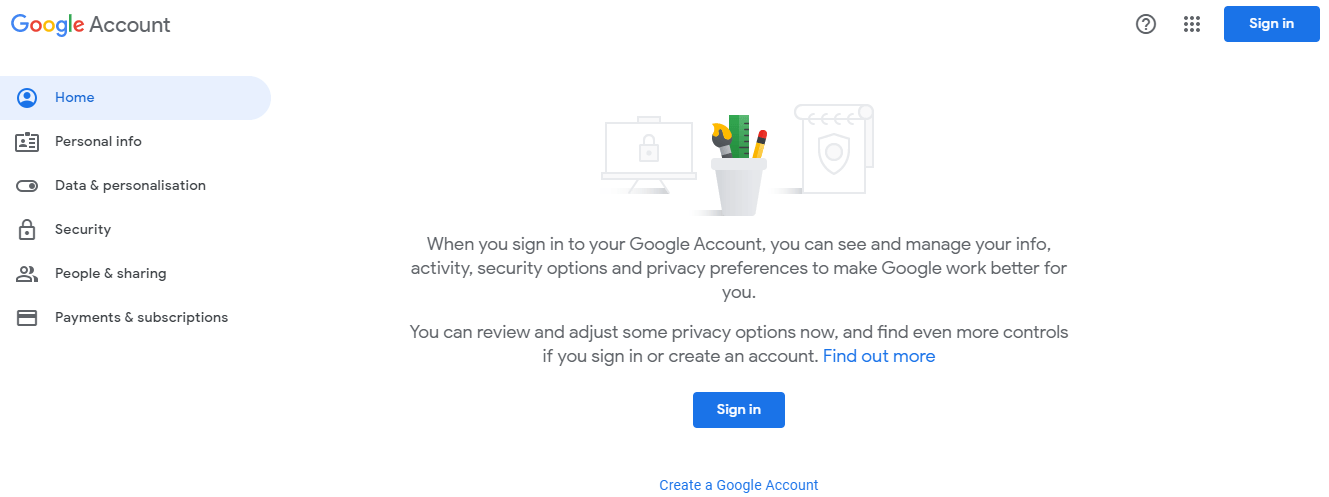
- Go to the Google Account settings page.
- Scroll down to the “Data & personalization” section.
- Click on “Delete your account or services.”
- Confirm that you want to delete your account by clicking “Delete.”
Conclusion
Deleting your Google Photos account is a straightforward process that can be completed on various devices, including smartphones, tablets, and computers. Remember to create a backup of your data using Google Takeout before deleting your account, and don’t forget to delete your entire Google account for a complete removal.
Frequently Asked Questions (FAQs)
- Q: Will Deleting my Google Photos Account Delete All my Photos?
A: No, deleting your Google Photos account will not delete all your photos. You can still access them on other devices or services. - Q: Can I Recover my Deleted Google Photos Account?
A: In some cases, you may be able to recover your deleted Google Photos account by contacting Google support. - Q: Will Deleting my Google Account Affect Other Google Services?
A: Yes, deleting your Google account will remove all associated services, including Gmail, Google Drive, and more. - Q: How do I Back up my Data Before Deleting my Google Account?
A: Use Google Takeout to create a backup of your data before deleting your account. - Q: Can I Delete my Google Photos Account Without Deleting my Entire Google Account?
A: No, you cannot delete your Google Photos account without deleting your entire Google account. - Q: How Long Does it Take to Create a Backup of my Data Using Google Takeout?
A: The time it takes to create a backup of your data using Google Takeout depends on the amount of data being exported. - Q: What Happens if I Try to Delete my Google Account While Still Signed In?
A: You won’t be able to delete your Google account while still signed in. Sign out and then proceed with deleting your account.
Additional Tips
- Make sure you’ve created a backup of your data using Google Takeout before deleting your account.
- Consider deleting all associated services, including Gmail, Google Drive, and more, for a complete removal.
- If you’re unsure about any step in the process, contact Google support for assistance.


