
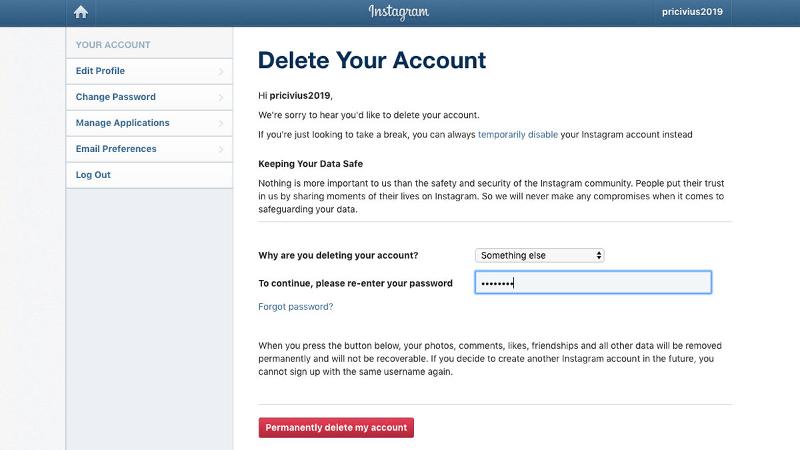
How to Delete Your Instagram Profile: A Step-by-step Guide
Are you tired of using Instagram or want to take a break from the social media platform? Deleting your Instagram profile is a straightforward process that can be completed in just a few steps. In this guide, we will walk you through the process of deleting your Instagram profile, including how to delete it without a password and how to disactivate it temporarily.
Why Delete Your Instagram Profile?
Before we dive into the process of deletion, let’s take a look at why you might want to delete your Instagram profile. Perhaps you’re tired of the platform’s emphasis on physical appearance, or maybe you’re concerned about data privacy and security. Whatever your reason, deleting your Instagram profile is a simple way to take back control over your online presence.
How to Delete Your Instagram Profile: A Step-by-step Guide
Method 1: Deleting Your Instagram Profile Using The App
If you’re using the Instagram app on your smartphone, here’s how to delete your profile:
- Open the Instagram app and go to your profile page.
- Tap on the three horizontal lines (☰) in the top-right corner of the screen.
- Select “Settings” from the menu that appears.
- Scroll down and select “Account” from the list of options.
- Tap on “Delete Account” at the bottom of the page.
- Enter your password to confirm that you want to delete your account.
- Choose a reason for deleting your account from the dropdown menu.
- Tap on “Delete Account” again to complete the process.
Method 2: Deleting Your Instagram Profile Using The Web Version
If you’re using the web version of Instagram, here’s how to delete your profile:
- Open Instagram in your web browser and log in to your account.
- Click on the three horizontal lines (☰) in the top-right corner of the screen.
- Select “Settings” from the menu that appears.
- Scroll down and select “Account” from the list of options.
- Click on “Delete Account” at the bottom of the page.
- Enter your password to confirm that you want to delete your account.
- Choose a reason for deleting your account from the dropdown menu.
- Click on “Delete Account” again to complete the process.
Method 3: Deleting Your Instagram Profile Without a Password
If you’ve forgotten your password or can’t access it, don’t worry! You can still delete your Instagram profile without a password:
- Go to the Instagram login page and click on “Forgot Password”.
- Follow the instructions to reset your password.
- Once you have reset your password, go back to the deletion process outlined above.
Method 4: Disactivating Your Instagram Profile Temporarily
If you don’t want to delete your account entirely, but rather take a break from it, you can disactivate your profile temporarily:
- Follow the same steps as above, but instead of deleting your account, select “Deactivation” instead.
- Enter your password to confirm that you want to deactivate your account.
- Choose a reason for deactivating your account from the dropdown menu.
- Tap on “Deactivate Account” again to complete the process.
What Happens When You Delete Your Instagram Profile?
When you delete your Instagram profile, all of your data, including photos and comments, will be deleted forever. However, if you disactivate your account temporarily, it will remain in a suspended state for 30 days, after which it will be permanently deleted.
Conclusion
Deleting your Instagram profile is a straightforward process that can be completed in just a few steps. Whether you’re tired of the platform’s emphasis on physical appearance or concerned about data privacy and security, deleting your Instagram profile is a simple way to take back control over your online presence. Remember to create a backup of your data before proceeding with deletion!
Faqs
Q: What happens when I delete my Instagram profile?
A: When you delete your Instagram profile, all of your data, including photos and comments, will be deleted forever.
Q: Can I disactivate my Instagram profile temporarily instead of deleting it?
A: Yes, you can disactivate your Instagram profile temporarily by following the same steps as above, but selecting “Deactivation” instead of deletion.
Q: What happens when I disactivate my Instagram profile temporarily?
A: When you disactivate your Instagram profile temporarily, it will remain in a suspended state for 30 days, after which it will be permanently deleted.
Q: How do I delete my Instagram profile without a password?
A: If you’ve forgotten your password or can’t access it, don’t worry! You can still delete your Instagram profile without a password by following the steps outlined above to reset your password first.
Q: What should I do before deleting my Instagram profile?
A: Before deleting your Instagram profile, make sure to create a backup of your data to ensure that you don’t lose any important content!
Q: Can I reactivate my Instagram profile if I disactivate it temporarily?
A: Yes, you can reactivate your Instagram profile by logging back in with the same account information.
Q: What happens when I delete my Instagram profile and then try to log back in?
A: If you delete your Instagram profile and then try to log back in, you will not be able to access your account anymore.


