
How to Delete Password From Mac: A Step-by-step Guide
Are you tired of typing your password every time you log in to your Mac? Do you want to know how to delete the password from your Mac? Look no further! In this article, we will guide you through the process of deleting the password from your Mac using various methods.
Why Delete Password From Mac?
Deleting the password from your Mac can be beneficial in several ways. It allows you to bypass typing your password every time you log in, making it more convenient and faster. However, please note that deleting the password also compromises the security of your Mac. We will discuss this further in the article.
Method 1: Using Login Automatic
The first method to delete the password from your Mac is by using the login automatic feature. Here’s how:
- Click on the System Preferences icon on the Dock.
- Select Users & Groups from the list of options.
- Choose the user account for which you want to enable login automatic.
- Click on the box next to Login Options and select Turn On Automatic Login.
- Type your password in the field provided and click on Unlock.
- If you have FileVault enabled, it will ask you to create a recovery key. This is a good security measure that allows you to reset your password if you forget it.
Method 2: Using Touch ID
If you have an Apple device with Face ID or Touch ID, you can use this feature to log in to your Mac without typing a password. Here’s how:
- Go to System Preferences and select Security & Privacy.
- Click on the General tab and select Allow my Apple Watch to unlock this Mac.
- Make sure that your Apple Watch is updated to watchOS 6 or later.
Method 3: Using Apple Watch
If you have an Apple Watch, you can use it to log in to your Mac without typing a password. Here’s how:
- Go to System Preferences and select Security & Privacy.
- Click on the General tab and select Allow my Apple Watch to unlock this Mac.
- Make sure that your Apple Watch is updated to watchOS 6 or later.
Method 4: Resetting Password Using Another Account
If you have another account with administrator privileges, you can use it to reset the password of the main account. Here’s how:
- Log in to the secondary account.
- Go to System Preferences and select Users & Groups.
- Select the user account for which you want to reset the password.
- Click on the Reset Password button.
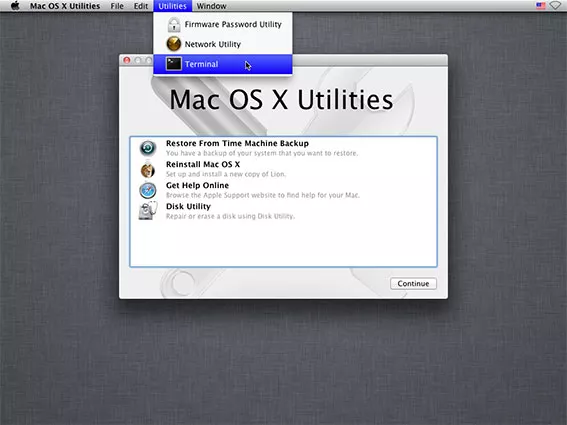
Method 5: Using Filevault
If you have FileVault enabled, you can use this feature to reset your password. Here’s how:
- Turn off your Mac and turn it back on while holding down the power button.
- Release the power button when you hear the boot chime for the second time.
- Follow the prompts to select your language and country or region.
Method 6: Using Recovery Key
If you have a recovery key, you can use this to reset your password. Here’s how:
- Turn off your Mac and turn it back on while holding down the power button.
- Release the power button when you hear the boot chime for the second time.
- Follow the prompts to select your language and country or region.
Conclusion
Deleting the password from your Mac can be beneficial in several ways, but please note that it compromises the security of your device. We have provided six different methods to delete the password from your Mac, including using login automatic, Touch ID, Apple Watch, resetting password using another account, using FileVault, and using a recovery key.
Faqs
Here are some frequently asked questions related to deleting passwords from Mac:
- Q: How do I Enable Login Automatic on my Mac?
A: To enable login automatic on your Mac, go to System Preferences and select Users & Groups. Choose the user account for which you want to enable login automatic and click on the box next to Login Options. - Q: Can I Use Touch ID to Log in to my Mac?
A: Yes, if you have an Apple device with Face ID or Touch ID, you can use this feature to log in to your Mac without typing a password. - Q: How do I Reset The Password of my Main Account Using Another Account?
A: If you have another account with administrator privileges, you can use it to reset the password of the main account by logging in to the secondary account and going to System Preferences and selecting Users & Groups. - Q: Can I Use Filevault to Reset my Password?
A: Yes, if you have FileVault enabled, you can use this feature to reset your password. - Q: How do I Create a Recovery Key For my Mac?
A: To create a recovery key for your Mac, go to System Preferences and select Security & Privacy. Click on the General tab and select Allow my Apple Watch to unlock this Mac.
References


