
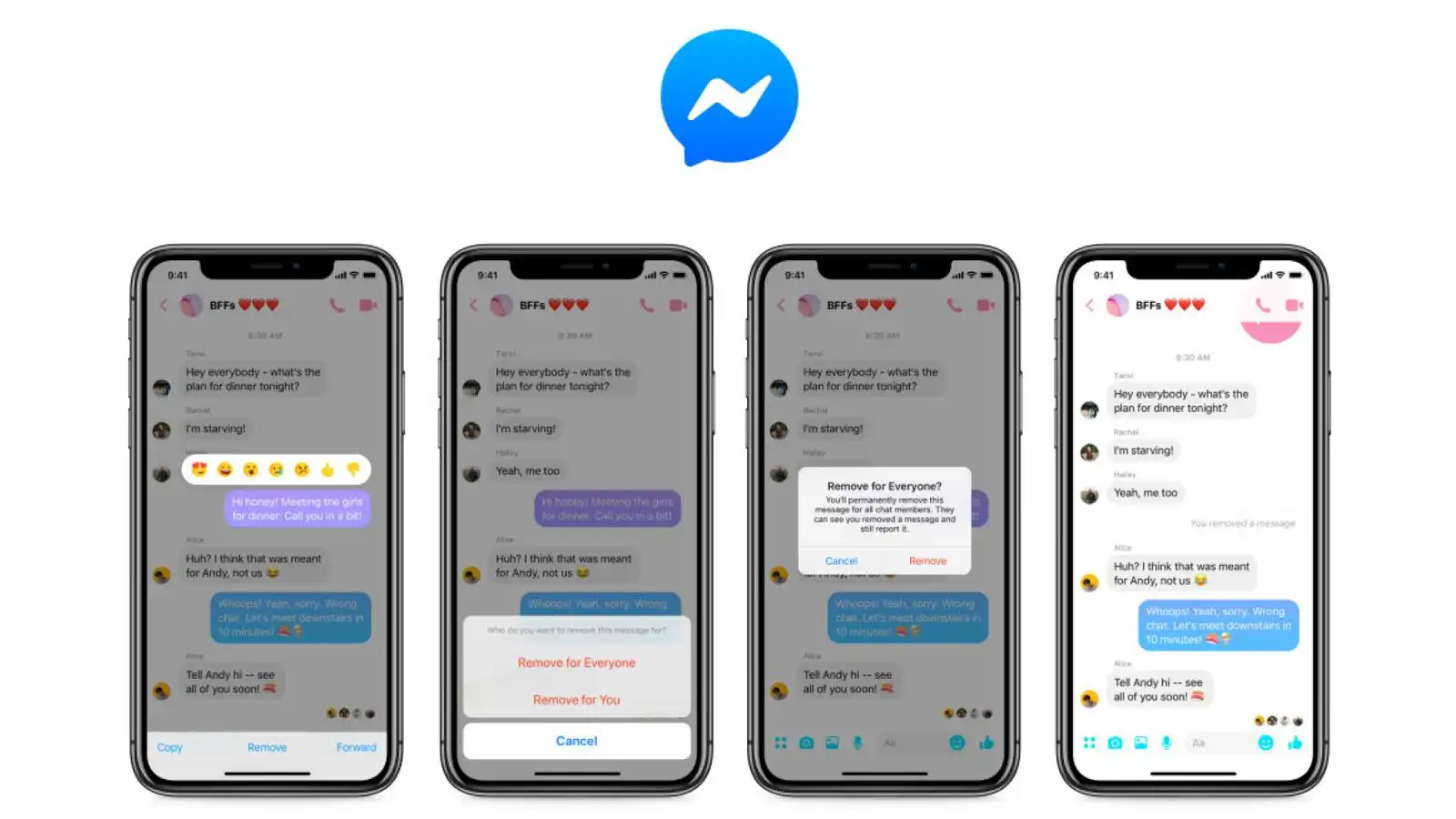
How to Erase Messages on Messenger: A Step-by-step Guide
Are you tired of cluttered conversations and unwanted messages on Messenger? Do you want to delete specific messages or entire chats without affecting others? Look no further! In this article, we’ll walk you through the process of erasing messages on Messenger, covering various scenarios and devices.
Understanding Messenger’s Message Eraser Feature
Before we dive into the steps, it’s essential to understand how Messenger’s message eraser feature works. This feature allows users to delete specific messages or entire chats without affecting others. However, keep in mind that this feature is not available for all types of conversations, and its functionality might vary depending on your device and operating system.
Deleting Messages on Messenger (Android)
To delete messages on Messenger using an Android device:
- Open the Messenger app.
- Navigate to the conversation containing the unwanted message.
- Tap on the message you want to delete.
- Hold the message for a few seconds until the “Stir up” option appears.
- Choose the “Stir up” option.
- Select “Stir up for me” or “Cancel forward.”
- Confirm your intention by tapping “Delete.”
Deleting Messages on Messenger (iOS)
To delete messages on Messenger using an iOS device:
- Open the Messenger app.
- Navigate to the conversation containing the unwanted message.
- Tap on the message you want to delete.
- Hold the message for a few seconds until the “Stir up” option appears.
- Choose the “Stir up” option.
- Select “Stir up for me” or “Cancel forward.”
- Confirm your intention by tapping “Delete.”
Deleting Messages on Messenger (Web)
To delete messages on Messenger using a web browser:
- Log in to your Messenger account.
- Navigate to the conversation containing the unwanted message.
- Hover over the message you want to delete and click on the three dots that appear.
- Select “Stir up” from the menu.
- Choose “Stir up for me” or “Cancel forward.”
- Confirm your intention by clicking “Delete.”
Deleting Entire Conversations on Messenger
To delete an entire conversation on Messenger:
- Open the Messenger app.
- Navigate to the conversation you want to delete.
- Long press on the conversation title until the menu appears.
- Select “Delete conversation” from the menu.
- Confirm your intention by tapping “Delete.”
Filing Conversations on Messenger
To file a conversation on Messenger:
- Open the Messenger app.
- Navigate to the conversation you want to file.
- Long press on the conversation title until the menu appears.
- Select “File” from the menu.
- Confirm your intention by tapping “File.”
Using Messenger’s Message Eraser Feature
To use Messenger’s message eraser feature:
- Open the Messenger app.
- Navigate to the conversation containing the unwanted message.
- Tap on the message you want to delete.
- Hold the message for a few seconds until the “Stir up” option appears.
- Choose the “Stir up” option.
- Select “Stir up for me” or “Cancel forward.”
- Confirm your intention by tapping “Delete.”
Important Notes And Limitations
- The message eraser feature may not work in all scenarios, especially if the conversation has been shared with others.
- Deleting messages will only remove them from your device and account; others who have seen or received the messages may still have access to them.
- Messenger’s message eraser feature is subject to change, and its functionality might vary depending on updates and patches.
Conclusion
Deleting messages on Messenger can be a straightforward process, but it requires attention to detail and understanding of the app’s features. By following these steps and guidelines, you can keep your conversations tidy and avoid unwanted messages. Remember to always confirm your intentions before deleting messages or entire conversations.
Frequently Asked Questions (FAQs)
- Q: Can I Delete a Message on Messenger if It’s Been Shared With Others?
A: Unfortunately, no. Deleting a message will only remove it from your device and account; others who have seen or received the message may still have access to it. - Q: Will Deleting a Message Affect my Friends’ Conversations?
A: No, deleting a message will not affect other users’ conversations or messages. - Q: Can I Use Messenger’s Message Eraser Feature on Multiple Devices?
A: Yes, you can delete messages using the Messenger app on your smartphone, tablet, or web browser. - Q: Will I be Able to Recover Deleted Messages on Messenger?
A: No, once you delete a message, it will be permanently removed from your account and device. - Q: Can I Use Messenger’s Message Eraser Feature on Older Versions of The App?
A: Possibly, but this may depend on your device’s operating system and app version. It’s recommended to update your app to the latest version for optimal functionality. - Q: Will Deleting a Conversation Affect my Friend List or Relationships?
A: No, deleting a conversation will not affect your friendships or relationships with others. - Q: Can I Use Messenger’s Message Eraser Feature on Other Social Media Platforms?
A: Unfortunately, no. This feature is exclusive to the Messenger app and may not be available on other social media platforms.
Bonus Tip: To avoid cluttered conversations, consider filing messages or entire chats instead of deleting them. Filing will allow you to keep a record of the conversation while keeping it hidden from your main chat list.


